Find tools, switch category and search
Switch what you’re working on
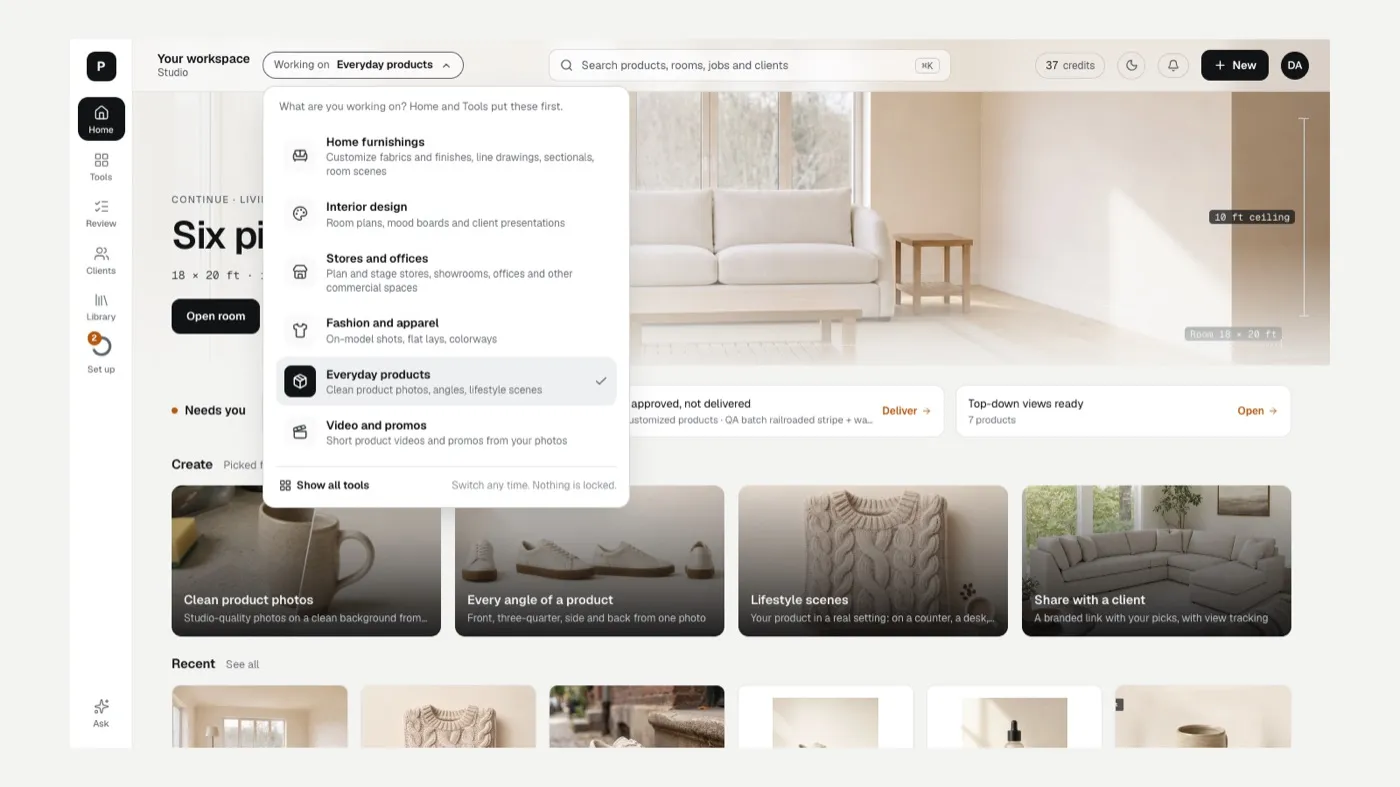
Section titled “Switch what you’re working on”- Click the Working on chip in the top bar, next to your workspace name.
- Pick a category: Home furnishings, Interior design, Stores and offices, Fashion and apparel, Everyday products, or Video and promos.
Home and Tools reorder right away. Switching is safe: nothing is locked, and your work stays where it is. Choose Show all tools at the bottom of the menu to see everything at once.
Use the Tools page
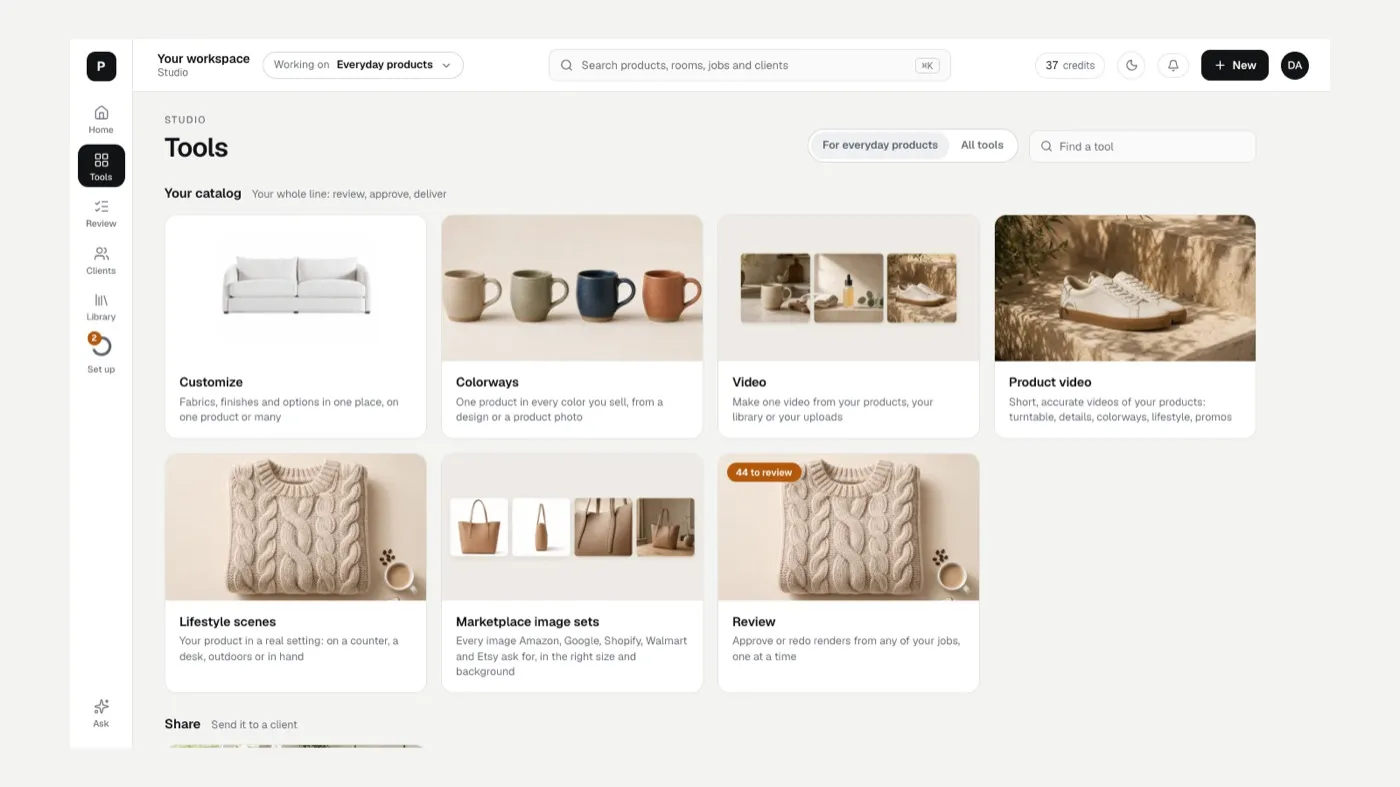
Section titled “Use the Tools page”Click Tools on the left rail. The page has two views:
- For your category shows the tools that fit what you’re working on, plus anything being built for it under Coming soon.
- All tools shows every tool.
Tools are grouped:
- Your catalog: Customize, Colorways, Video, Product video, Lifestyle scenes, Marketplace image sets, Photos from drawings and Review.
- Design: Rooms and Product Design.
- Share: Clients and Visualizer Apps.
- Legacy: the original single tools (Modify Fabrics, Modify Finishes, Line Drawings, Studio Shots, Room Scenes). They still work, but Customize and Rooms now cover them in one place.
Type in Find a tool to filter the cards. A badge such as 12 to review on a card means work in that tool is waiting on you.
Start anything with New
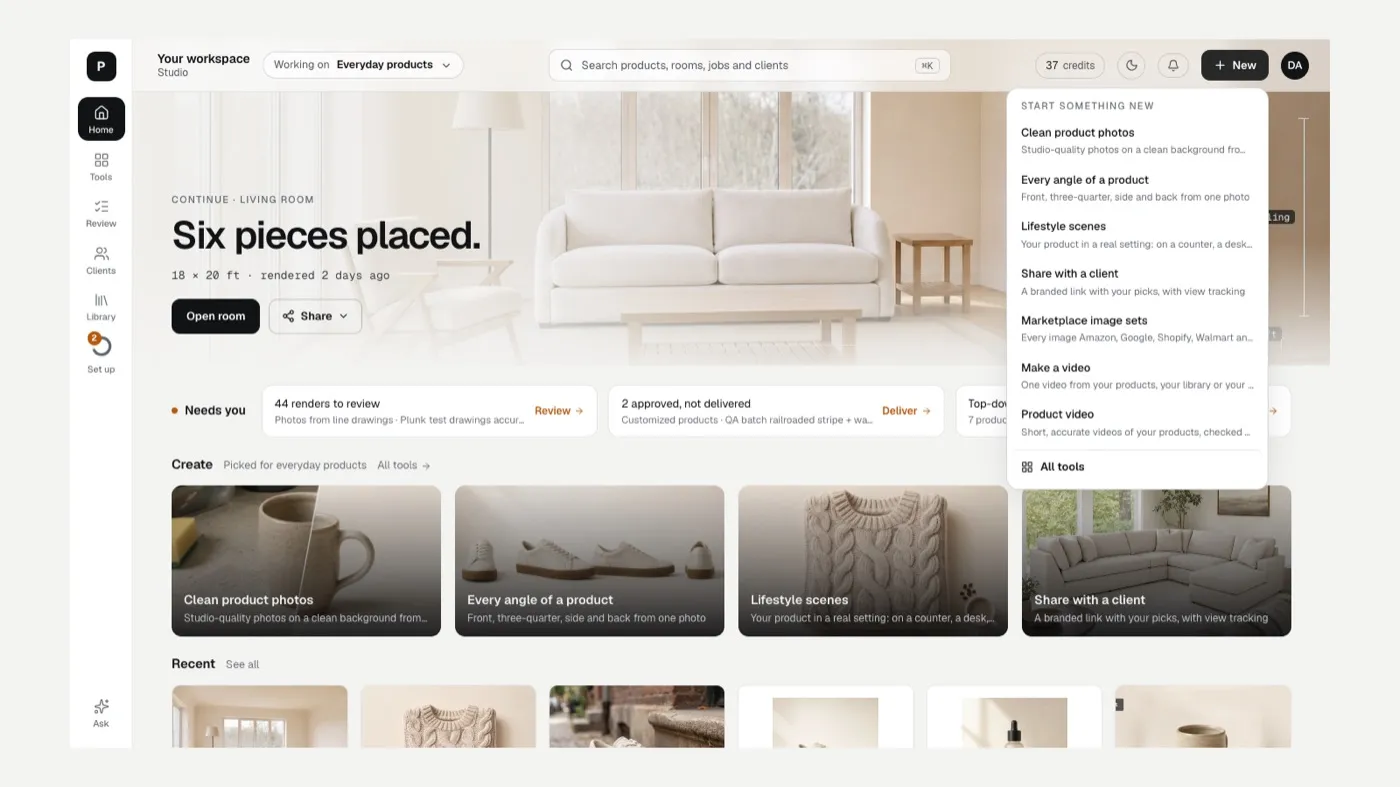
Section titled “Start anything with New”- Click + New in the top bar.
- Pick a tool from the Start something new menu. Rooms appears as New room: draw it, or start from a floor plan, a photo or a template.
- Choose All tools at the bottom if what you want isn’t listed.
Search
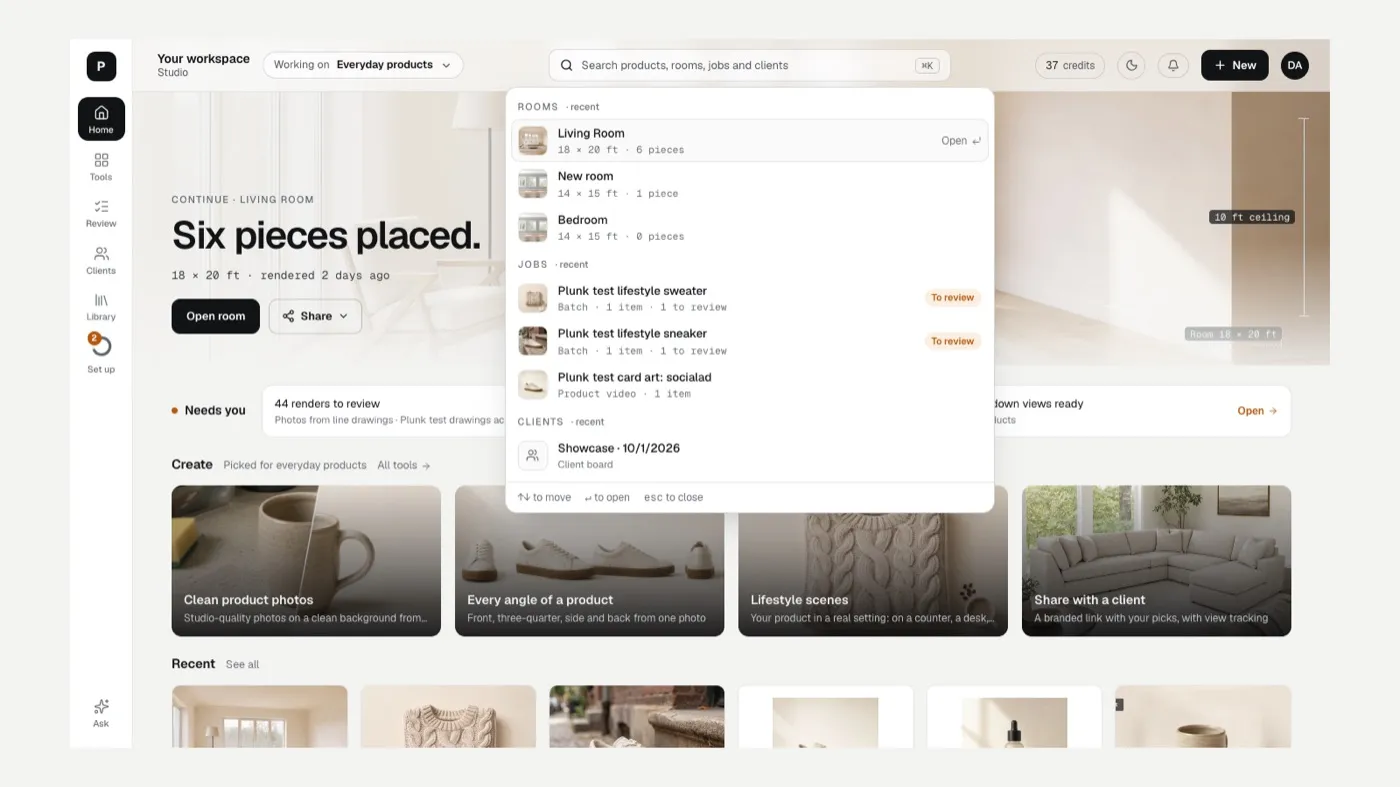
Section titled “Search”- Press ⌘K (Ctrl K on Windows) or click the search box in the top bar.
- Type part of a product name, room, job or client. With nothing typed, you see your recent rooms, jobs and clients.
- Use ↑ and ↓ to move and Enter to open. Esc closes search.
Results are grouped into Rooms, Products, Jobs, Clients and Tools.
Related
Section titled “Related”Was this helpful?
Still stuck? Contact support and include the job or page you were on.