Turn line drawings into product photos
Before you start
Section titled “Before you start”- Line drawings (PNG, JPG or WebP, or one ZIP of them), each named by SKU, for example
1299-23LF.png. Studio finds the product from the SKU and the series from the part before the dash. - Your products in Studio, so drawings can be matched.
- Each photo is about 13 credits, and each extra try per photo uses credits too.
- Photos from drawings is built for home furnishings and fashion (tech flats). For other categories it shows as Coming soon.
- Open Photos from drawings from Tools.
- Pick a door:
- One drawing: a finished photo of one piece in a few minutes. Click Start with one drawing.
- Many drawings: a whole series or collection. Click Start a batch.
- Add drawings. Drop drawings or a ZIP, or paste links.
- Match to products. Each drawing shows Matched by SKU, Check this, No product or Describe piece. Fix any that need you, including which side the arm is on.
- Pieces and style (batches). Describe each piece type once, not every SKU: seats, back cushions, arms, the other end, and anything it must never have. Choose where the look comes from: Each series’ house style, A library’s swatches or The product photo. For fashion, pick Ghost mannequin, Flat lay or Dress form.
- Make photos. Set the Name, Photo shape (Square, Wide or Tall), Tries per photo and any notes for every photo, then click Make the photo or Make photos.
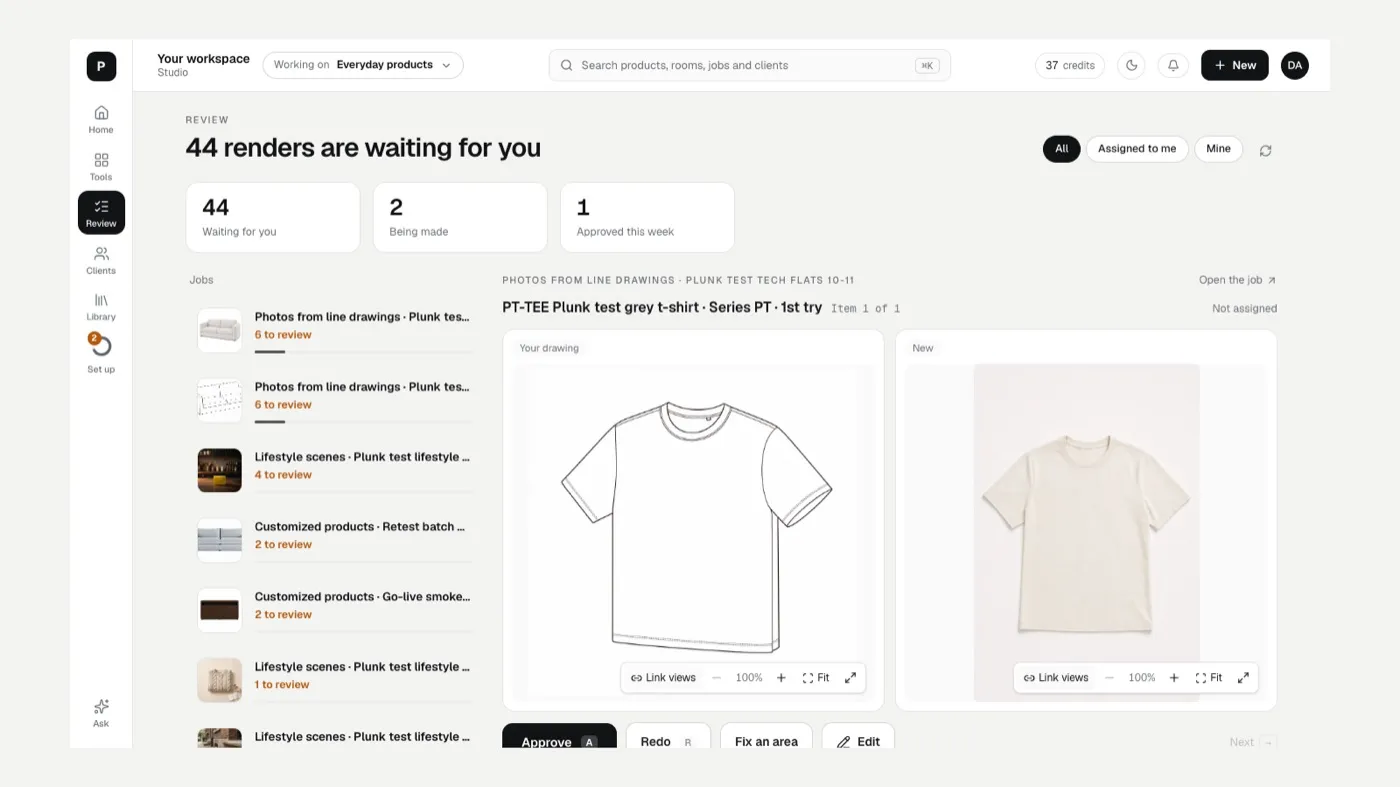
- Review them. Open the job in Review. When you approve a photo you can also Make every angle, Save to the product as an extra photo, or Use as house style for that series.
House style
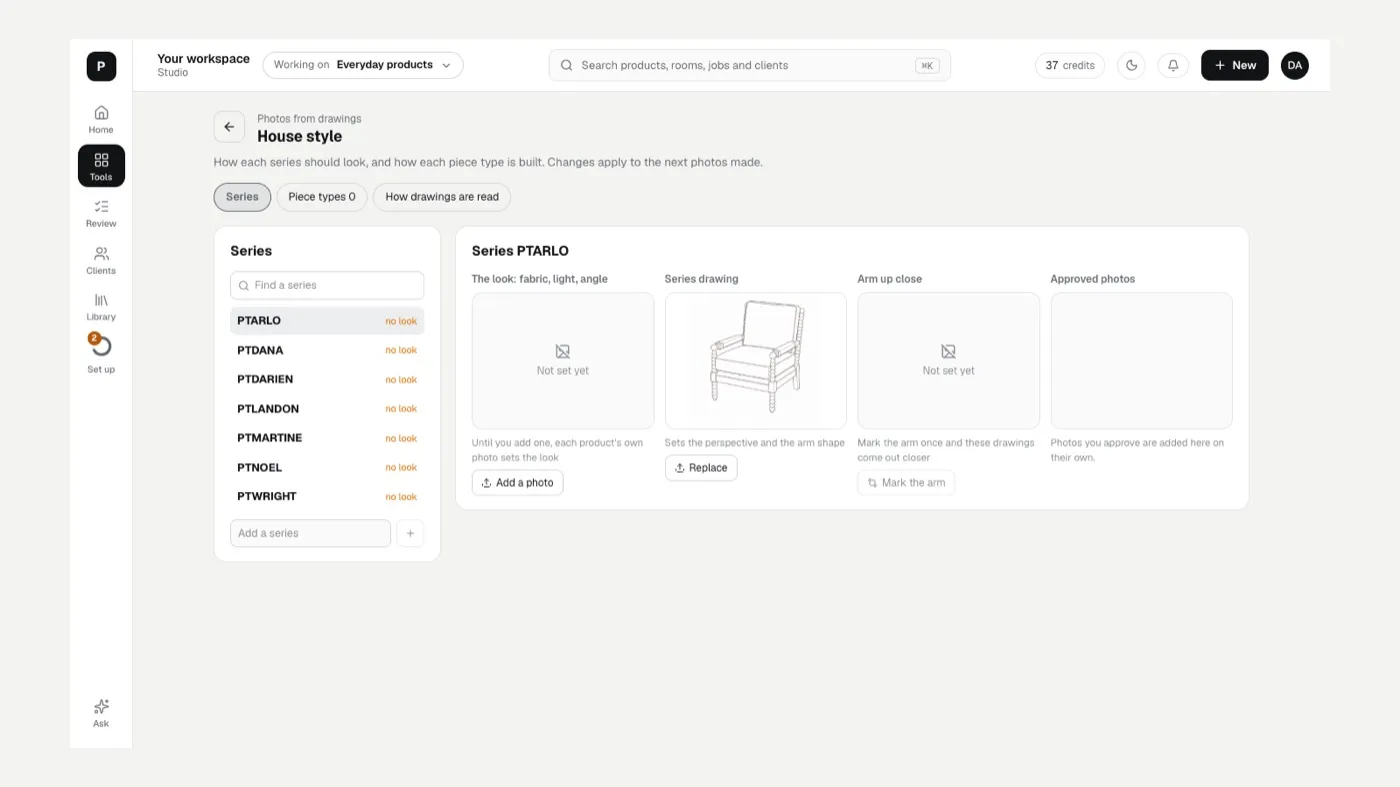
Section titled “House style”Open house style to set the look for each series: the fabric, light and angle, the series drawing, an arm close-up (Mark the arm), and approved photos that guide future runs. The Piece types tab holds your piece descriptions, and How drawings are read sets where piece types come from (the code after the dash, the product title, or not used) and how photos are named.
If something looks off
Section titled “If something looks off”In Review, tell Studio What’s wrong? with one tap: Wrong side, Has a chaise, Something sticks out, Wrong cushion count, Arm doesn’t match or Came back as a drawing. Then:
- Fix the piece type description once, so every piece of that type comes out right.
- Add an arm close-up to the series’ house style when arms keep drifting.
- See The result doesn’t match my product.
Related
Section titled “Related”Was this helpful?
Still stuck? Contact support and include the job or page you were on.