Find everything in your Library
Before you start
Section titled “Before you start”- Browsing the Library is free.
- To fill Products, connect your catalog (see below) or install Studio from Shopify.
What’s where
Section titled “What’s where”| Section | What you’ll find |
|---|---|
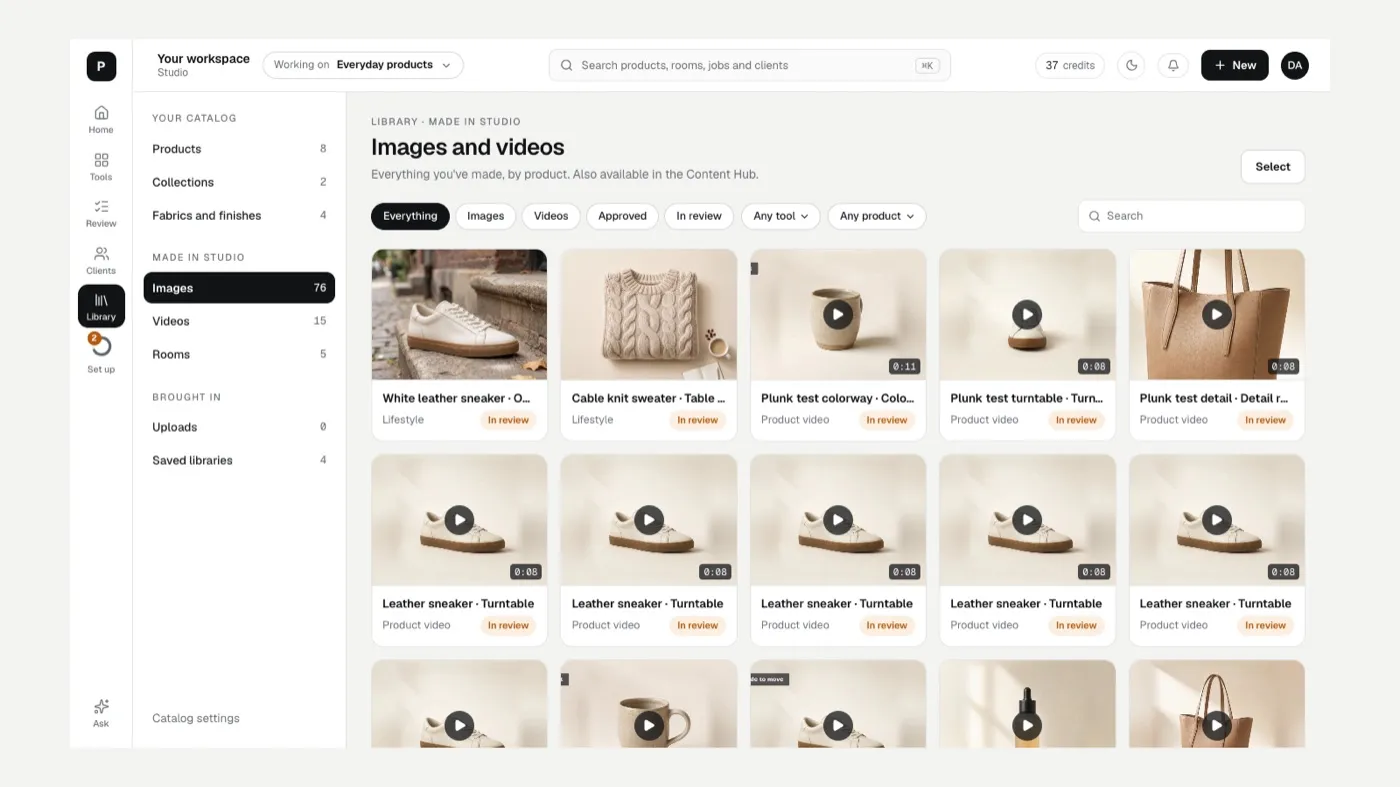
| Products | Your catalog, searchable by product, SKU or tag, with Product sizes |
| Collections | Products grouped by type |
| Fabrics and finishes | Swatch libraries used by Customize and Colorways |
| Images and Videos | Everything made in Studio. Filter by Show: everything, images, videos, approved or in review |
| Rooms | Opens your rooms in Rooms |
| Uploads | Pictures you uploaded |
| Saved libraries | Saved image and swatch libraries |
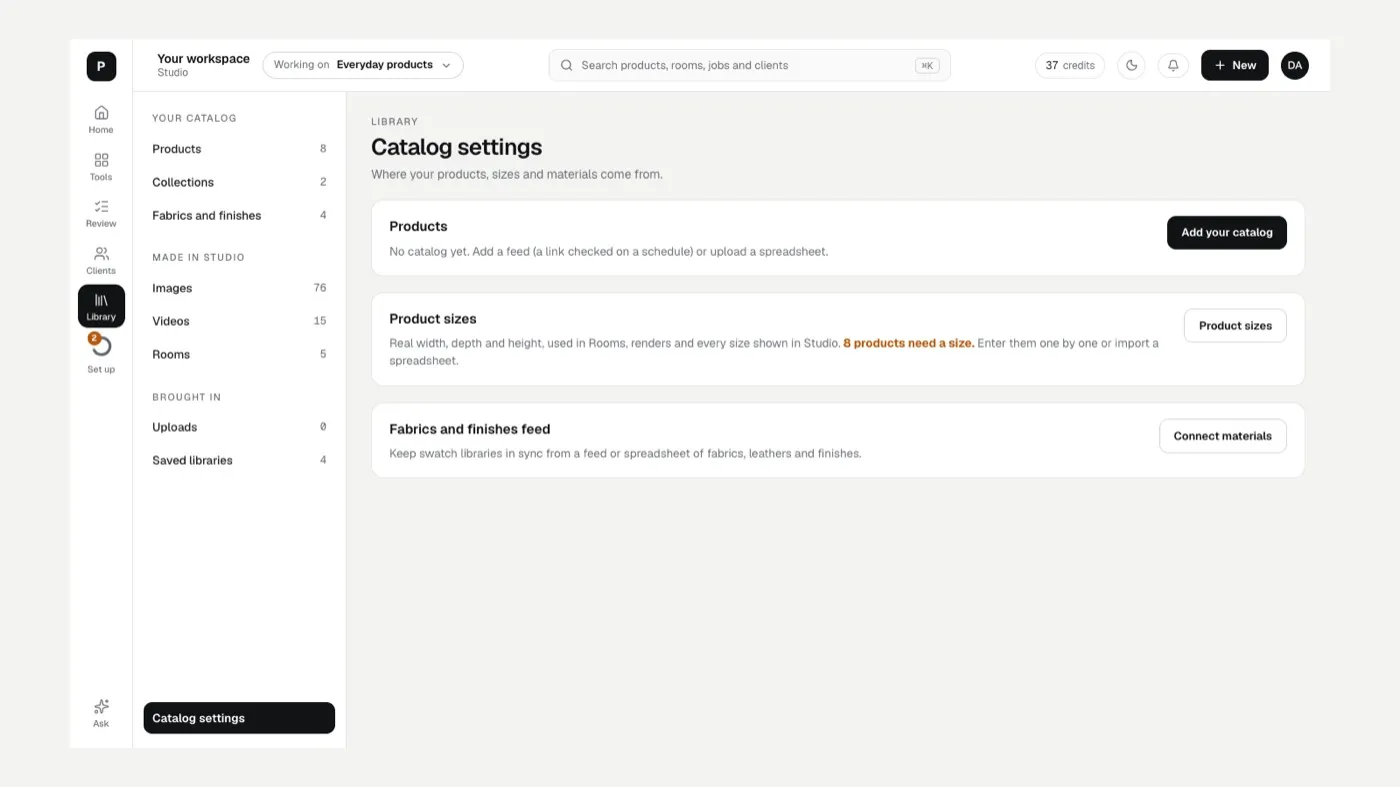
| Catalog settings | Where your products, sizes and materials come from |
Open, edit or send a picture
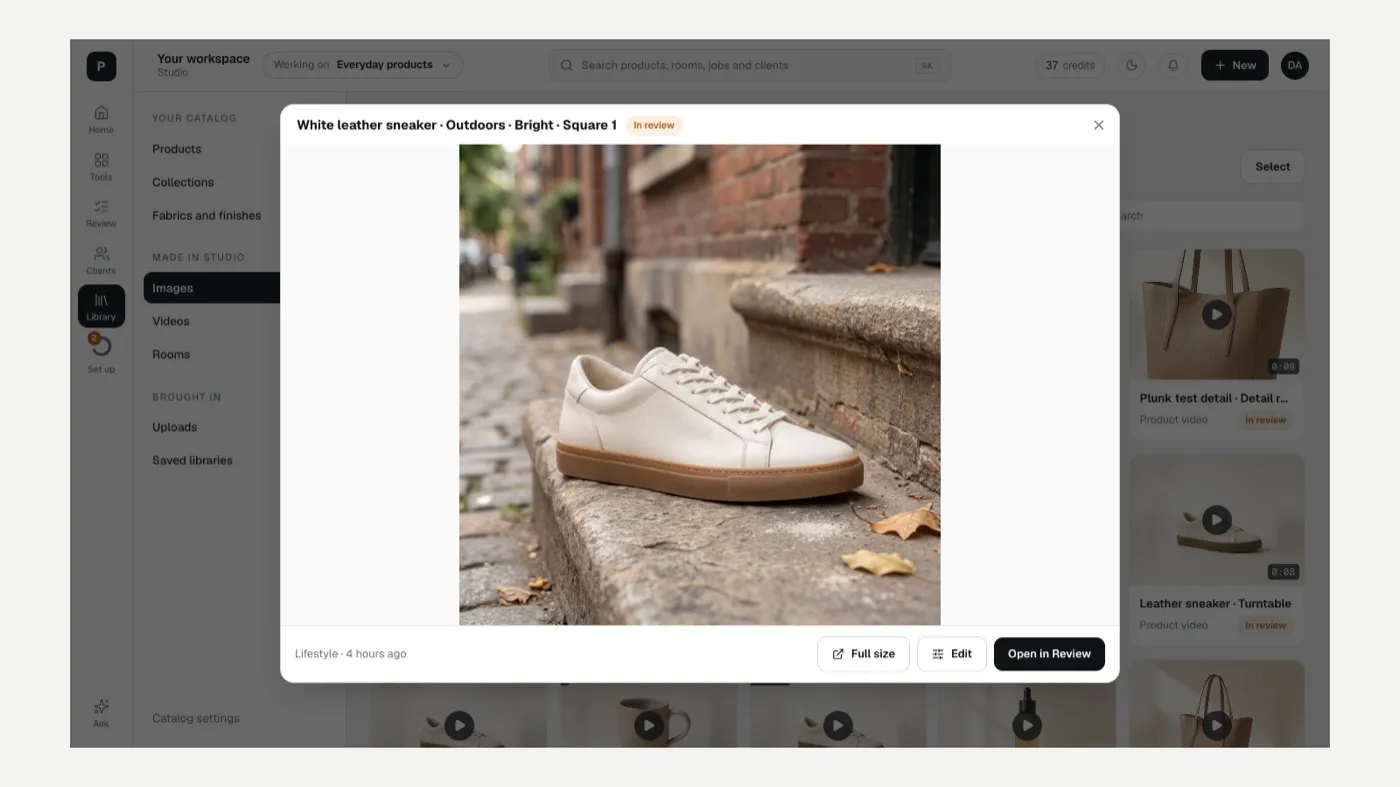
Section titled “Open, edit or send a picture”- Click a picture. You get See the product, Full size, Edit and a button to open where it came from (Open in Review, Open the room, Open the storyboard and so on).
- To send several, click Select, pick them, then Send to a delivery destination or Add to library.
Add fabrics and finishes
Section titled “Add fabrics and finishes”On Fabrics and finishes, click Add swatches to make a new library from a zip of pictures. Each file name becomes the swatch name, so name files the way you want them to read. You can also add a library from a zip inside the Customize swatch picker, or Import from a feed.
Connect your catalog
Section titled “Connect your catalog”- Open Catalog settings at the bottom of the Library.
- Click Add your catalog.
- Choose how:
- Scheduled fetch: you host a product feed file on your site, and Studio collects it on a schedule you set (frequency, time and time zone). Add a username and password if the file is protected.
- Upload: send a .csv or .txt file from your computer. Best for a one-off.
- If you installed Studio from Shopify, your products sync from your store automatically.
The image link column matters most: it’s the photo every render starts from.
If something looks off
Section titled “If something looks off”- You can’t find something you made: Where are my results?
- No products showed up after a fetch: check the file link opens in a browser without a login, or add the username and password to the schedule.
- Products are missing pictures: the image link column is empty or unreachable for those rows.
Related
Section titled “Related”Was this helpful?
Still stuck? Contact support and include the job or page you were on.