Make a video from a storyboard
Before you start
Section titled “Before you start”- Products, pictures or clips to build from. You can also upload photos and videos.
- Moving shots (turntable, detail, lifestyle) are made like product video clips, take about 3 minutes each and are billed like video. The total shows before anything runs. See How credits work.
-
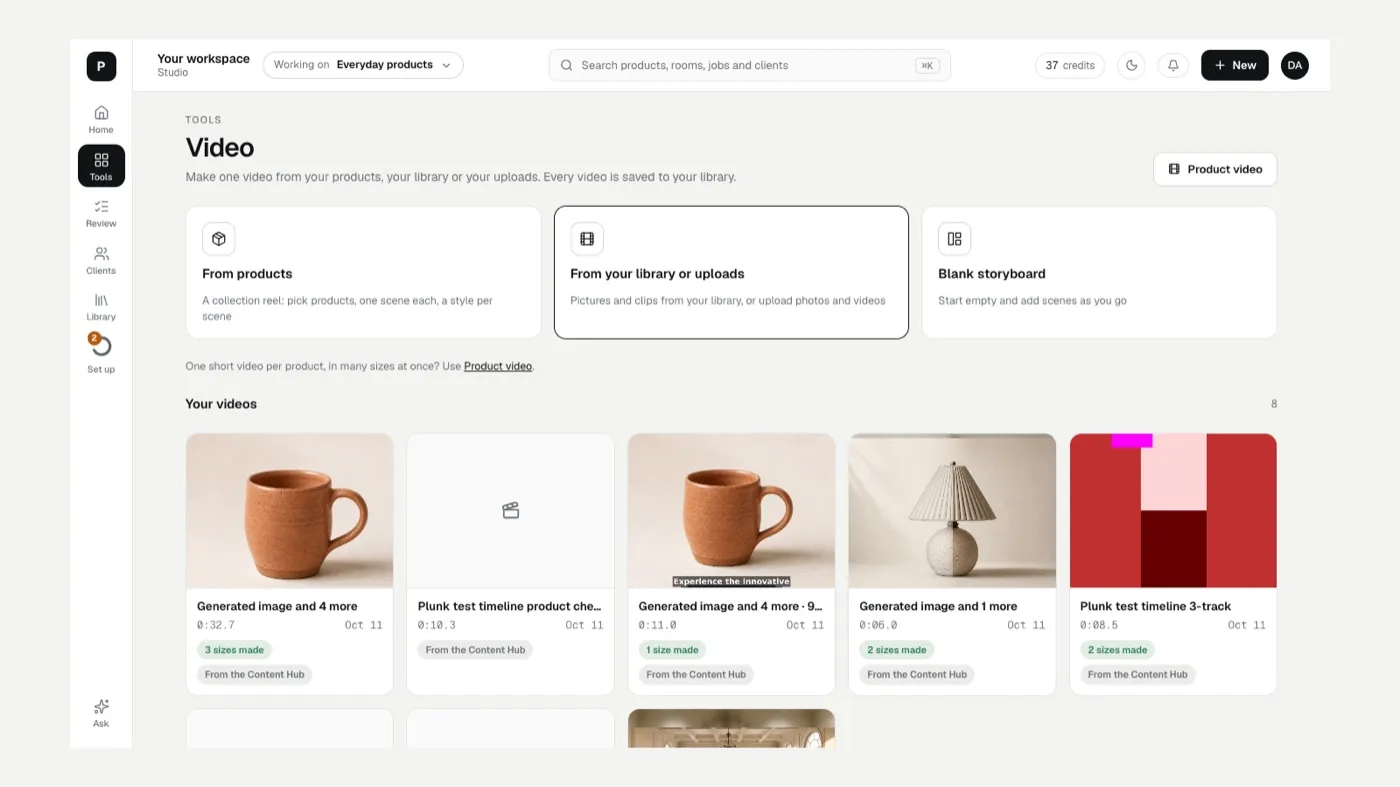
Open Video from Tools (Make one video from your products, your library or your uploads).
-
Pick how to start:
- From products: a collection reel. Pick products (one scene each) and a style per scene: Still, Turntable, Detail or Lifestyle. Turn on Shop the look to show each product’s name, and Show the price too if you like. Click Make the storyboard.
- From your library or uploads: pictures and clips from your library, or uploads. Tick Write a voiceover for me or Let Plunk choose the order if you want help.
- Blank storyboard: start empty and add scenes as you go.
-
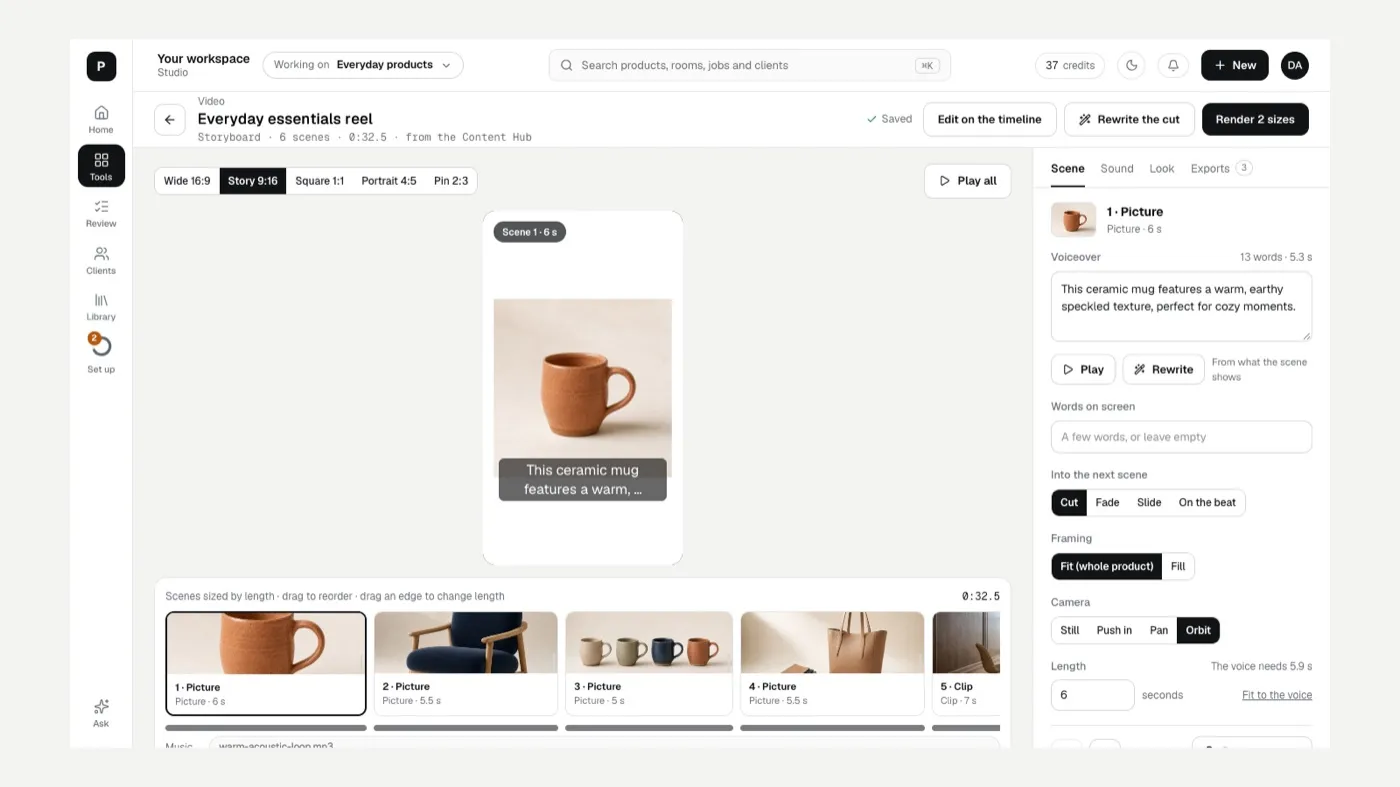
Shape each scene on the Scene tab: the Voiceover, Words on screen, the Camera (Still, Push in, Pan, Orbit), Framing, Length (or Fit to the voice) and the move Into the next scene (Cut, Fade, Slide, On the beat). Drag scenes on the track to reorder them, or drag an edge to change length.
-
Set the sound on the Sound tab: voice, music and Cut on the beat. See Music and sound.
-
Set the look on the Look tab: Captions (Brand style, Plain or Off), Use your brand kit, an End card with your logo, and Shop the look.
-
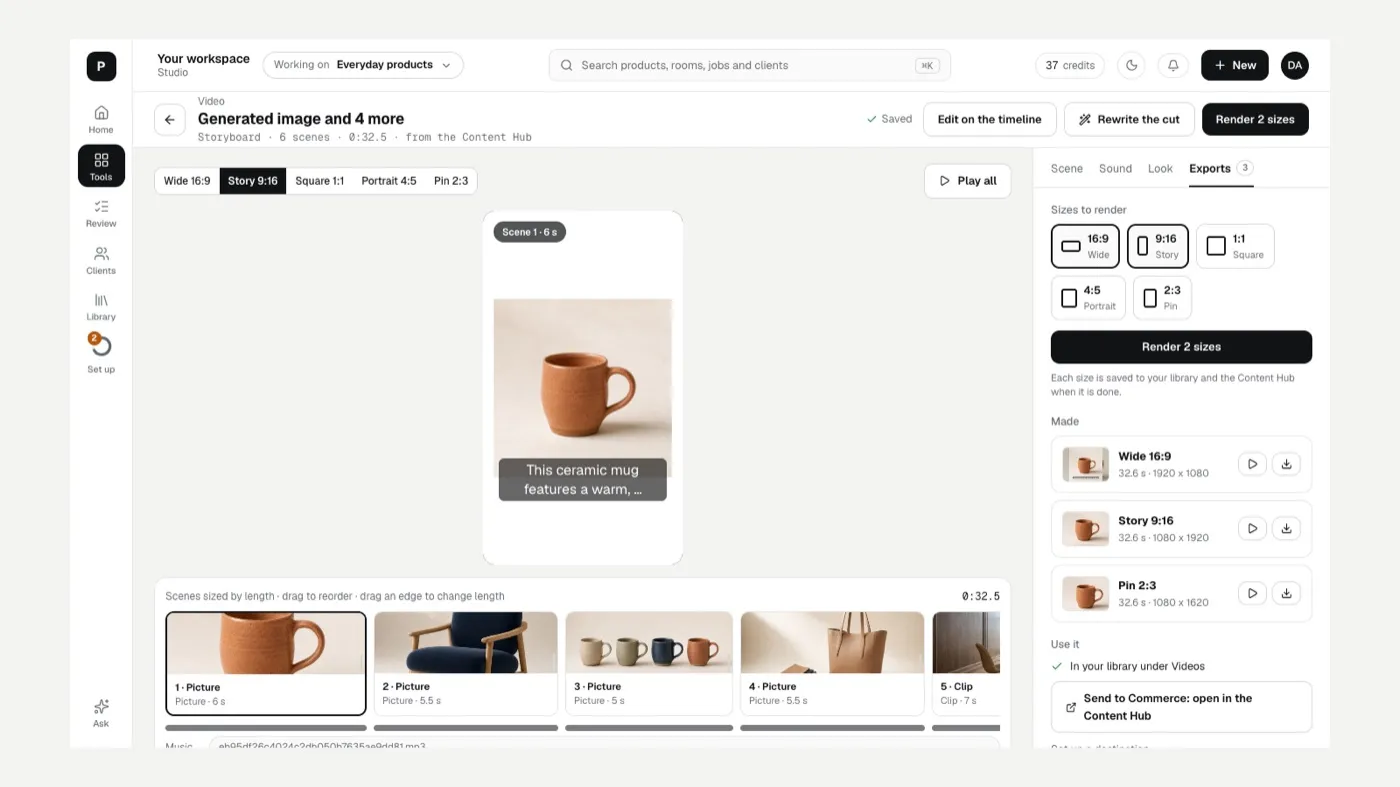
Render. On the Exports tab pick the sizes (Wide 16:9, Story 9:16, Square 1:1, Portrait 4:5, Pin 2:3) and click Render.
When it’s done, the video is in your library under Videos. From Exports you can also Add to a product on Shopify or send it to Commerce.
If something looks off
Section titled “If something looks off”- A moving shot doesn’t look like your product: click Redo this shot, or Use the product photo instead. See The result doesn’t match my product.
- The voice runs past the scene: click Fit to the voice.
- You can’t find the finished video: Where are my results?
Related
Section titled “Related”Still stuck? Contact support and include the job or page you were on.