Add music, voice and sound to a video
Before you start
Section titled “Before you start”- Music you have the rights to use. Uploads can be MP3, M4A or WAV, up to 50 MB.
- Sound changes the video’s cost: on Best quality, an 8-second clip is about 46 credits silent and 92 with sound. See How credits work.
- Open the sound settings: Sound on the Product video screen, the Sound tab in a storyboard or the clip editor, or the Audio tab on the timeline.
- Pick a voice and click Hear it. In Product video, write one short line;
{name}puts in the product’s name. - Pick music:
- Your tracks: music you’ve added before.
- Upload: tick I have the rights to use this music, then Upload your own track.
- Link: paste an https link to an MP3 you may use.
- Set the mix. Turn on Lower the music under the voice (or Music under the voice) so the music dips while the voice speaks. Use the level slider to set the balance.
- Cut on the beat (optional). In a storyboard, Cut on the beat lands every cut on a beat of the music.
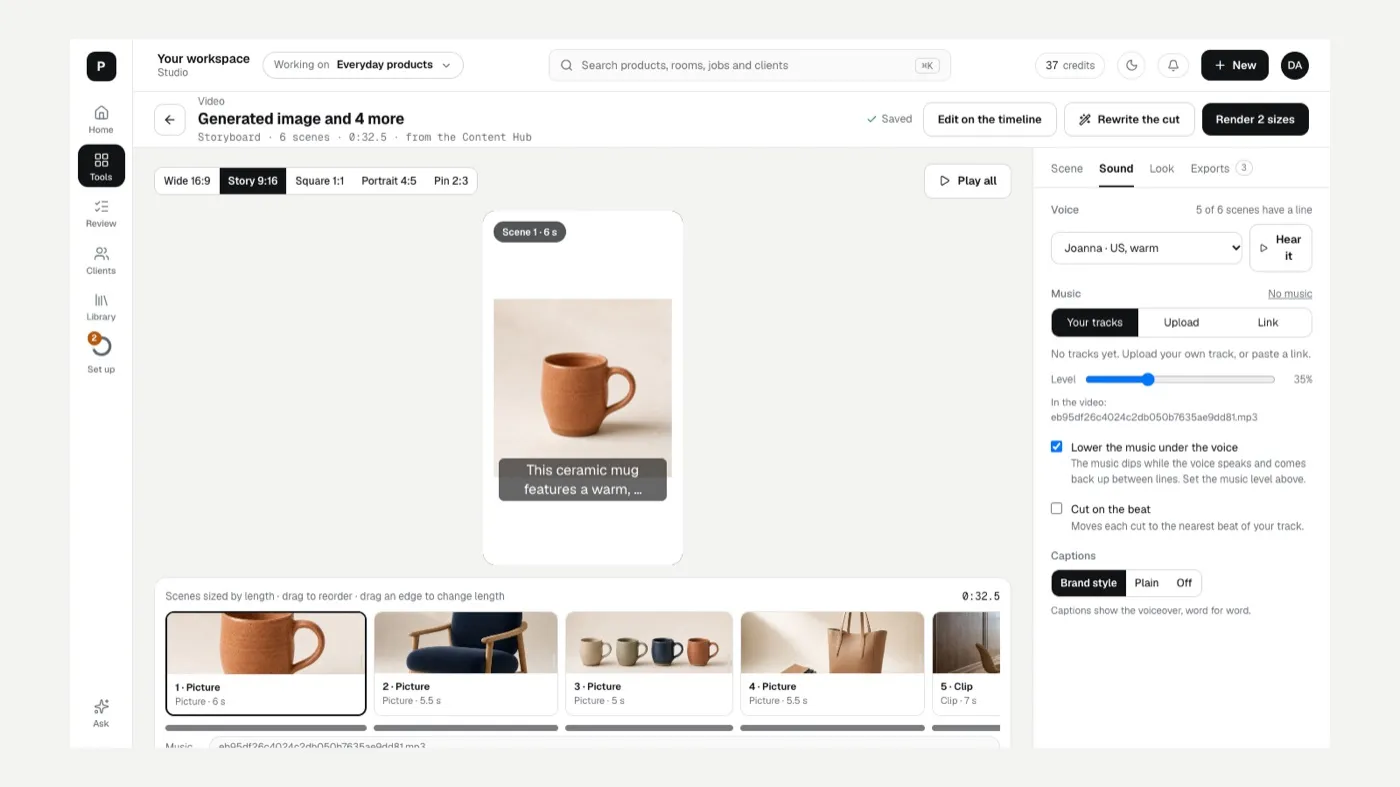
Uploaded tracks are saved to Your tracks, so you can use them in every video.
If something looks off
Section titled “If something looks off”- The music drowns out the voice: turn on Lower the music under the voice and lower the music level.
- Your upload won’t go: check the file is MP3, M4A or WAV and under 50 MB, and that the rights box is ticked.
Related
Section titled “Related”Was this helpful?
Still stuck? Contact support and include the job or page you were on.