Edit on the timeline and in the clip editor
Before you start
Section titled “Before you start”- A video or clip in Studio. Trimming, captions, joins and sizes don’t make new footage. Fix this shot, Swap colorway, Extend and new product shots do, and they’re billed like video.
- Fix this shot, Swap colorway, Re-direct and Cut on the beat work on clips made with Product video.
The clip editor
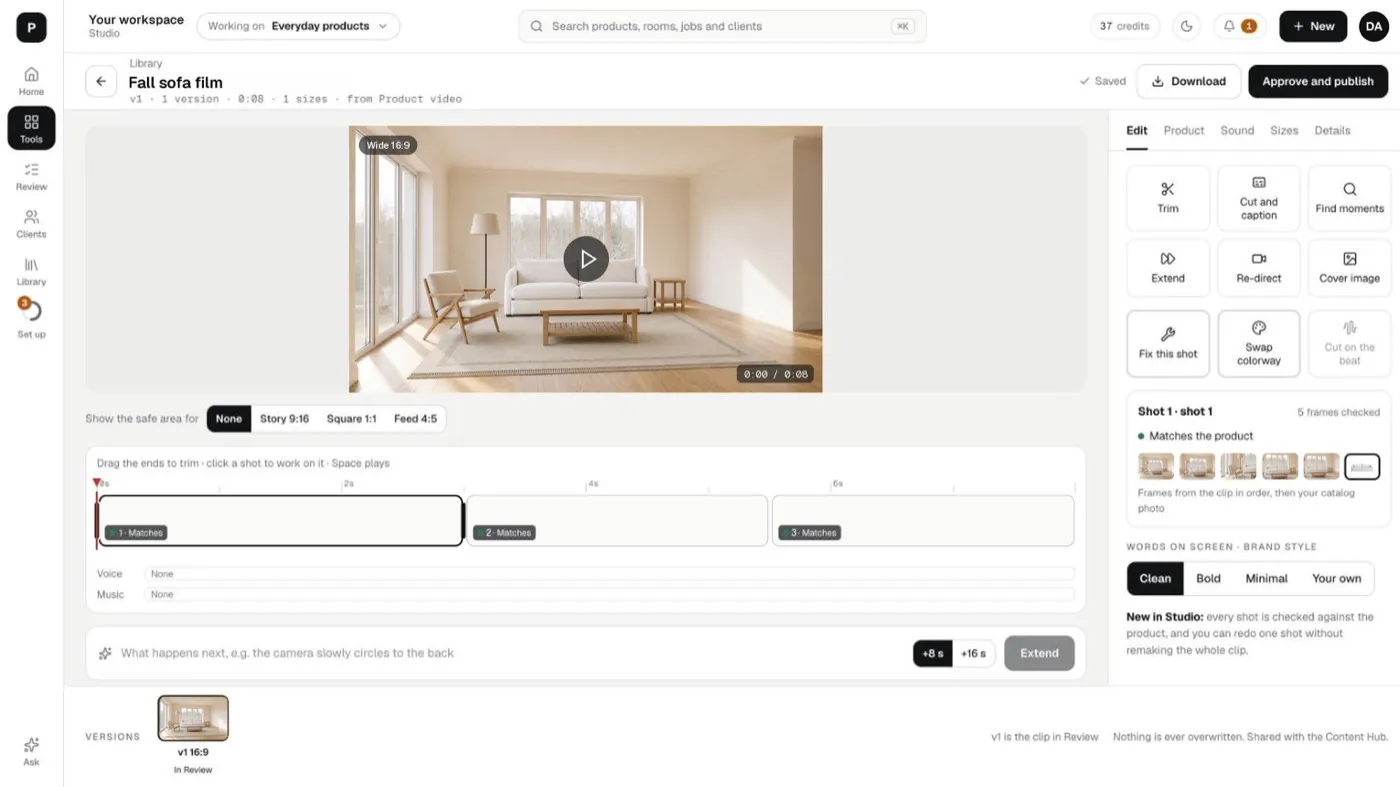
Section titled “The clip editor”Open a clip from Review, Library or a product video run. The side tabs are Edit, Product, Sound, Sizes and Details.
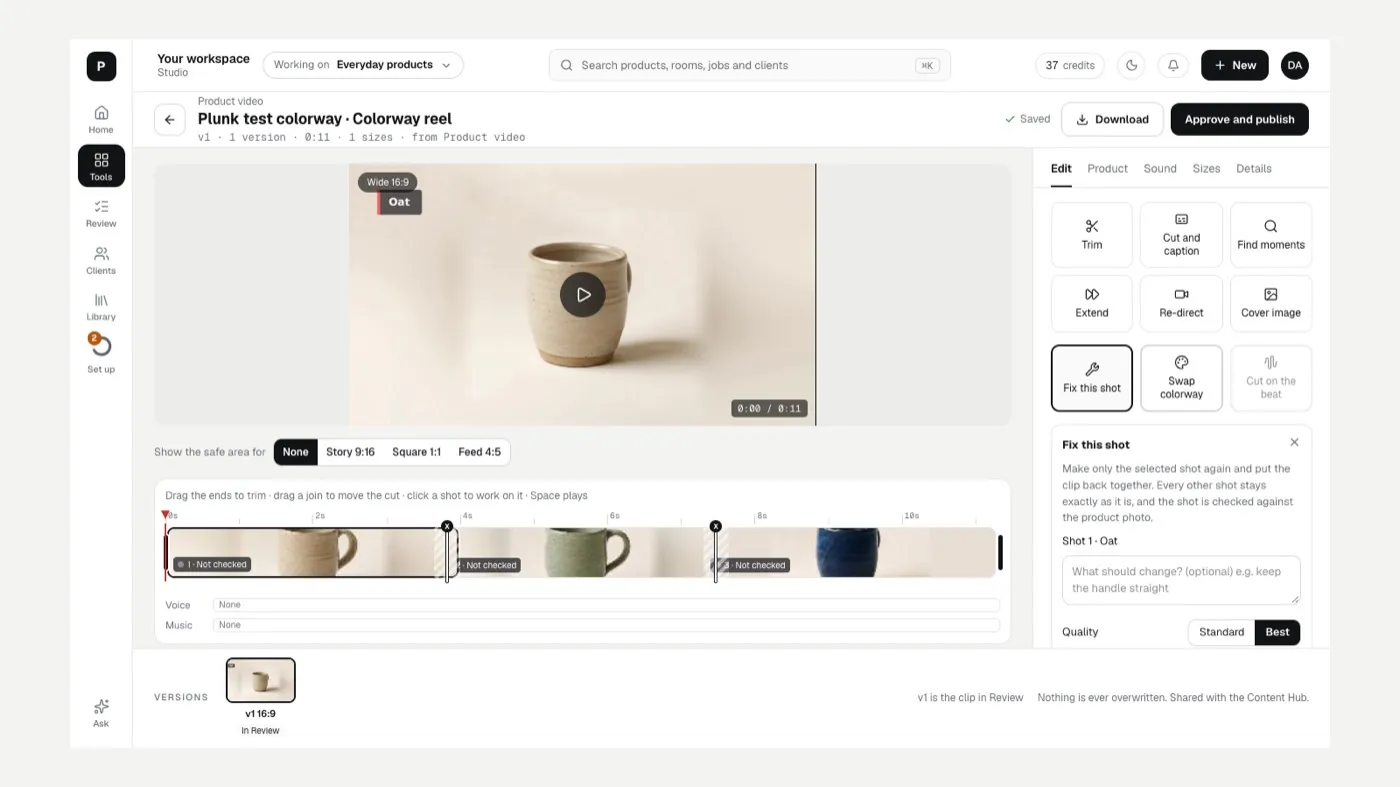
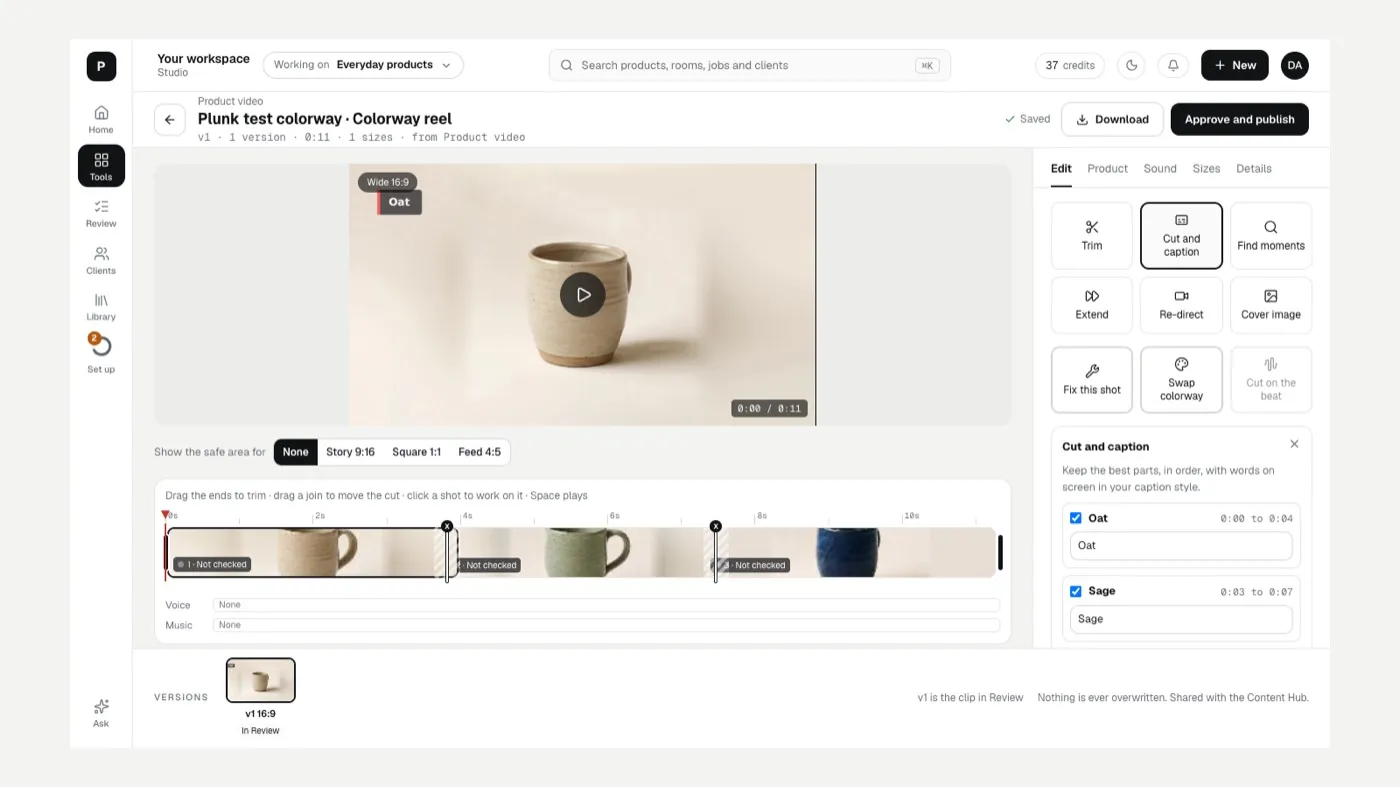
- Pick a tool on Edit: Trim, Cut and caption (keep the best parts, with words on screen per part), Find moments, Extend, Re-direct and Cover image. For product video clips you also get Fix this shot, Swap colorway and Cut on the beat.
- Fix one shot. Choose Fix this shot, pick the shot, and remake only that shot at Standard or Best. You can give it a new angle. The rest of the clip stays as it is.
- Swap a colorway. Swap colorway remakes the selected shot in another color.
- Edit the joins. Click a join between shots and pick Crossfade, Match frames or As made, and its length. Click Update the video: nothing is made again, the same shots are put together with your joins as a new version.
- Check the product. The Product tab compares each shot with your catalog photos.
- Make more sizes. On Sizes, pick Story 9:16, Square 1:1, Feed 4:5 or Wide 16:9. A new size keeps the whole picture and fills the edges with a soft blur.
- Click Approve and publish to save it to your library, add it to the product on Shopify or send it to Commerce. Or Download.
The timeline editor
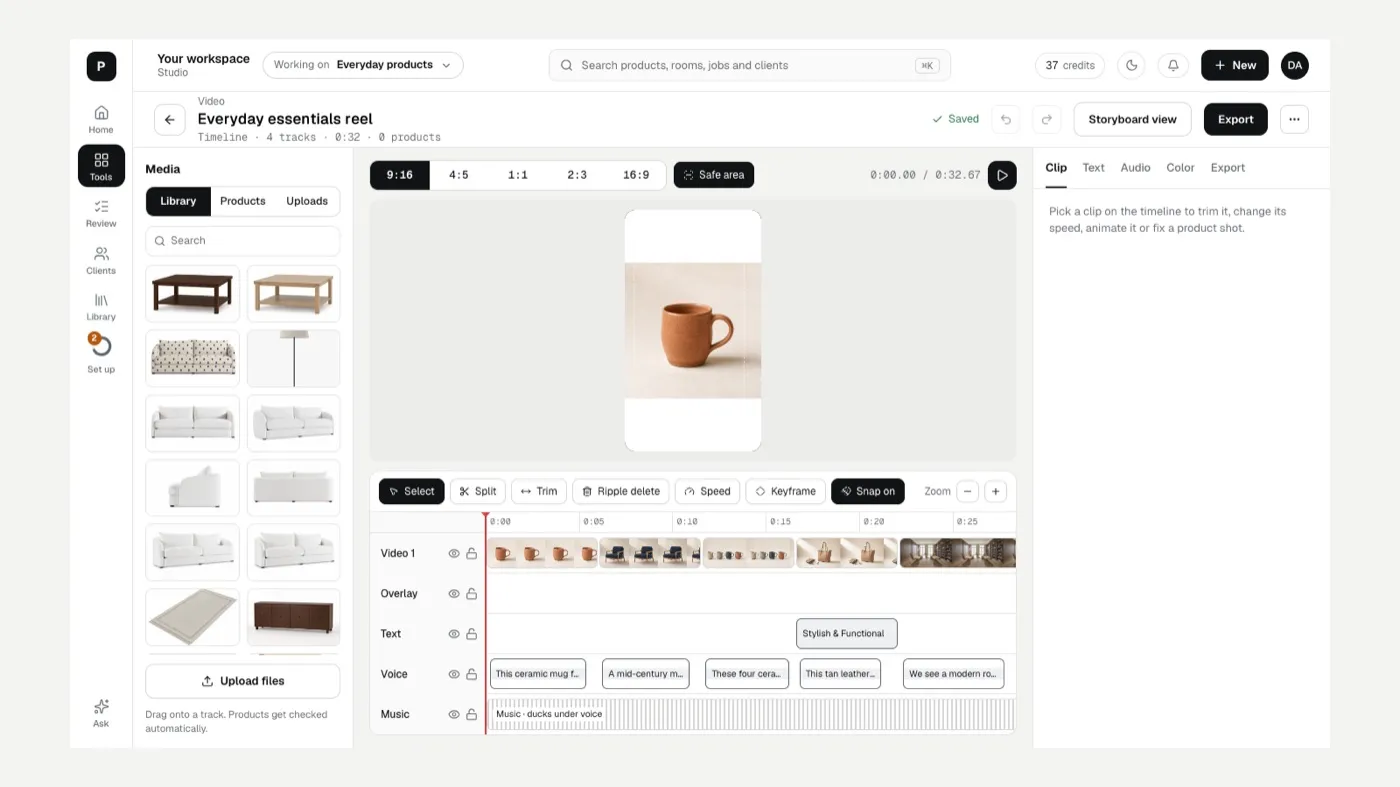
Section titled “The timeline editor”Open it from Edit on the timeline in a storyboard, or start a new video in the Video editor.
- Add media from Library, Products or Uploads.
- Lay it out on the tracks: Video, Overlay, Text, Voice and Music.
- Use the tools: Select (V), Split (S), Trim (T), Ripple delete (R), Speed (E) and Keyframe (K). Undo and Redo are in the toolbar.
- Fine-tune in the inspector tabs: Clip (in and out, framing, speed, position, opacity, fade), Text (words at the playhead, style, font, position), Audio (voice and music levels), Color (exposure, contrast, saturation, Use on every scene) and Export.
- Need a product shot? On the Clip tab, Make a shot here lets you use a clip you have, the product photo, or make a new checked shot (turntable, detail reveal or lifestyle).
- Export. On Export, Render, then Download, Add to Shopify, Save to Library or Send to Commerce.
If something looks off
Section titled “If something looks off”- One shot drifts from the product: use Fix this shot rather than remaking the whole clip.
- Your joins aren’t in the video: click Update the video on the banner that says so.
- See The result doesn’t match my product.
Related
Section titled “Related”Was this helpful?
Still stuck? Contact support and include the job or page you were on.