Edit an image
Before you start
Section titled “Before you start”- An image in Studio (something you made, or a photo in your Library).
- Crop, flip, rotate, resize, logos and sizes are free. Edits that make new picture content (a new background, retouch, extend, a described change) are about 13 credits each.
-
Click Edit on an image in Customize, the Library or Review.
-
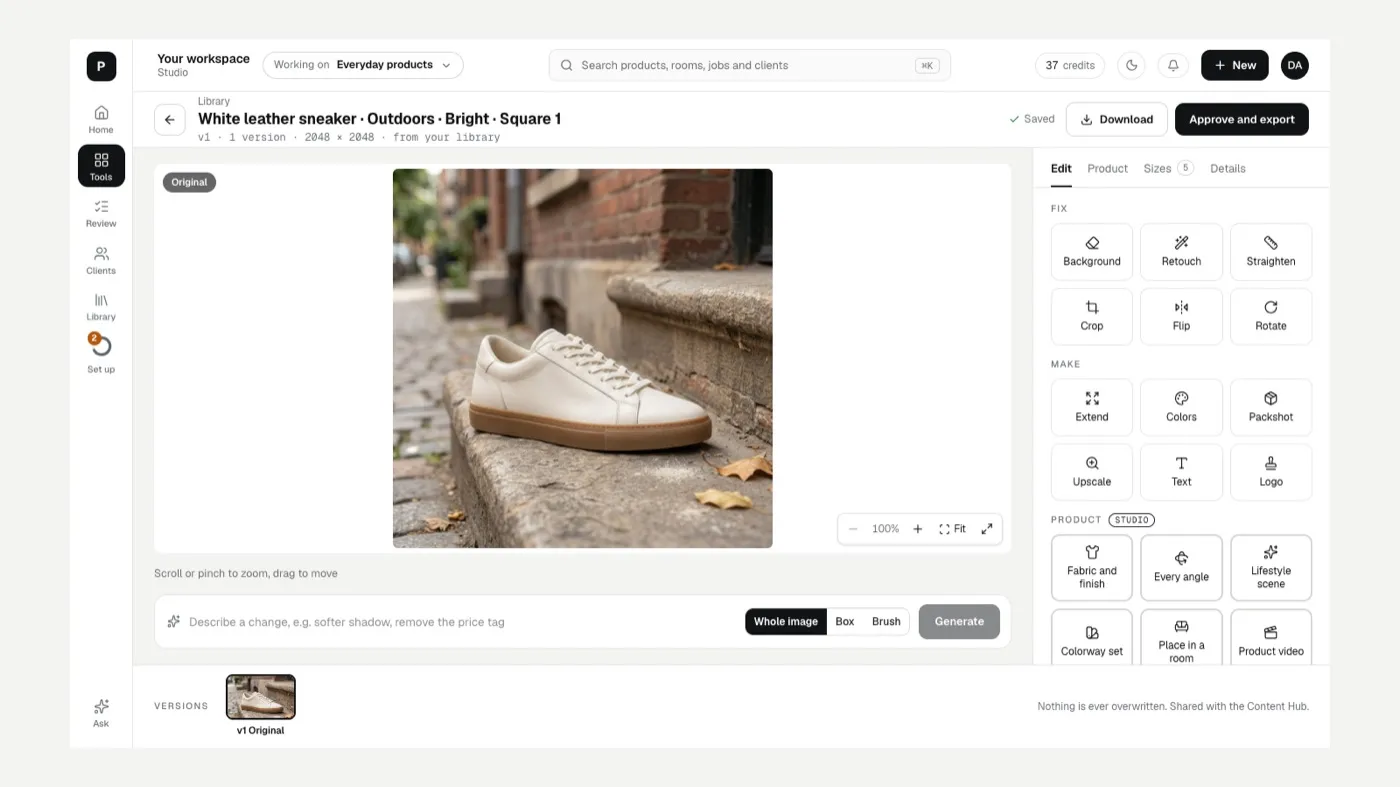
Pick a tool on the Edit tab:
- Fix: Background, Retouch, Straighten, Crop, Flip, Rotate.
- Make: Extend, Colors, Packshot, Upscale, Text, Logo.
- Product: Fabric and finish, Every angle, Lifestyle scene, Colorway set, Place in a room and Product video open the matching Studio tool with this picture.
-
Or describe a change. In the bar under the picture, choose Whole image, Box (drag a box on the picture) or Brush (paint over the area), type what you want (“remove the price tag”) and click Generate. Only the box or painted area changes.
-
Check the product. The product check card says Product check passed, Needs your review or Not checked. The Product tab shows the catalog photo next to the original.
-
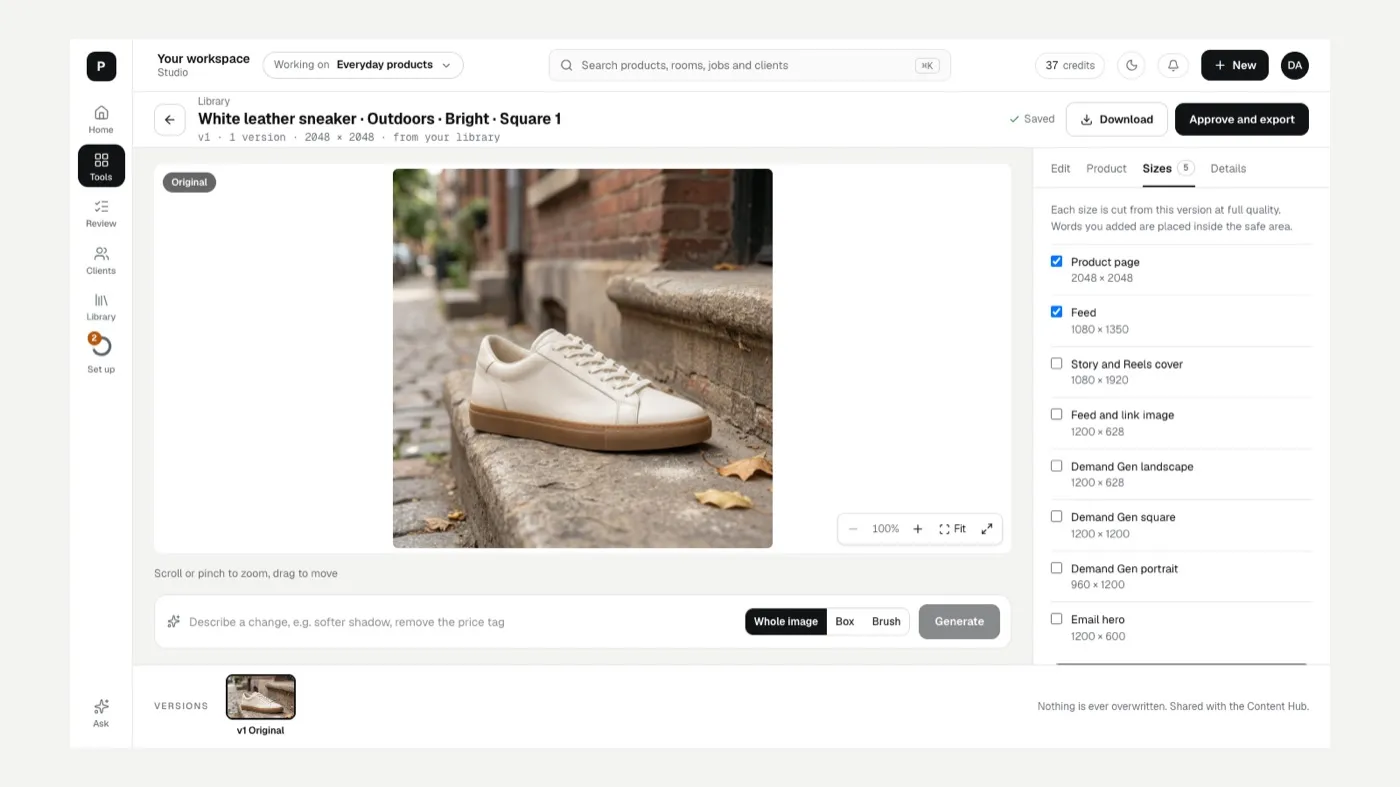
Approve and export. Click Approve and export, then pick sizes on the Sizes tab: Shopify product page, Instagram feed, Instagram story, Facebook feed and email hero. Each size is cut from this version at full quality.
Background
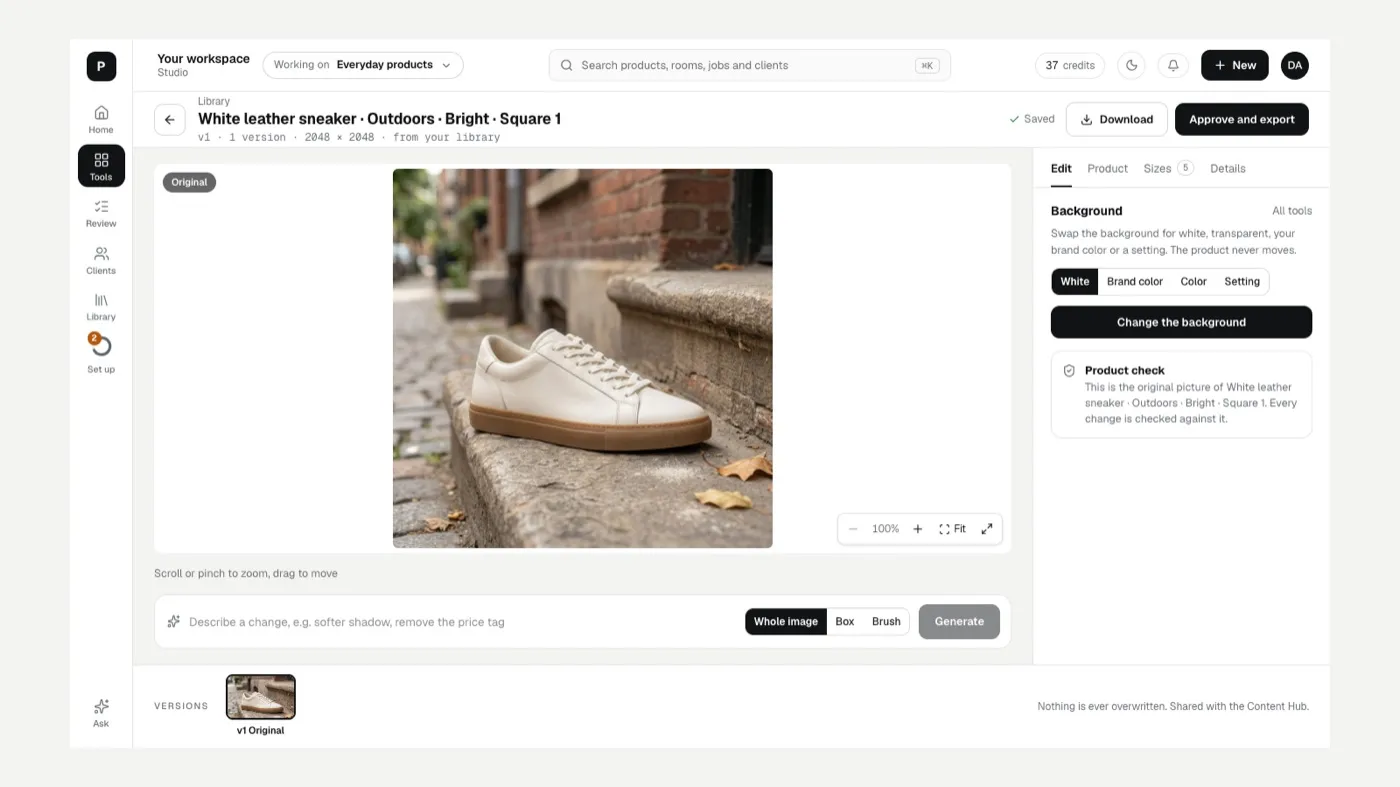
Section titled “Background”The Background tool sets White, Brand color, Color or a Setting (Studio, Lifestyle, Outdoors, Flat lay, On a shelf), or you can describe the setting yourself.
Versions and brand kits
Section titled “Versions and brand kits”Nothing is ever overwritten: each edit is a new version, and Compare with original shows where you started. The brand kit chip at the top picks the logo and colors used by Logo, Text and Brand color. See Brand kits.
Edited pictures show in your Library as Edited, with their review status until approved. Only an owner or administrator can approve; anyone else can still export.
If something looks off
Section titled “If something looks off”- The product changed after an edit: step back to an earlier version, then use Box or Brush on just the area you need.
- A size crops the product badly: use Extend first to give it more room, then export the size again.
- See The result doesn’t match my product.
Related
Section titled “Related”Still stuck? Contact support and include the job or page you were on.