Share work with clients on boards
Before you start
Section titled “Before you start”- Approved work to share (or any picture you made).
- Boards and share links are free. Plans set how many active boards and quick links you can have at once. Studio Pro allows 15 active share links, and Studio Team has no limit.
- Set How clients see you first (name, logo, brand colour and contact person) from your avatar menu. Admins only.
- Click Clients on the left rail, then New client board.
- Fill in the board: the project name, the client’s name and email, company (optional), sections (comma separated) and a note for the top of their page.
- Choose the options:
- Ask them to approve each picture to collect approvals. See Client approvals.
- Email the client the link: sent in your brand, from your name, only when you tick this.
- Remind them once if it isn’t opened: after 2, 3, 5 or 7 days.
- Click Create the board. A new board ends in 90 days unless you change it.
- Add pictures. On the board, click Add from Studio and choose Upload a picture, From Review, From Customize or From Rooms. Or, anywhere in Studio, click Share › Add to a project board.
- Check it. Click Preview as the client, then Copy link or Email the client.
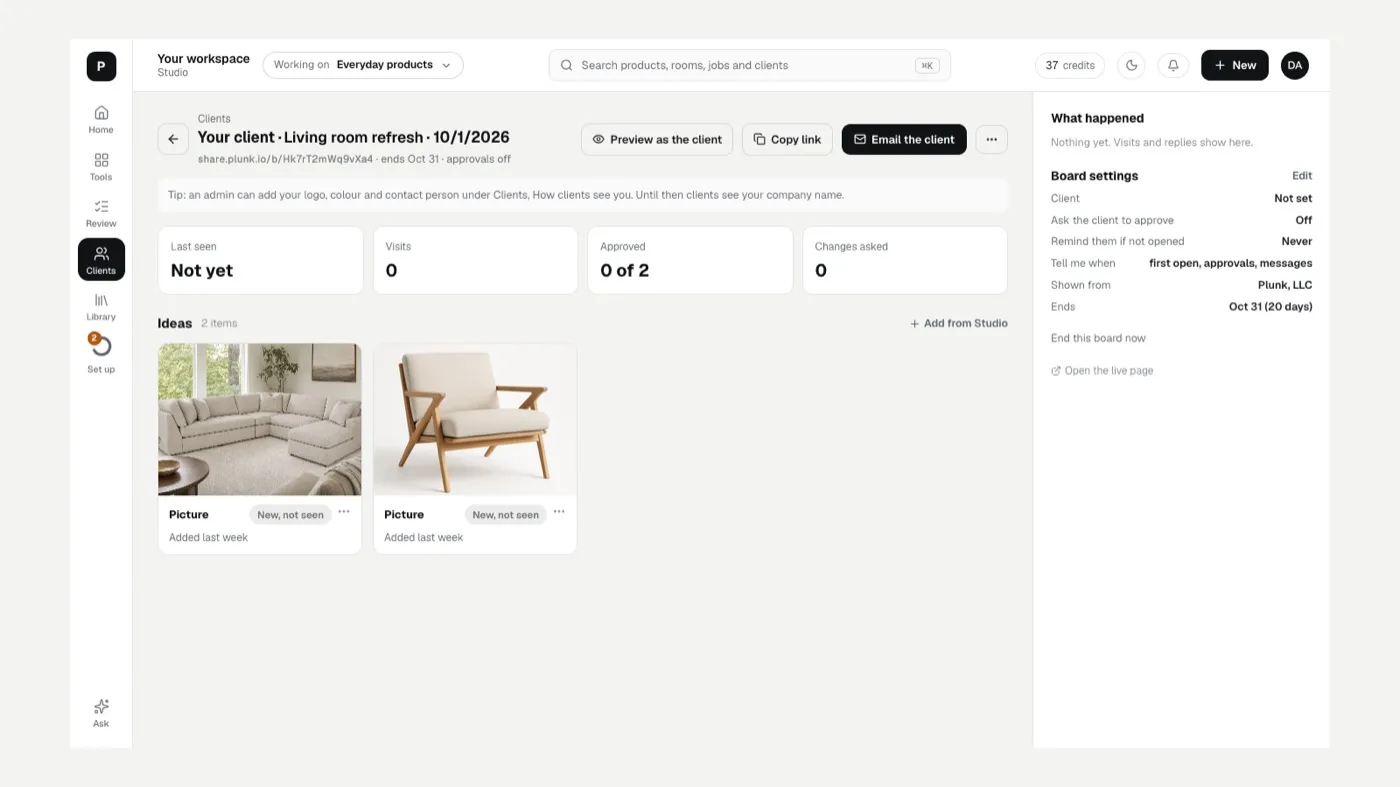
See what happened
Section titled “See what happened”Each board shows Last seen, Visits, Approved and Changes asked, and What happened lists every visit and reply. Each item says New, not seen, Seen, Approved or Change asked. The Needs you strip on Clients flags changes asked, clients who want to talk, and boards not opened in a while (with Send a reminder).
Quick links
Section titled “Quick links”For one picture on its own page (good for a text or a social post), choose Share › Quick link. Set Ends in (7, 30, 60 or 90 days), Show details (product, fabric, finish and size) and, if you want the lead, Ask for an email before the picture shows.
Board settings
Section titled “Board settings”From the board’s menu, Board settings lets you change the name, end date, sections, note, reminders and which emails you get (Tell me when they first open it, approve or ask for changes, send a message, or the board ends in 7 days). Page identity sets the name, logo and color at the top of their page: your firm, or any brand kit. The contact person always stays yours.
To stop sharing, choose End this board now. Delete for good removes it.
If something looks off
Section titled “If something looks off”- The client says the link doesn’t work: the board may have ended. Check Ends on in Board settings, or look under Ended.
- You can’t make another board: you’ve hit your plan’s limit. End a board you no longer need, or upgrade.
- The wrong logo shows: check Page identity in Board settings, or How clients see you.
Related
Section titled “Related”Still stuck? Contact support and include the job or page you were on.