Show a product in every fabric and finish
Before you start
Section titled “Before you start”- A product photo from your catalog, a saved library, or an upload.
- A fabric or finish library for the swatches. You can add one from a zip inside the picker.
- Each image is about 13 credits. Cleaning up the photo first, marking an area, or making every angle adds images; the line under Make it tells you how many.
- Open Customize from Tools and click Pick a product or Upload a photo.
- Pick the kind of product under Options for: Furniture and home, Fashion and apparel or General products. The change cards below follow your choice.
- Set the changes you want (see the sections below).
- Add notes (optional) in Notes for this render, for example “Keep the pillows as they are.” Notes go with every step of the render.
- Choose Images: 1, 2 or 4 and, if you want, Hi-res and Also make every angle.
- Click Make it. You can leave the screen while it works.
- Compare and keep. Use Result, Original and Side by side. Star a version to keep it, then Send to review, Save to library or Edit.
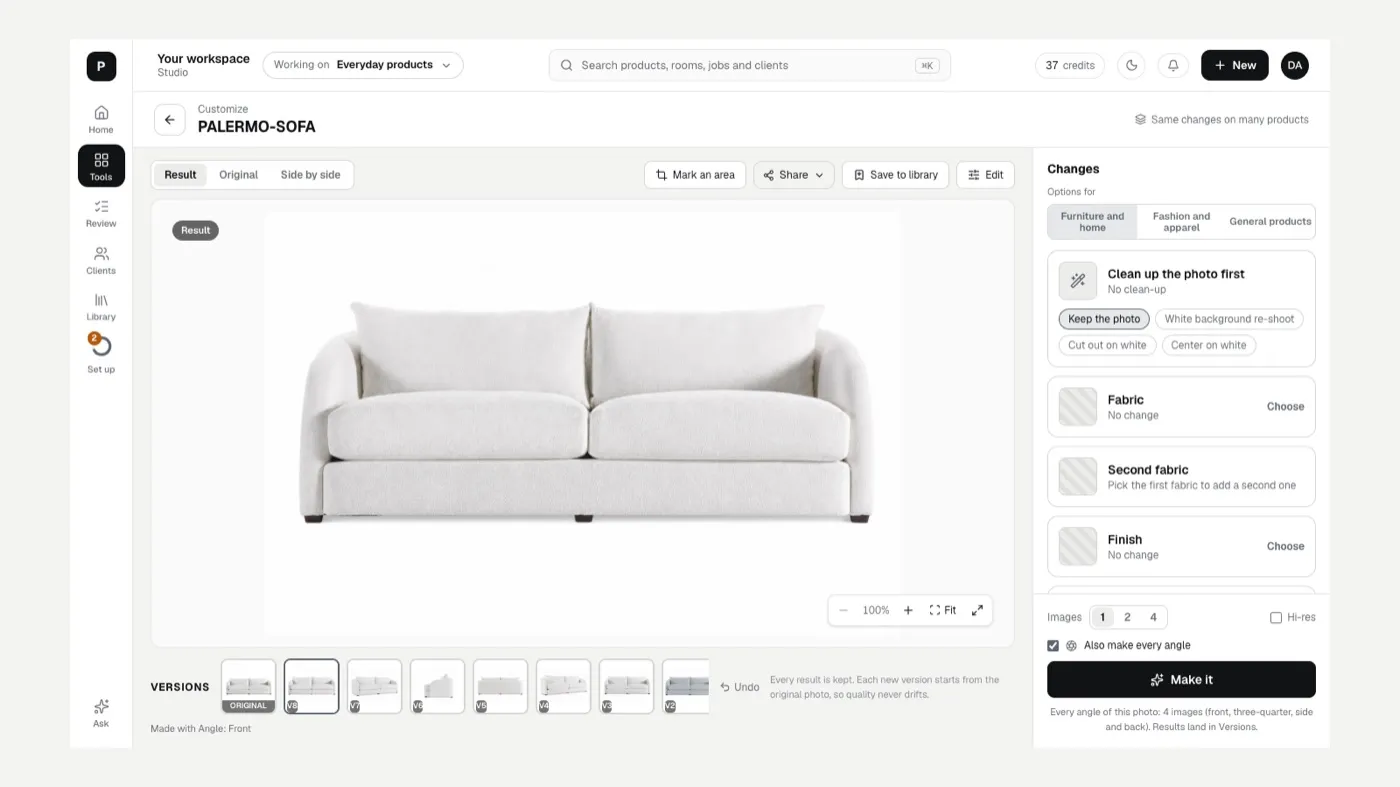
Clean up the photo first
Section titled “Clean up the photo first”Pick one before your other changes run. Your changes then start from the cleaned photo.
- Keep the photo: use the photo as it is.
- White background re-shoot: redraws the piece on clean white, like a studio photo.
- Cut out on white: keeps this exact photo and swaps the background for white.
- Center on white: cuts it out and centers it on a white square.
Fabric
Section titled “Fabric”- Click Choose on the Fabric card and pick a swatch. Search by name or number, or use Upload a picture to try one swatch now.
- Pick the scope: Whole piece, or Area I mark to change only part of it.
- Set the pattern direction: Up the roll (runs vertically) or Railroaded (runs horizontally).
- Add the repeat (optional). Type the repeat Across and Up in inches, and the Product width so the pattern comes out the right size.
Second fabric
Section titled “Second fabric”Add a second fabric to part of the piece (for example, contrast cushions).
- Pick the first fabric (the second one stays off until you do).
- Click Choose on Second fabric and pick the swatch.
- Say where it goes in plain words, or tap the chips: + Body, + Arms, + Seat cushions, + Back cushions, + Pillows, + Skirt, + Welt. Everything else keeps the first fabric.
Finish
Section titled “Finish”- Click Choose on Finish and pick a wood, metal or other finish.
- Pick the scope: All finished parts, Legs and base or Area I mark. Upholstered pieces start on Legs and base.
Furniture also has Welt (keep, none, self welt or contrast), Nailheads (keep, none, small or large) and Legs when you have a legs library. Fashion has Colorway, Buttons, Zipper, Stitching, Hardware and Lining. General products have Color, Material or finish, and Trims and hardware. Click + Add your options to add a library of your own options (trim, base, hardware, pillows).
Images 1, 2 or 4
Section titled “Images 1, 2 or 4”Images sets how many versions of the same change Studio makes at once. Pick 2 or 4 when you want options to choose from. Each one is billed as an image.
Also make every angle
Section titled “Also make every angle”Tick Also make every angle to get front, three-quarter, side and back views of the finished image as well. That adds four images.
Versions
Section titled “Versions”Every result is kept in the Versions strip, next to ORIGINAL. Click a version to see it, star it to keep it, or remove the ones you don’t want. Undo steps back. Each new version starts from the original photo, so quality never drifts.
If something looks off
Section titled “If something looks off”- The pattern is too big or too small: add the repeat and Product width, then try again. See The fabric scale looks wrong.
- The finish went onto the upholstery: switch the finish scope to Legs and base.
- The piece changed shape: The result doesn’t match my product.
- Only one area is wrong: in Review, use Fix an area instead of making it again. See Review and approve.
Related
Section titled “Related”Still stuck? Contact support and include the job or page you were on.