Review and approve your results
Before you start
Section titled “Before you start”- Something to review: a Customize batch, Photos from drawings, lifestyle scenes, room renders, product videos or edited pictures.
- Approving is free. Needs another try and Fix one area make new images, so they use credits (about 13 per image) when they run.
- On team plans, approving is for reviewers (owners, administrators and moderators). Everyone else can look and download.
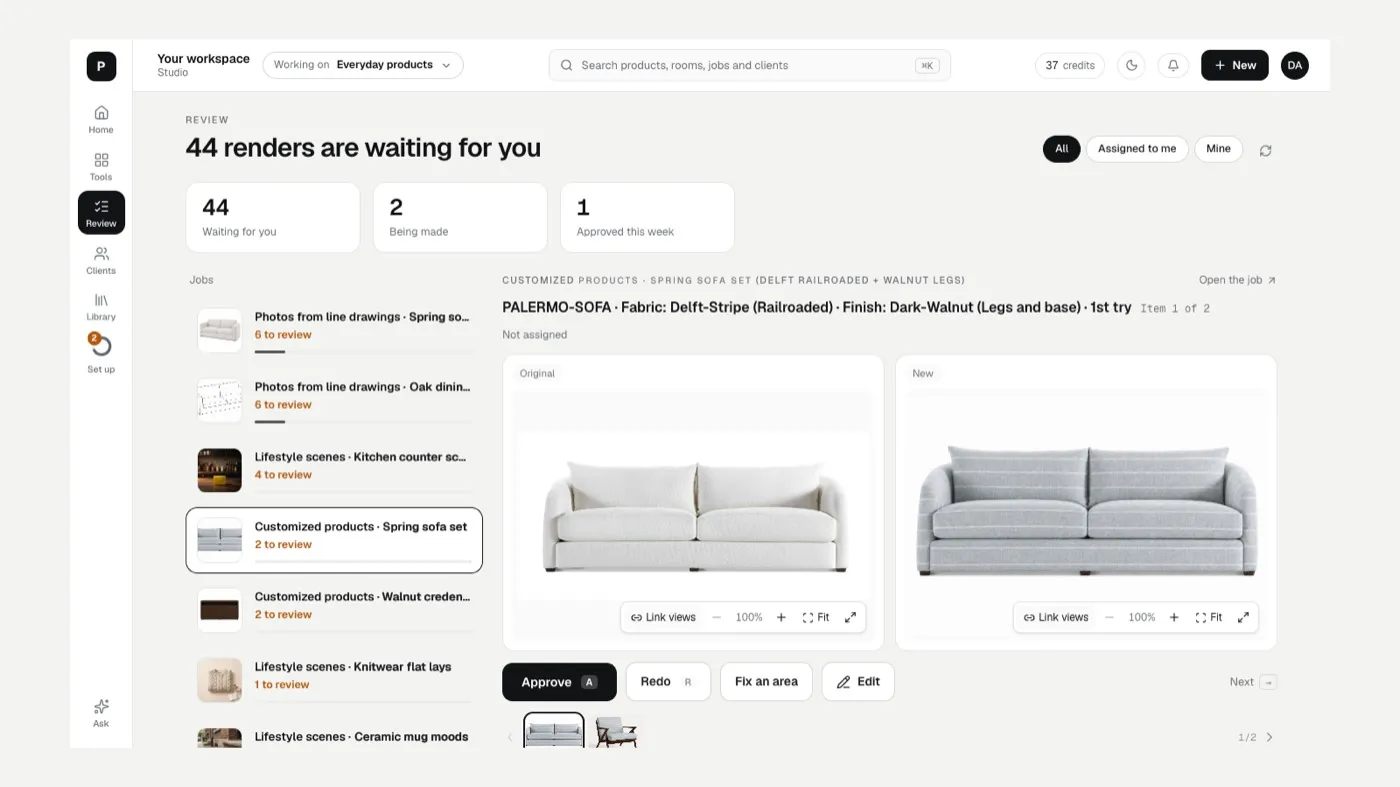
- Click Review on the left rail. You see how many renders are waiting, what’s being made and what you approved this week. On team plans, filter by All, Assigned to me or Mine.
- Pick a job from Jobs on the left, then click Open the job.
- Go one at a time. You see the original next to the new result. For each one:
- Approve (A) if it’s right.
- Needs another try (R) and say what should change. It moves to Needs another try for a redo.
- Fix one area (F): drag a box around the problem and say what to fix. Only the box changes.
- Edit opens it in the image editor. Download (D) saves it.
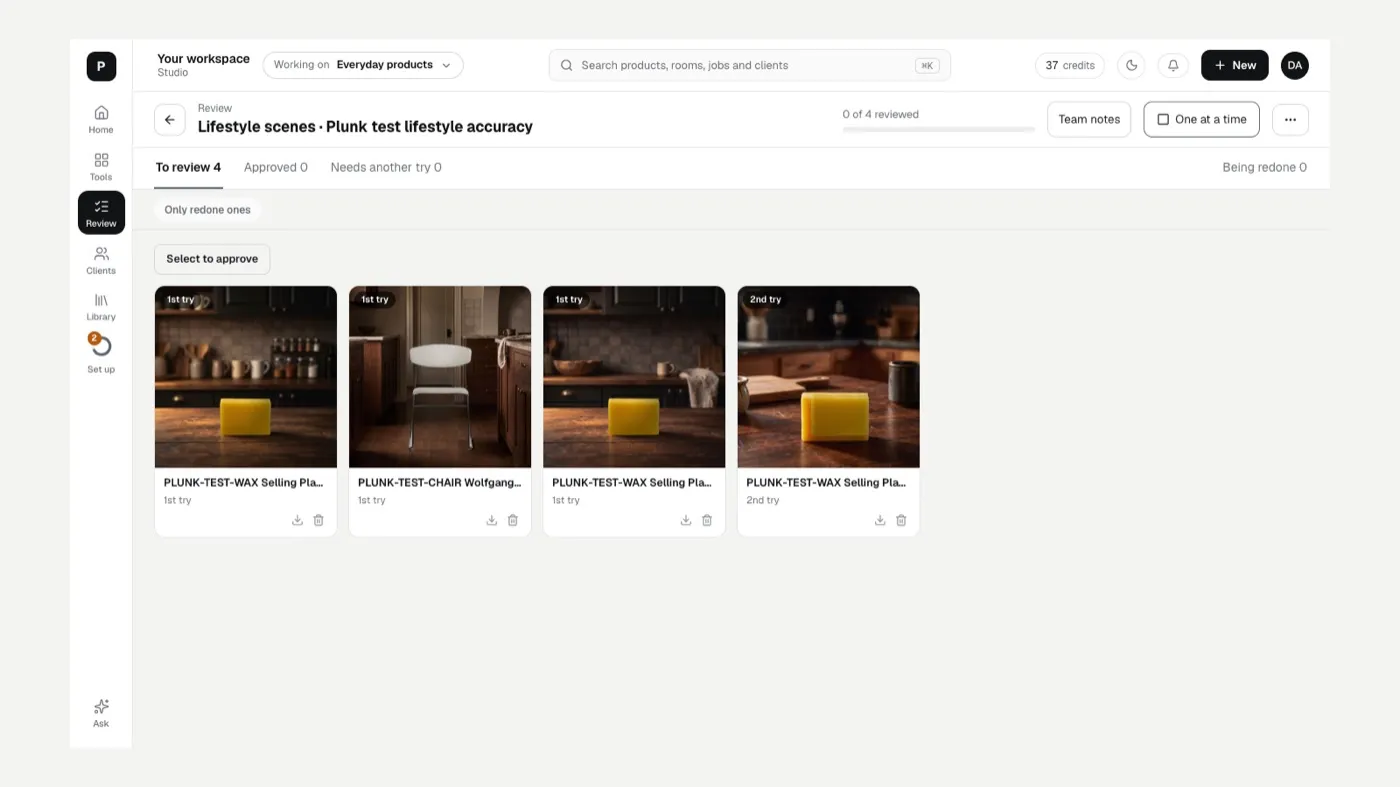
- Use the tabs to see where everything is: To review, Approved, Needs another try and Being redone.
- Approve many at once in Grid view: click Select to approve, pick tiles (or Select all shown), then Approve N selected.
- Deliver. Click Deliver to send approved work to your destinations or download a zip, or Send to a client to put it on a client board.
Keyboard shortcuts
Section titled “Keyboard shortcuts”| Key | Action |
|---|---|
| ← / → | Previous / next |
| A | Approve (on the Approved tab: looks good, next) |
| R | Needs another try |
| F | Fix one area |
| X | Remove from this job (To review only) |
| D | Download |
| Esc | Close the note, cancel the box, then back to the grid |
In a note, press Enter to send and Shift+Enter for a new line. Shortcuts pause while you’re typing.
Assign and hand off
Section titled “Assign and hand off”On team plans, Assigned to in the side panel shows whose turn it is. Click Hand off (or Hand off to a teammate in the job’s ··· menu) to pass the job to someone. They get an email. It’s a pointer, not a lock: any reviewer can still act. Use Team notes to leave notes, and type @ to bring someone in.
The job menu
Section titled “The job menu”The ··· menu on a job has Edit instructions for the whole job, Send N approved to a client, Redo N that need another try, Pause the job or Resume the job, Show removed items, Deliver, Build a line sheet (a PDF of the approved renders), Job settings and, for admins, Delete job.
If something looks off
Section titled “If something looks off”- The job says paused: Why is my job paused?
- The result doesn’t look like your product: The result doesn’t match my product.
- A job isn’t in the list: click Show finished jobs, or see Where are my results?
Related
Section titled “Related”Was this helpful?
Still stuck? Contact support and include the job or page you were on.