Make a product video
Before you start
Section titled “Before you start”- Product photos, from your catalog or Library.
- Video is priced by length, quality and sound. For an 8-second clip, expect about 19 credits on Standard without sound (24 with sound) and about 46 on Best without sound (92 with sound). The total for your run shows before anything is made. See How credits work.
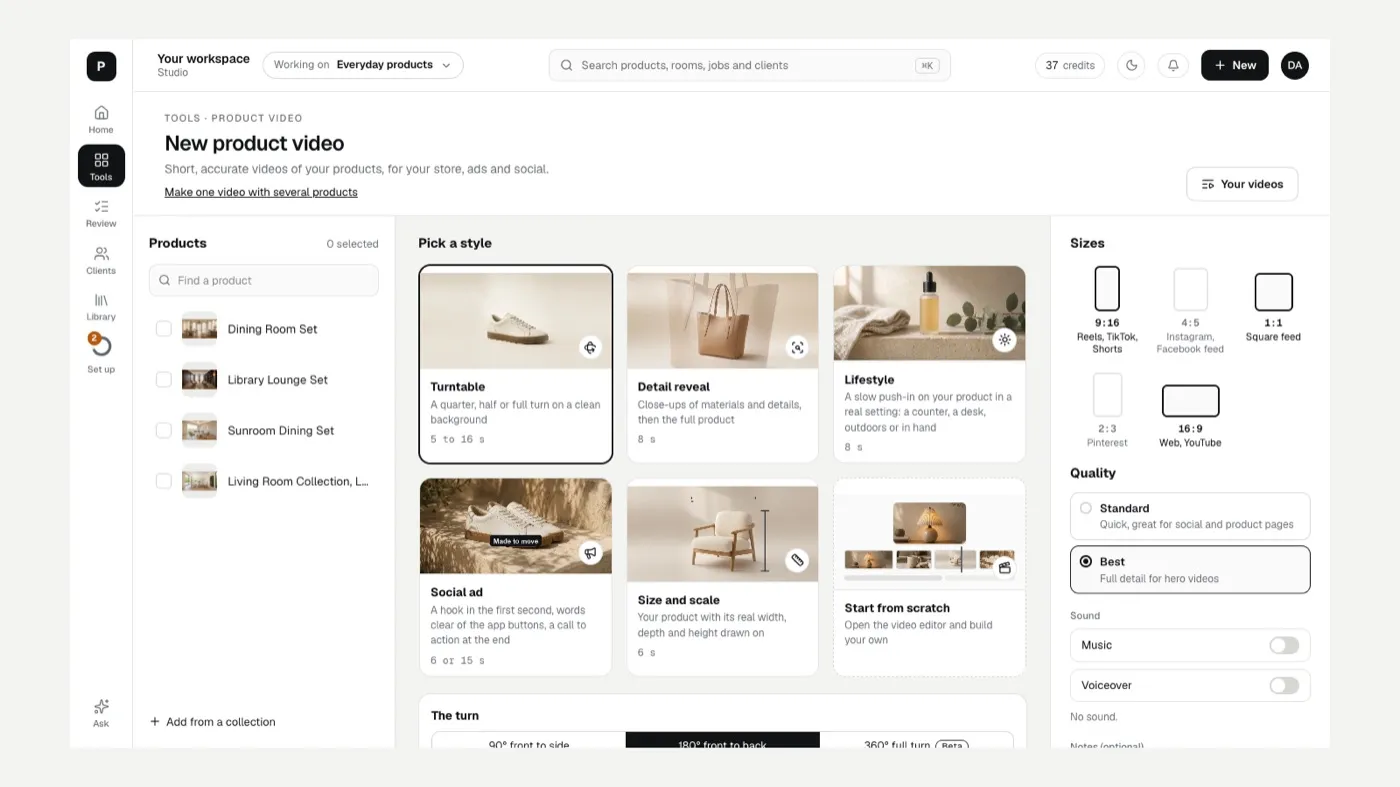
- Open Product video from Tools.
- Pick your products. Use Find a product to search.
- Pick a style:
- Turntable: a quarter, half or full turn on a clean background.
- Detail reveal: a close look at the details.
- Colorway reel: the product in its colors (needs at least two).
- Lifestyle: the product in a setting.
- Social ad: a hook in the first second, words clear of the app buttons and a call to action at the end.
- Size and scale: real catalog sizes on your product photo. Nothing is generated.
- Before and after: needs a customized version of the product.
- Start from scratch: opens a blank storyboard. See Make a video.
- Set the style’s options. For Turntable, pick 90° front to side, 180° front to back or 360° full turn (Beta), the direction and the speed.
- Pick sizes. 9:16 (Reels, TikTok, Shorts), 4:5 (Instagram and Facebook feed), 1:1 (square feed), 2:3 (Pinterest) and 16:9 (web, YouTube). You can pick several.
- Pick quality: Standard or Best.
- Add sound (optional). Turn on Music (yours or from your tracks) and Voiceover, and write one short line for the voice.
- Add notes (optional), for example “Keep it calm. End on the front view.”
- Click Make videos. The line above the button tells you how many clips you’ll get, for example 3 products × 2 sizes = 6 clips, ready for review.
Standard or Best
Section titled “Standard or Best”| Standard | Best | |
|---|---|---|
| What it’s for | Quick, great for social and product pages | Full detail for hero videos |
| Cost | Lower | Higher, and more again with sound |
Best is the default. Studio remembers the last quality you picked for your workspace.
180 and 360 turntables
Section titled “180 and 360 turntables”180° front to back is the reliable choice for most products. 360° full turn is in Beta and may need a redo. Pieces with two different ends (a chaise on one side, say) may not turn all the way round; Studio warns you and offers Switch to 180°.
For a 360, you can tick Use approved angle views. Studio makes a few views of the product first, you approve them, and the video starts once every view is approved. Approved views are kept for that product, so later videos use them too.
Approve and publish
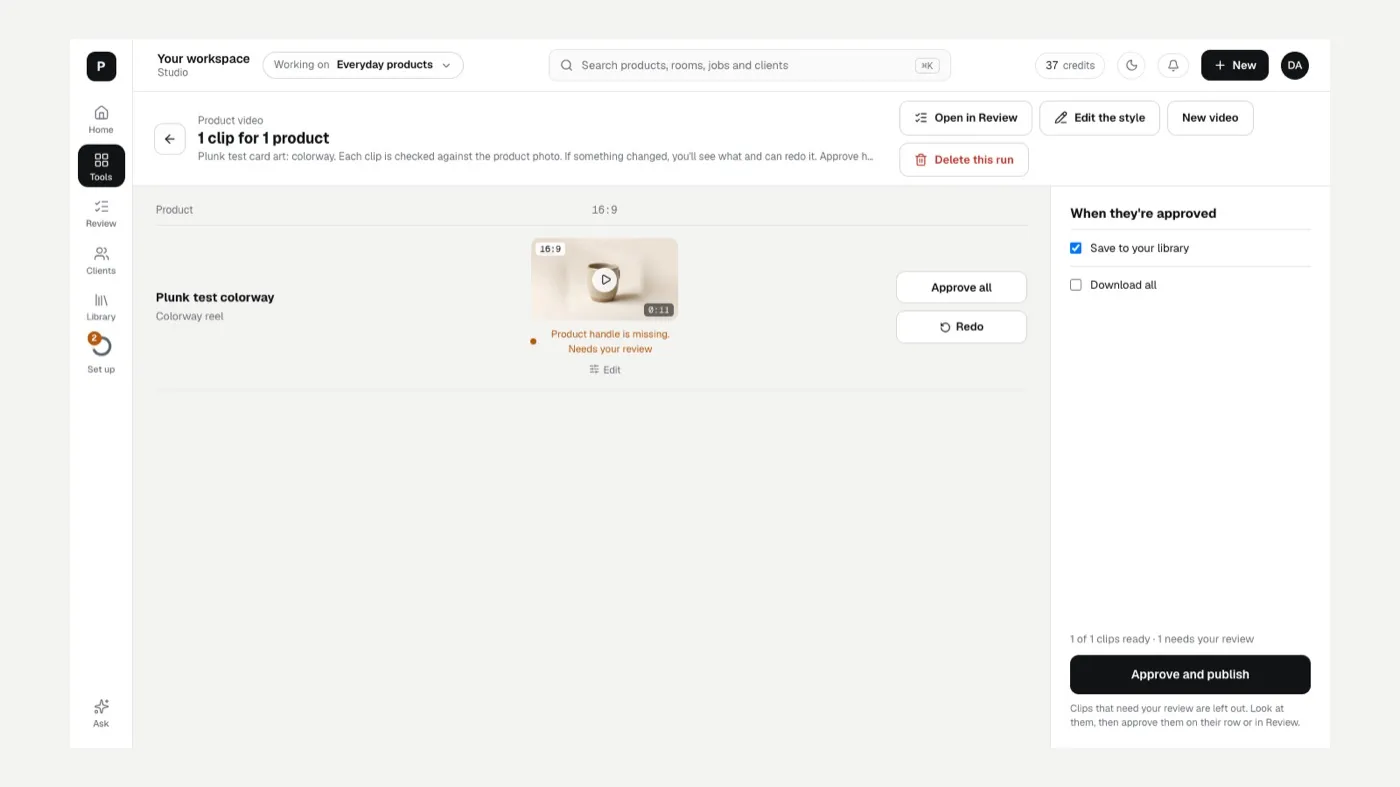
Section titled “Approve and publish”- Open the finished run from Your videos. Each clip shows its product check.
- Approve clips (Approve all per product), or Redo with a note about what should change.
- Choose where approved clips go: Add to each product on Shopify, Save to your library, Send to Commerce for campaigns, or Download all.
- Click Approve and publish.
If something looks off
Section titled “If something looks off”- The product changes during the clip: redo it with a note, or try 180° instead of 360. See The result doesn’t match my product.
- The run says paused: Why is my job paused?
- You can’t find a video: check Your videos, Review and Library › Videos. See Where are my results?
Related
Section titled “Related”Was this helpful?
Still stuck? Contact support and include the job or page you were on.