Put your product in a lifestyle scene
Before you start
Section titled “Before you start”- A product photo. Adding the product’s real size keeps it in proportion in every scene.
- Each scene is about 13 credits, and each attempt is billed.
- The settings follow what you’re working on: everyday products get counters, desks, outdoors and in hand; fashion gets street and flat lay first; home furnishings get rooms such as living or dining room, kitchen and patio.
-
Open Lifestyle scenes from Tools.
-
Pick a product (catalog or saved library), Upload a photo, or choose Many products to use the same setting for a whole line.
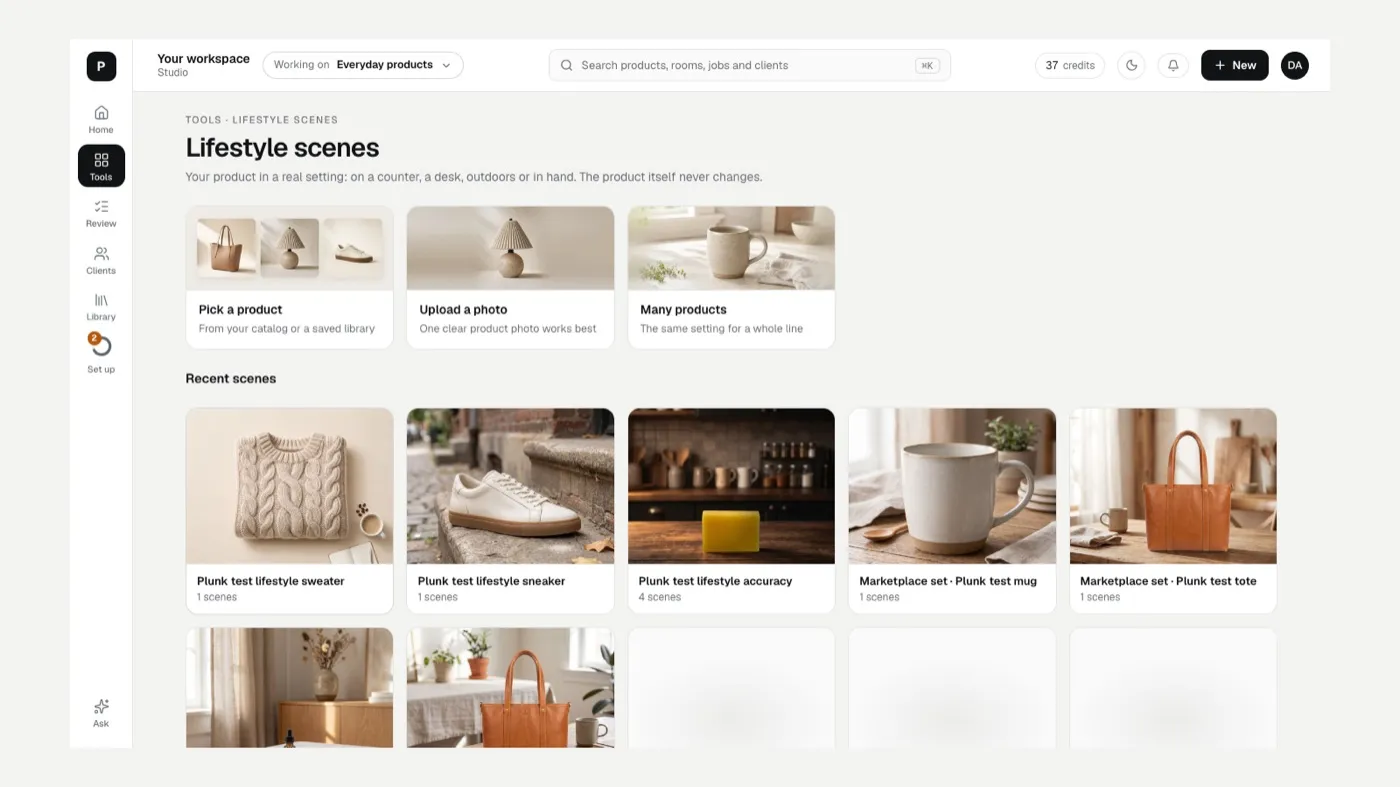
-
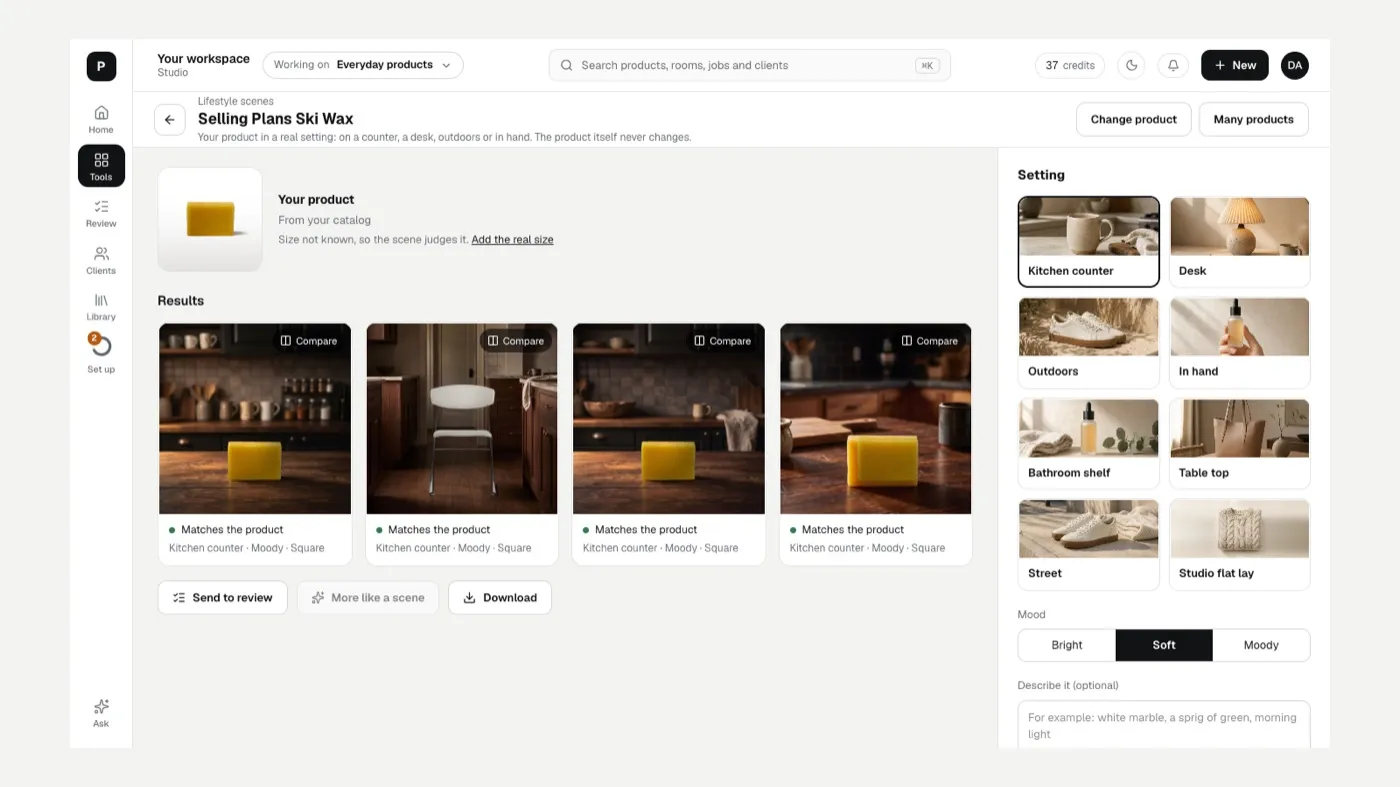
Check the size. If the size isn’t known, click Add the real size so the scene doesn’t have to guess.
-
Choose a Setting, such as Kitchen counter, Desk, Outdoors or In hand. In hand shows one hand only, never a face or a body.
-
Choose a Mood: Bright, Soft or Moody.
-
Describe it (optional), for example “white marble, a sprig of green, morning light”.
-
Pick Sizes (Square, Portrait, Landscape) and how many Scenes per size (1 to 4).
-
Set Attempts when the quality check fails (1, 2 or 3). With 1, a scene that fails the check is flagged for you instead of being made again.
-
Click Make scenes. Each takes about a minute.
Use the results
Section titled “Use the results”Each scene says Matches the product, Needs your review or Not checked. Use Compare to zoom in next to your product photo. Then:
- Send to review to approve them with the rest of your work.
- More like this one makes two more in the same style.
- Deliver, Download, or Use as Shopify image if your store is connected.
If something looks off
Section titled “If something looks off”- The product looks different in the scene: The result doesn’t match my product.
- The product is too big or small for the setting: add its real size, then redo the scene.
- A scene says Needs your review: look closely before approving; the check found something to question.
Related
Section titled “Related”Still stuck? Contact support and include the job or page you were on.