Plan a room to scale
Before you start
Section titled “Before you start”- Your products need to be in Studio (connected catalog or Library). Pieces with real sizes give the best plans; Studio estimates the rest and tells you which ones.
- Planning is free. You only spend credits when you make top-down views or render the room, and the total shows before you render.
- Rooms is included on every Studio plan and with Plunk Commerce.
-
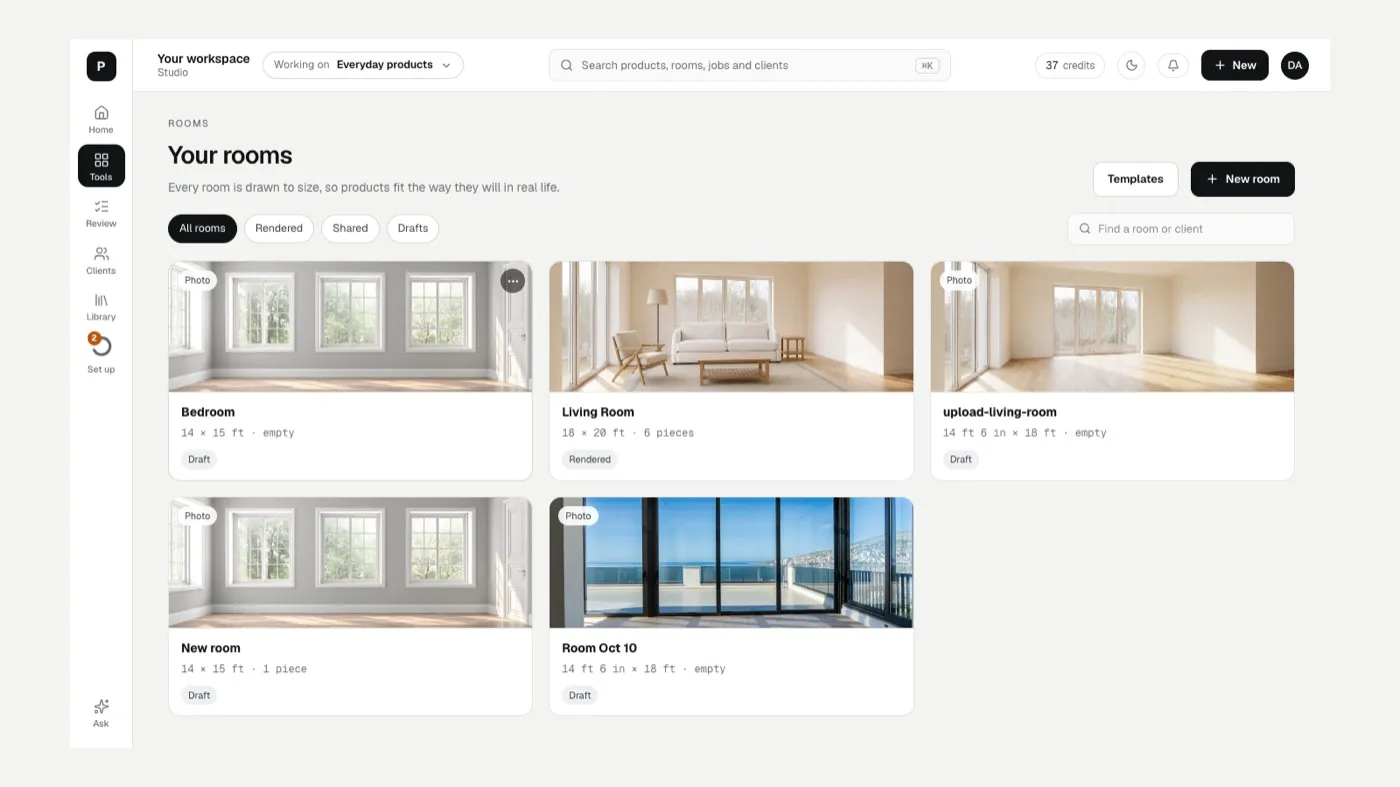
Open Rooms from Tools (Design group), from + New › New room, or from Plan a room on Home. You land on Your rooms, with your drafts and rendered rooms.
-
Click + New room. Give the room a Name and, if it’s for a client, pick one under Client (optional).
-
Pick a way to start:
- Draw it (best for most rooms): type the width and length, then drag walls and add corners, doors and windows.
- From a floor plan: upload a PDF or image. Studio traces the outline and finds walls, windows and doors. You set the scale by clicking one wall and typing its length.
- From a photo: Studio finds the walls, windows and doors in a room photo and proposes a plan. You confirm one measurement (the back wall, a door height or a window). Your client’s phone photo works.
- From a template: common room shapes with corners, doors and windows already placed.
-
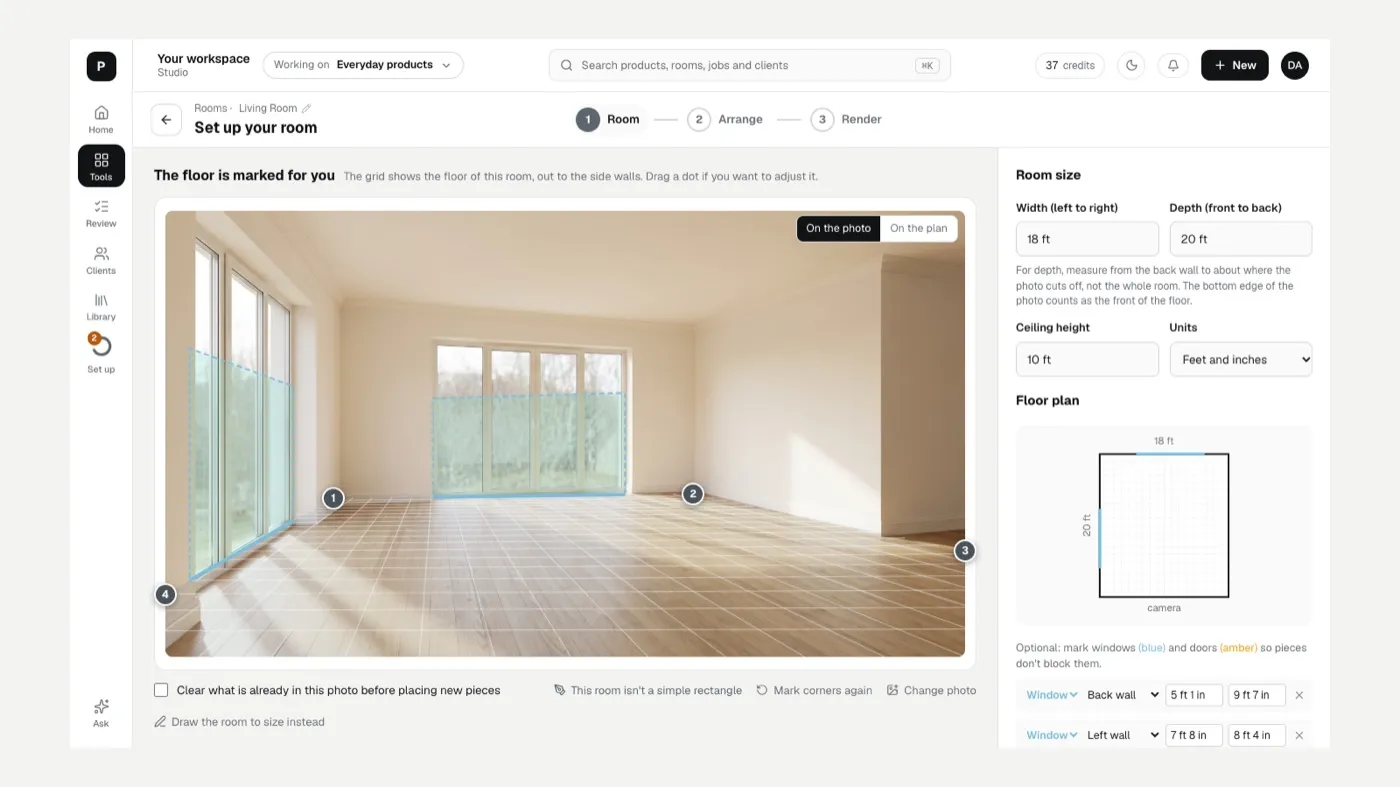
Shape the room. When you draw it, start from Rectangle, L-shape, U-shape or Angled wall, then use the tools along the top: Walls, Corner, Door, Window, Opening, Keep clear and Measure. Click a wall to type its length. Set the Ceiling height and your Units (feet and inches or metres).
-
Add photos (optional). On Place your photos on the plan, drag each photo’s pin to where you stood and turn the cone to where you were facing. Studio lines the photo up with the walls. Skip this if you’ll render from the plan alone.
-
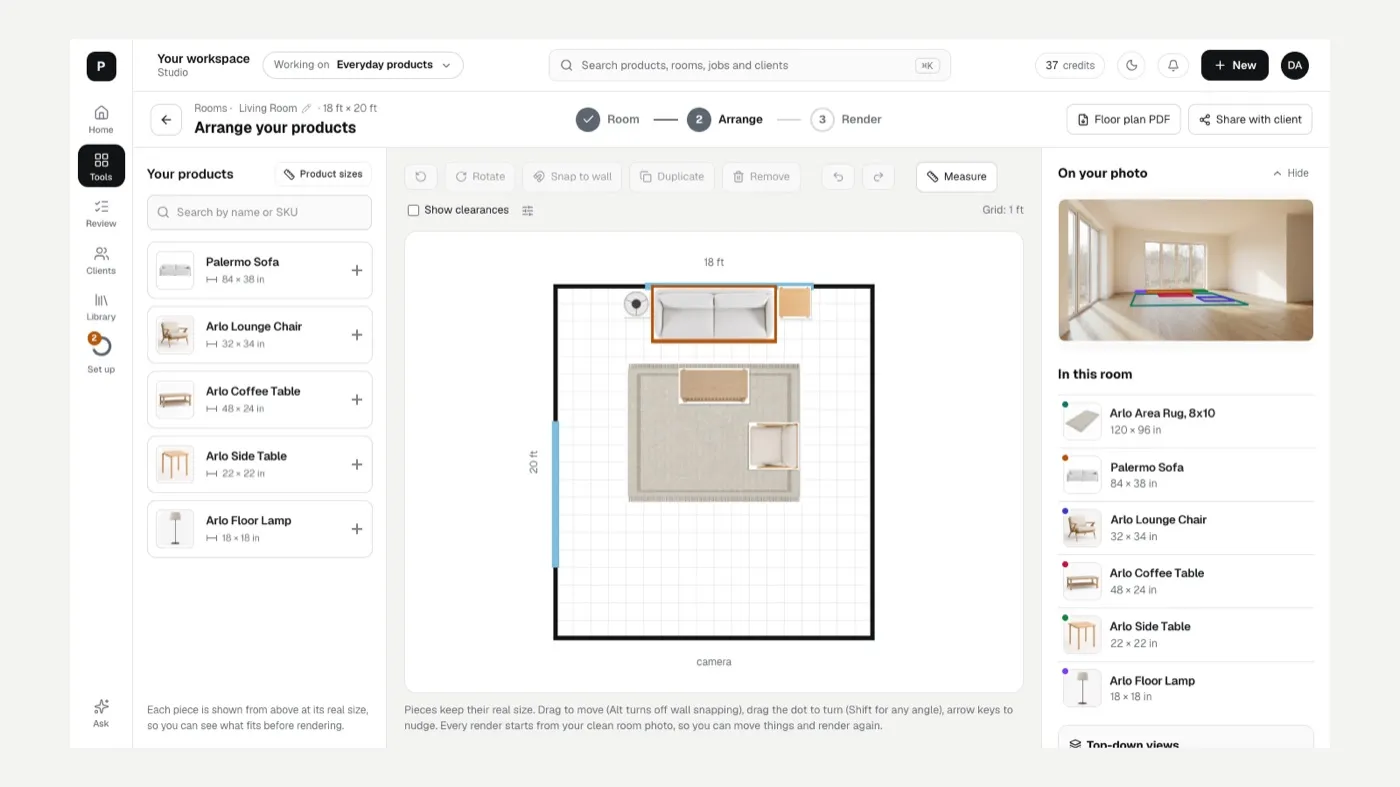
Arrange your products. Drag pieces from Your products onto the plan. Use Rotate, Snap to wall, Duplicate and Remove on a selected piece. Wall pieces (art, mirrors, sconces) can be set On a wall at a height above the floor.
-
Check the sizes. Click Product sizes to see which pieces use an estimated size. Enter the real size from the spec sheet, or use Import sizes from a spreadsheet.
-
Check the fit. Studio watches the Clearance rules as you arrange: walkways between pieces, sofa to coffee table, space behind dining chairs, space in front of drawers and doors, and door swings. You can change the numbers, or go Back to the usual numbers.
-
Click Next: render the room when the layout is right. See Render a room.
Share the plan
Section titled “Share the plan”- Floor plan PDF gives you a printable plan to scale, with wall lengths and the piece list.
- Share with client puts the renders, floor plan and piece list on that client’s board. See Clients and boards.
If something looks off
Section titled “If something looks off”- A piece looks too big or small on the plan: open Product sizes and enter its real size.
- Your products is empty: connect your catalog first. See Library.
- Your photo and the plan don’t line up: on the photos step, choose Line up from the pin again, or check the measurement you confirmed.
Related
Section titled “Related”Still stuck? Contact support and include the job or page you were on.