Set up the COM/COL Visualizer
Before you start
Section titled “Before you start”- Visualizer Apps are included with Studio Storefront and Plunk Commerce.
- Your product catalog and at least one fabric or finish library.
- Shopper renders come from your workspace’s credits. Set a daily cap on each key.
- Open Visualizer Apps from Tools and click COM/COL Visualizer.
- Choose the pieces. On Catalog, click Add category to include a whole category (new products in it join on each publish), and Manage to exclude the few that shouldn’t show. Click Add piece for single products, with an optional display name or image.
- Choose the materials. Under Fabric & finish libraries, click Choose libraries. The names on your swatches are what shoppers see.
- Click Publish COM/COL catalog. Shoppers see nothing new until you publish.
- Try it. Click Try it to open the visualizer with your own catalog, the same thing your shoppers get.
- Add a key for each place it runs. See Visualizer catalog and keys.
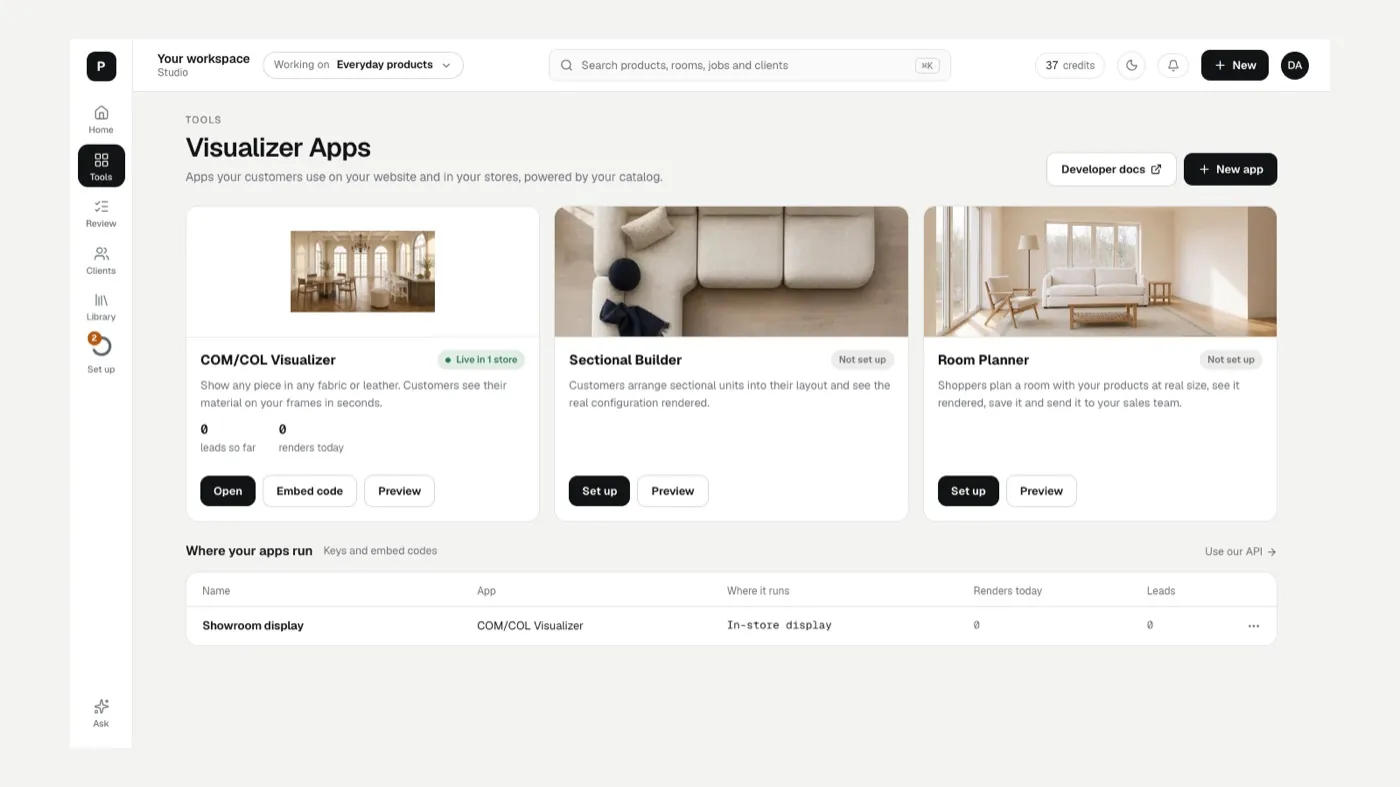
Answer requests
Section titled “Answer requests”When a shopper sends a request, it shows on the Requests tab under Needs review. Open it to Compute yardage, Approve, Follow up with customer, or mark it Not possible, and Email the customer. Leads land with your team, tied to the piece and materials they chose.
If something looks off
Section titled “If something looks off”- A piece is missing for shoppers: check it isn’t excluded, then publish again.
- Changes don’t show: look for Unpublished changes and click Publish COM/COL catalog.
- A fabric name looks wrong: rename the swatch in its library, then publish again.
Related
Section titled “Related”Was this helpful?
Still stuck? Contact support and include the job or page you were on.