Render a room
Before you start
Section titled “Before you start”- A room with products placed on the plan. See Plan a room to scale.
- Rendering uses credits. The total shows before you render, and each attempt is billed.
-
Open the Render step (click Next: render the room in Arrange, or open a room from Your rooms).
-
Pick the view to render: Your photo renders from the angle of a room photo you added. No photo, from the plan first makes an empty room to your size, then places every piece in it.
-
Set the framing if you’re rendering from the plan: Closer or Whole room, or Use another corner.
-
Choose attempts. Under Attempts when the quality check fails, pick 1, 2 or 3. With 1, a result that fails the check is flagged for you to review instead of being made again. Each attempt is billed.
-
Add anything else (optional), for example “warm evening light, plants on the shelf”.
-
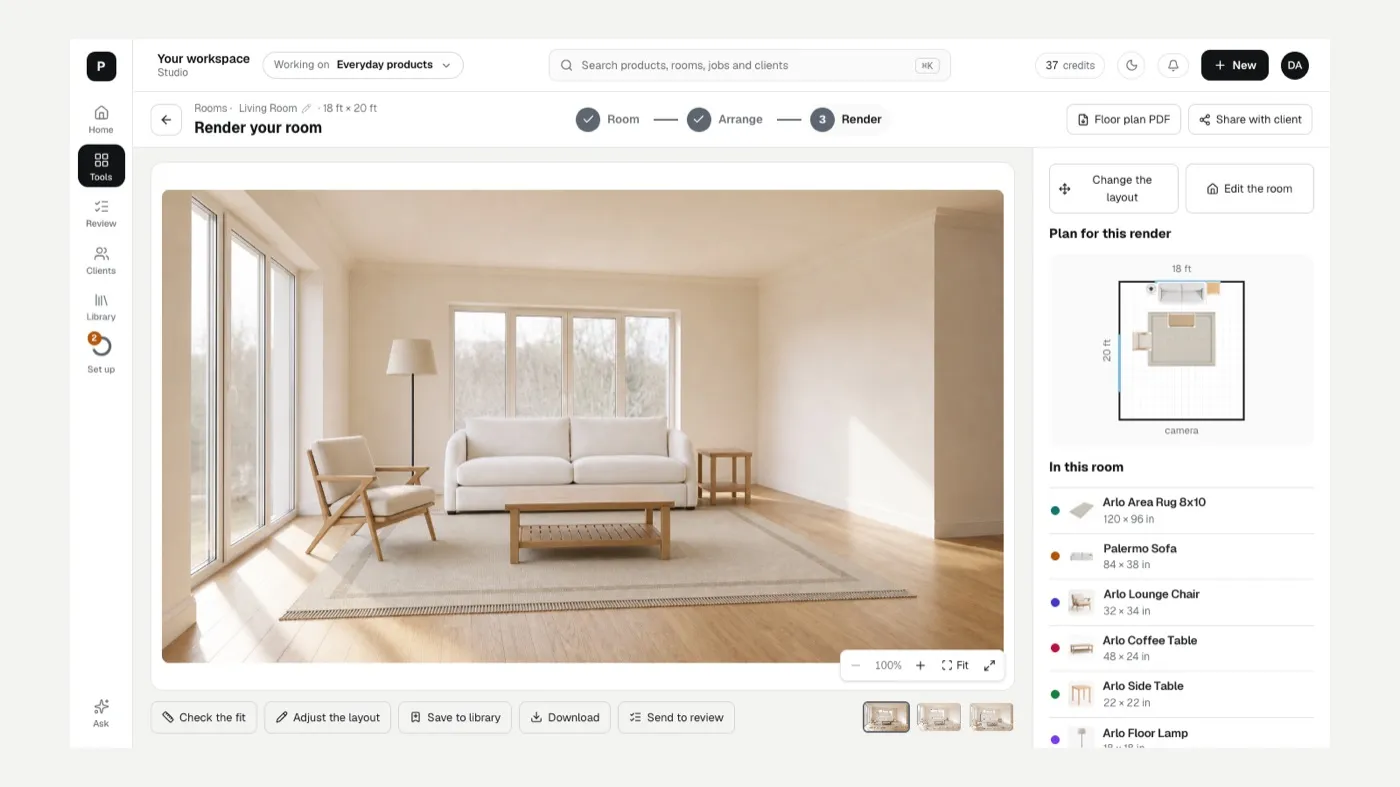
Click Render the room. It usually takes about a minute, and it keeps going if you leave.
-
Click Check the fit. Studio draws the planned outline of every piece over the render and tells you whether each one Fits as planned, is off by a few inches, or wasn’t found.
-
Decide what’s next: Adjust the layout and Render again, Save to library, Download, or Send to review. In the send dialog, tick the versions you want. Sending to Review costs nothing, and nothing goes anywhere until you deliver it.
Every render is kept. Use the version list (Version 1, Version 2 and so on, with Earlier renders) to go back to one.
If something looks off
Section titled “If something looks off”- A piece is the wrong size in the render: The result doesn’t match my product. Also check its size in Product sizes.
- This render is framed differently from your photo: the plan can’t be lined up with it, so the fit check can’t run. Render again to check the fit.
- Needs your review: the quality check spotted a possible flaw. Look closely before you approve it.
- Can’t find a render you made: Where are my results?
Related
Section titled “Related”Still stuck? Contact support and include the job or page you were on.