Work as a team
Before you start
Section titled “Before you start”- Studio Team includes 5 people and unlimited reviewers. Studio Designer and Studio Pro are for one person, so hand-offs, assignment filters and team notes don’t show there.
- None of this uses credits.
Who can do what
Section titled “Who can do what”| Role | Can |
|---|---|
| Owner or administrator | Everything: approve, deliver, set up destinations, delete jobs, How clients see you, Studio settings, Members, Billing & Usage |
| Moderator | Approve renders and send them back |
| Everyone else | Make things, look at results and download |
People without reviewer rights see: “You can look and download. Approving and sending back is for reviewers.”
Add people
Section titled “Add people”- Click your avatar, then Profile.
- Click Members. It opens your account, where you invite people and set their roles.
Hand off a job
Section titled “Hand off a job”- Open the job in Review.
- Click Hand off under Assigned to (or Hand off to a teammate in the ··· menu) and pick a teammate. They’re emailed.
- Filter by Assigned to me in Review to see your own queue.
A hand-off says whose turn it is. It isn’t a lock: any reviewer can still act. You can also pick Who reviews it when you start a batch in Customize.
Team notes
Section titled “Team notes”On any job, open Team notes, write a note and type @ to bring someone in. They’re emailed. Press ⌘ Enter (Ctrl Enter) to send.
Workspace settings
Section titled “Workspace settings”Owners and administrators also set:
- How clients see you: the name, logo, brand colour and contact person on client boards and emails.
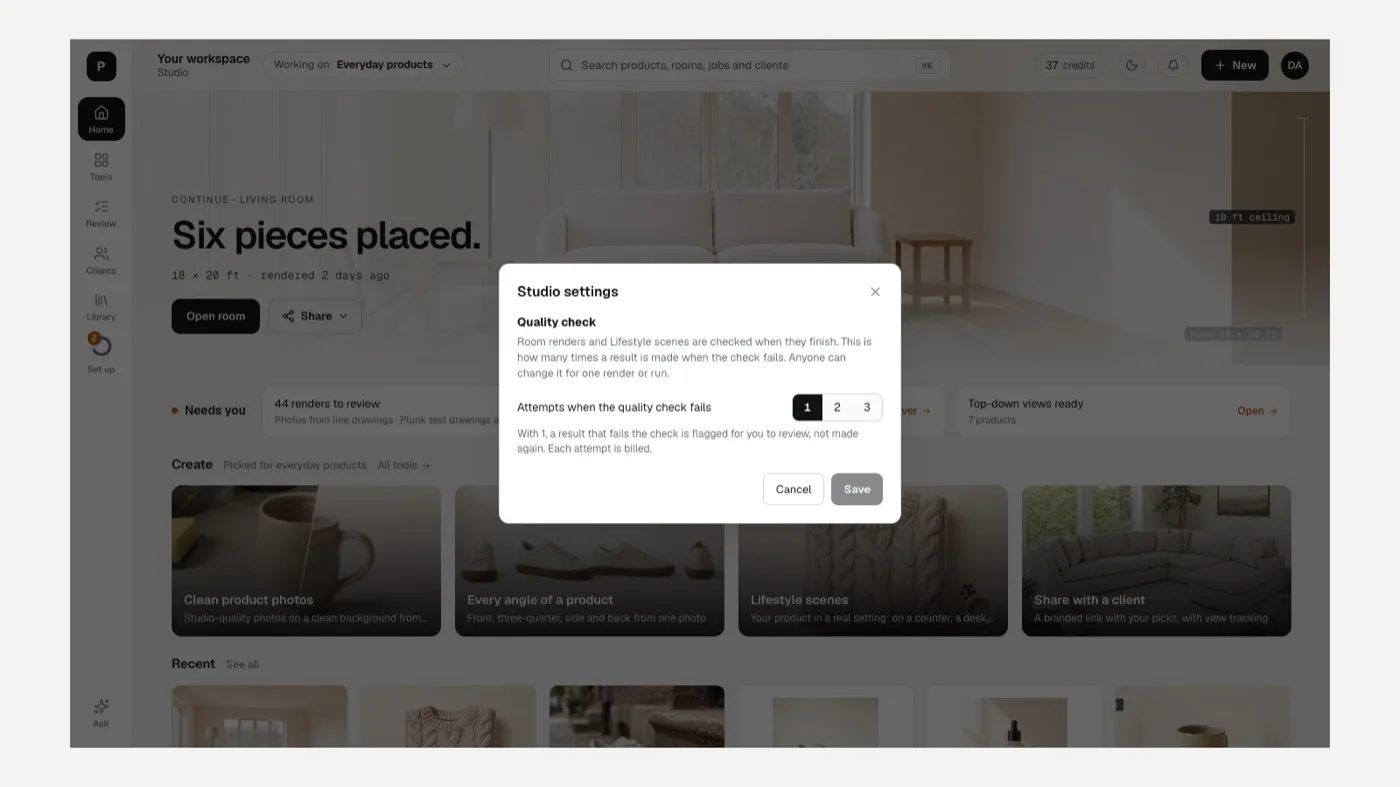
- Studio settings: under Quality check, how many attempts room renders and lifestyle scenes get when the check fails (1, 2 or 3). Each attempt is billed.
Related
Section titled “Related”Was this helpful?
Still stuck? Contact support and include the job or page you were on.