Make your first image in five minutes
Before you start
Section titled “Before you start”- One clear product photo. A photo from your connected catalog is best, but you can upload a PNG, JPG or WebP.
- To change a fabric or finish you need at least one swatch library. You can add one from a zip right inside the picker.
- One image is about 13 credits. Every Studio plan and Plunk Commerce includes Customize.
-
Click Tools, then Customize. (Or + New › Customize a product.)
-
Click Pick a product to choose from your catalog or a saved library, or Upload a photo to use one from your computer.
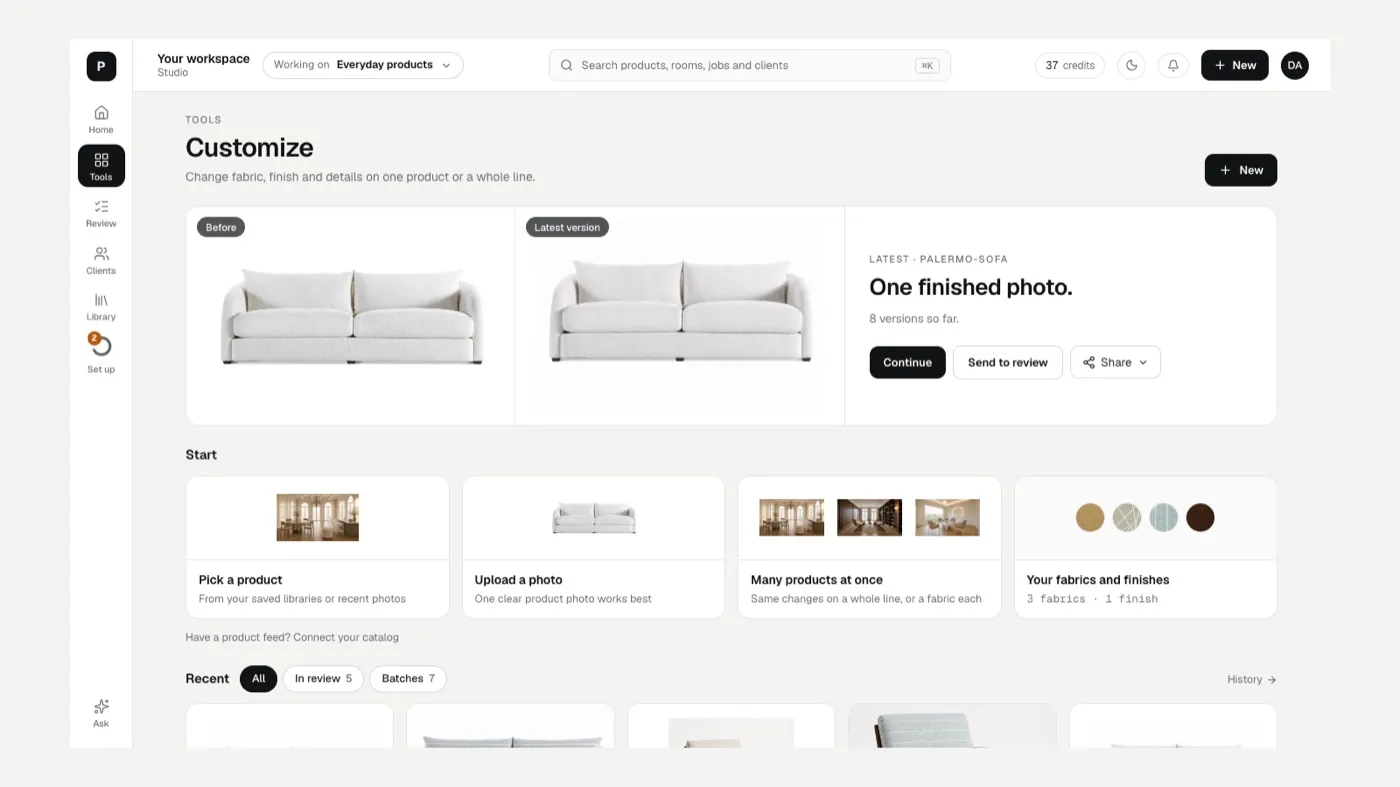
-
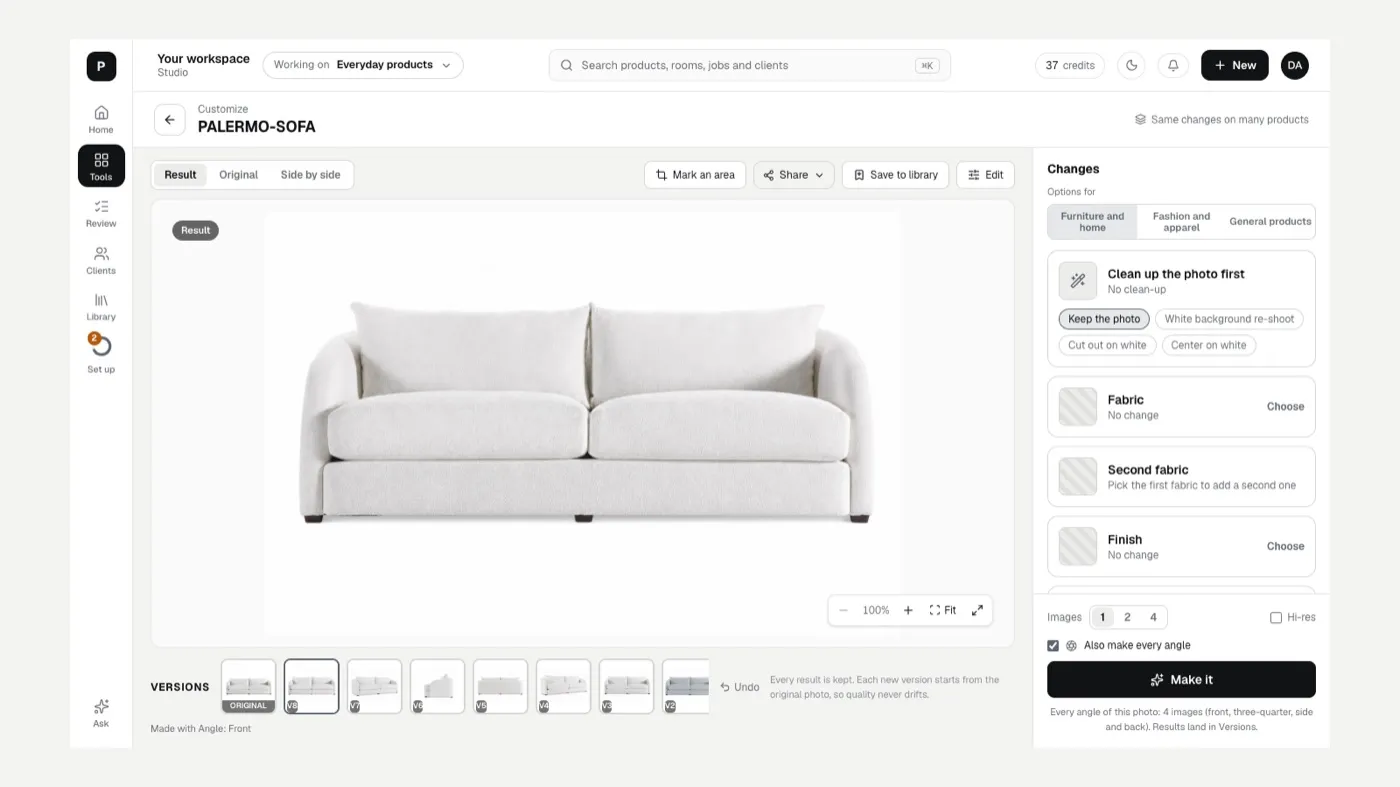
Choose a change in the Changes panel on the right. For a first try, pick one:
- Under Clean up the photo first, choose White background re-shoot for a clean studio photo.
- Or on Fabric (or Color for general products), click Choose and pick a swatch.
-
Leave Images at 1 and click Make it. It takes about a minute. You can leave the screen; it keeps going.
-
Compare. Switch between Result, Original and Side by side above the picture. Every version stays in the Versions strip.
-
Keep it. Click Send to review to approve it, Save to library, or Edit to open it in the image editor.
If something looks off
Section titled “If something looks off”- The product changed shape or lost a detail: The result doesn’t match my product.
- The fabric pattern is too big or small: The fabric scale looks wrong.
- You can’t find what you made: Where are my results?
Related
Section titled “Related”Was this helpful?
Still stuck? Contact support and include the job or page you were on.