Make marketplace image sets
Before you start
Section titled “Before you start”- Your products and their photos. Some images use your own photo as-is (main image, detail, size), and In the box needs a photo from you.
- Each image Studio makes is about 13 credits. Images built from your own photo don’t need new picture work.
What a set holds
Section titled “What a set holds”| Image | What it is |
|---|---|
| Main image | White background, product fills most of the frame |
| More angles | Three-quarter, side and back, each kept only after a check |
| Detail | A close-up of an area you choose |
| Lifestyle | The product in a setting |
| Size and scale | The product with its dimensions |
| In the box | What’s included |
| Video | Optional |
Each marketplace asks for a different mix and size. For example, Amazon wants a white background with the product filling 85% of a 2000 × 2000 image; Etsy wants a 2700 × 2025 landscape with the product centred. Studio follows each one’s rules for you.
- Open Marketplace image sets from Tools and click New set.
- Pick the products to list and click Import.
- Pick your marketplaces: Amazon, Google Shopping, Shopify, Walmart and Etsy. New sets start with the first four on.
- Click a product and marketplace in the grid to see each required image and how many are ready.
- Fill the gaps. Click Make the missing images, or work image by image: Make it, Use my photo, Choose the area for a detail, Add the product size, or Add your photo for In the box. For video, choose Make one in Product video.
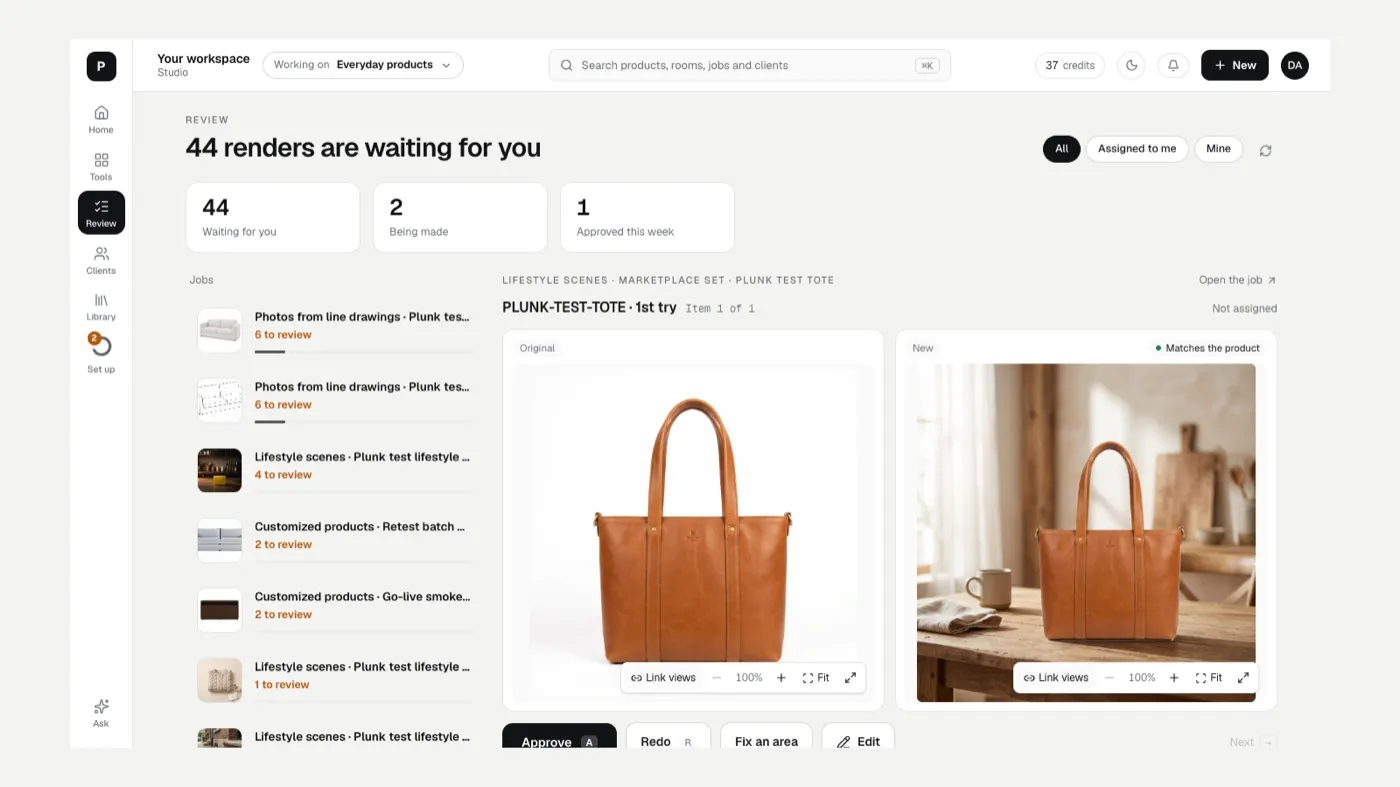
- Check the labels. Finished images say From your photo, Matches the product or Check it before you publish.
- Send it out. Download all gives one zip with a folder per marketplace. Deliver sends the images to a delivery destination. Send to Shopify adds them to your store if it’s connected.
If something looks off
Section titled “If something looks off”- An image says Check it before you publish: open it and compare with your product before you send it.
- The angles look invented: add your own photo of the back with Add your photo of the back.
- Something changed on the product: The result doesn’t match my product.
Related
Section titled “Related”Was this helpful?
Still stuck? Contact support and include the job or page you were on.