Build and manage audience lists
Before you start
Section titled “Before you start”- Lists build on your contacts, so connect the site tracker and your customer feed first. See Connect your data.
- Built-in lists (Everyone, Customers, Inactive and Can’t email) are kept up to date for you.
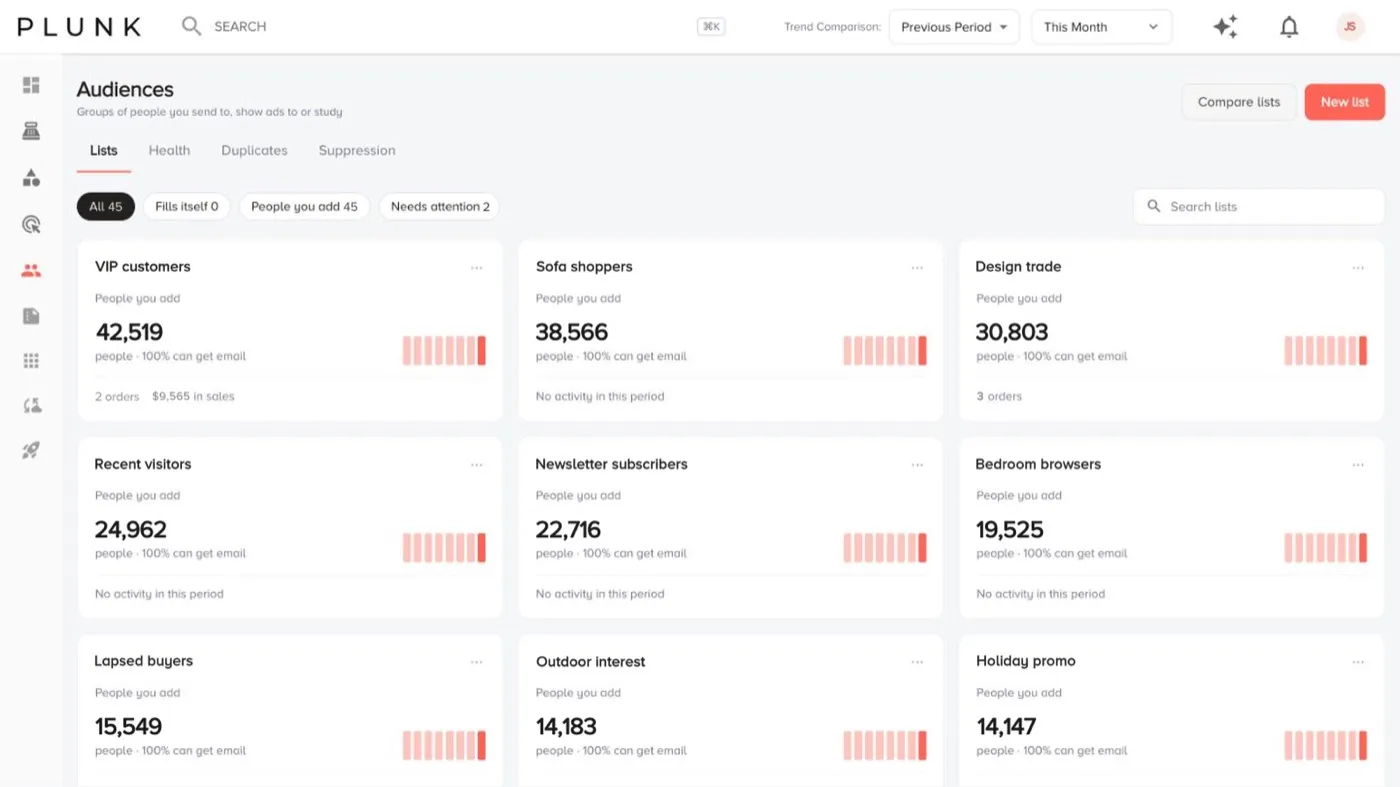
- Open Customers > Audiences. The Lists tab shows every list with its size, the share that can get email, a trend and how many emails use it.
- Click New list and give it a name.
- Pick how people get in.
- Fills itself: add rules such as stage, visited your site, looked at a product, days since last order, total spent, bought from a category, state or postal code, sales territory or sales rep. Choose whether people must match all or any rule. The live count shows how many match right now.
- I’ll add people: upload a file, paste addresses or copy from another list.
- Save the list, then open it to see the people, their email permission and the list’s visits, orders and sales for the date range.
- Use the list from Use this list: send an email to these people, or Show ads to these people, which opens the flight builder in Campaigns.
Upload a list from a file
Section titled “Upload a list from a file”- Click Import contacts in Contacts, or Upload a list in Manage Data.
- Name the list, then Download a template if you need one.
- Set email permission: they’ve agreed to get email, or they haven’t yet. An Email Opt-In column in the file decides it per person.
- Upload the file (.csv). Uploading never emails anyone.
Keep your lists healthy
Section titled “Keep your lists healthy”- Health shows how many people you can reach and a checklist of fixes, checked every night.
- Duplicates lists people who are in your contacts twice. Merge, keep one or mark them Not the same person. You can undo a merge for 30 days.
- Suppression holds addresses that never get bulk email (asked to stop, doesn’t exist, marked as spam). They still see your ads.
Connect an email tool
Section titled “Connect an email tool”On a list’s page, Connect a tool keeps the list in step with Mailchimp or Constant Contact, in either direction. Only people who agreed to get email and aren’t blocked are sent.
If something looks off
Section titled “If something looks off”- A list that fills itself looks out of date. These lists update every night. Click Update now on the list to refresh it.
- A list says Could not update. Open it and check its rules still make sense, for example a rep or territory that no longer exists.
Related
Section titled “Related”Was this helpful?
Still stuck? Contact support and include the job or page you were on.