Import your Google Analytics history
Before you start
Section titled “Before you start”- You need admin access to your GA4 property to add a viewer, plus your GA4 property ID and a service-account key (JSON).
- Plunk imports page views, sessions, sources, events and city-level geography. It never imports people: GA4 has no personal details, so no contacts are created.
- 13 or more months lets forecasts pick up seasonal patterns.
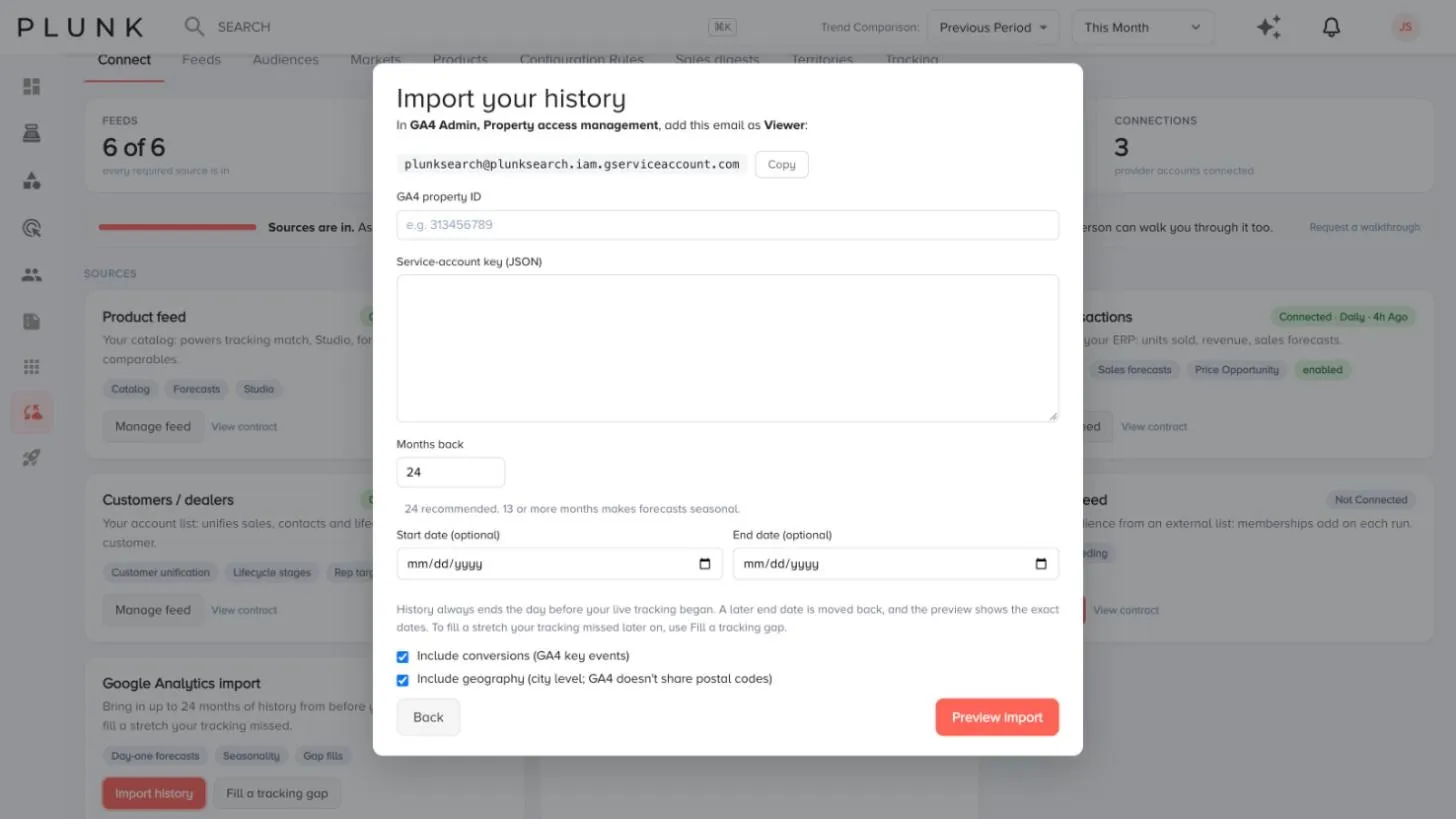
- Open Manage Data > Connect and click Import history on the Google Analytics import card (or Import history from the Setup page).
- Connect GA4. In GA4 Admin, under Property access management, add the email shown as a Viewer. Copy it with Copy. Then enter your GA4 property ID and Service-account key (JSON).
- Choose what to bring in. Set Months back (1 to 48, 24 recommended), or a start and end date. Tick Include conversions (GA4 key events) and Include geography if you want them.
- Click Preview import. Plunk checks with Google and shows what will come in. Nothing is written yet.
- Click Import history. You can close the window and follow progress in the Feeds tab.
Fill a gap in live tracking
Section titled “Fill a gap in live tracking”If the tracker was off for a while (for example during a site launch), you can fill just that window from GA4.
- Click Fill a tracking gap on the same card.
- Pick a gap Plunk found in the last 14 days, or enter a start and end time and time zone.
- Click Preview, check the hours filled, then Fill the gap.
Only the minutes with no live data are filled. Owners and administrators can remove a gap fill later.
If something looks off
Section titled “If something looks off”- The preview fails. Check that the viewer email was added to the right GA4 property and that the property ID is the number, not the measurement ID.
- The import ended earlier than you asked. History always stops the day before live tracking began, so the two never overlap.
- Numbers differ from GA4. Plunk and GA4 count some sessions differently. See Why do my numbers look wrong?
Related
Section titled “Related”Was this helpful?
Still stuck? Contact support and include the job or page you were on.