Plan reorders with the Inventory planner
Before you start
Section titled “Before you start”- The planner needs your stock levels. Upload a spreadsheet of SKUs and quantities, connect your online store, or have your system send stock levels nightly. Until then, the page shows Connect stock levels.
- The Inventory item appears in the sidebar once stock data has arrived.
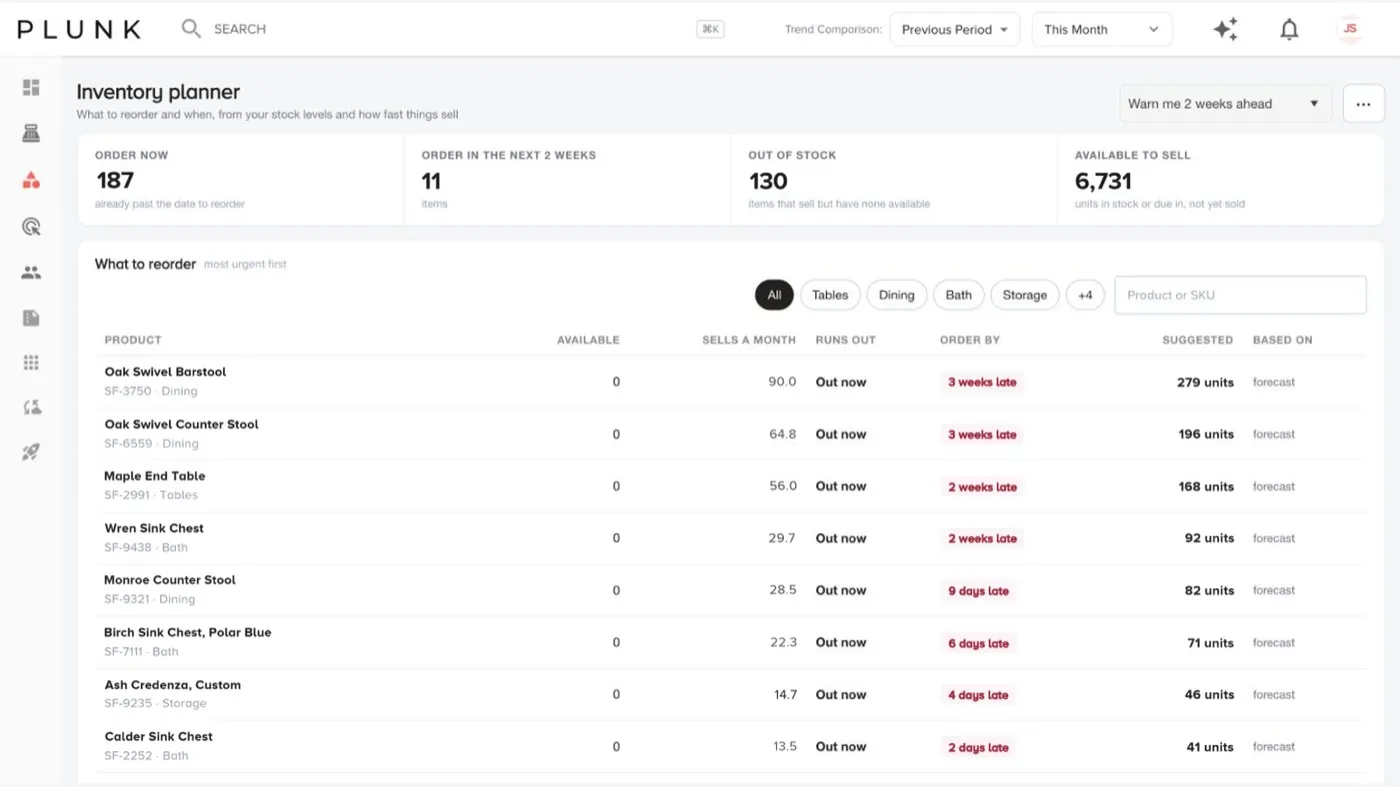
- Open Products > Inventory. The tiles show what to order now (already past the reorder date), what to order in the next few weeks, what’s out of stock and how many units are available to sell.
- Set how far ahead to look with Warn me N weeks ahead (1 to 12 weeks).
- Work down What to reorder. Each row shows available units, sales a month, when it runs out, the order-by date (or how many weeks late it is), the suggested quantity and whether that’s based on the forecast or recent sales.
- Filter by category or search for a product or SKU.
- Download this list (CSV) from More to send to purchasing.
How the numbers work
Section titled “How the numbers work”- Order by is the run-out date minus your lead time.
- Suggested covers sales until a new order arrives, plus any back orders.
- Made-to-order items aren’t listed.
If something looks off
Section titled “If something looks off”- The planner is missing or empty. Your stock levels haven’t arrived yet. Check the inventory source in Manage Data. See My feed stopped updating
- Stock looks a day behind. Click Refresh in the More menu after a new delivery.
Related
Section titled “Related”Was this helpful?
Still stuck? Contact support and include the job or page you were on.