Plan, make and publish content in Content Hub
Before you start
Section titled “Before you start”- Connect the accounts you want to publish to under Manage Data > Connect (Shopify, WordPress, Facebook, Instagram, Pinterest, LinkedIn, YouTube, TikTok, Google Business Profile and more).
- Set your brand kit so writing follows your voice. See Email composer and brand kit.
- Content Hub uses the same images and video as Plunk Studio, which is included with Plunk Commerce.
Build a story
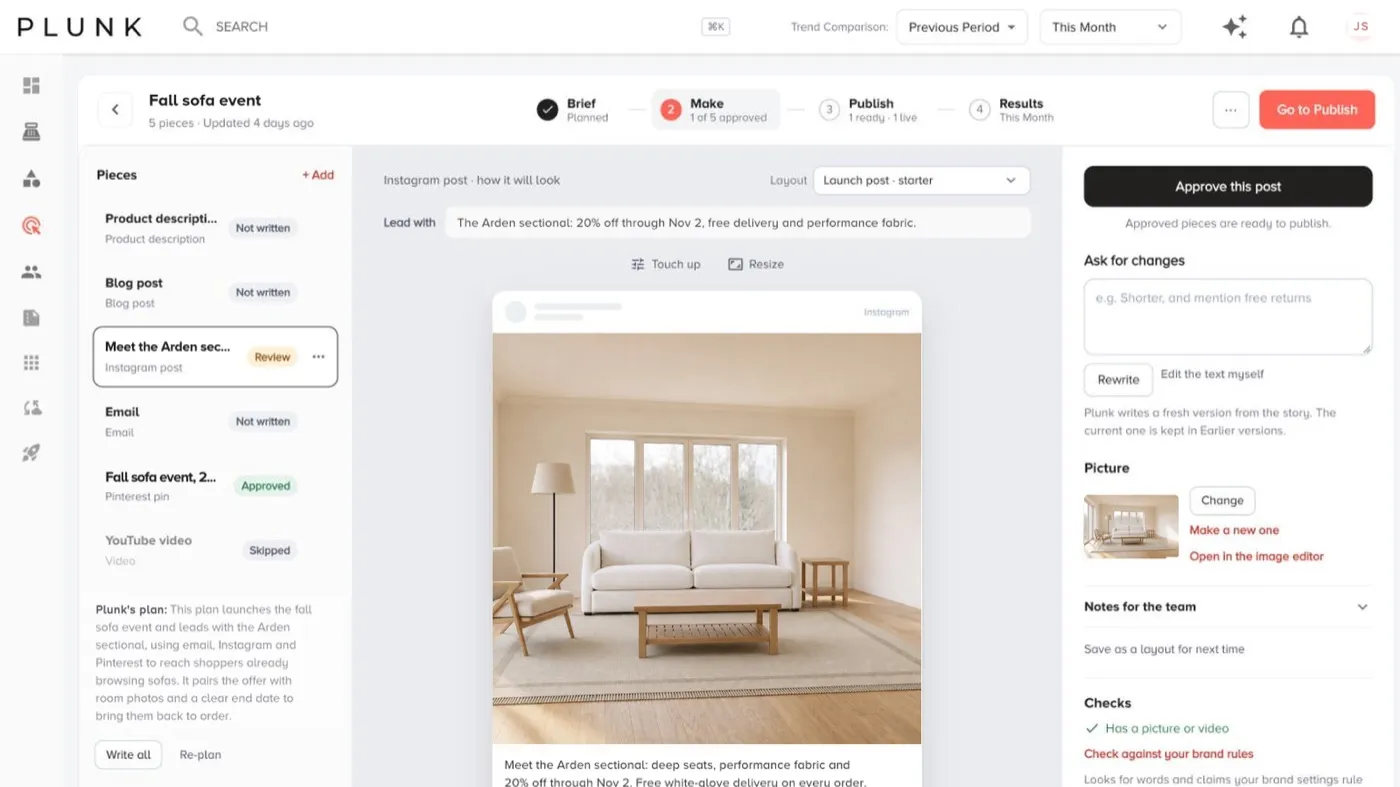
Section titled “Build a story”- Click New story. The story builder has four stages: Brief, Make, Publish and Results.
- Fill in the brief.
- What it is for: for example launch something new, run a sale or offer, back in stock, seasonal, or dealer reorder.
- Who it is for: retail shoppers, wholesale dealers, designers / trade, email subscribers or someone else.
- Where it goes: web page, email, Instagram, Facebook, blog post, LinkedIn, Pinterest, Google Business, product page or video.
- What the writers know: add facts, a web page or products.
- Click Plan the pieces. You get one piece for each channel.
- Edit each piece. Click words in the preview to change them, or use Rewrite. Swap pictures, or Write a version in another language. Checks compares the piece with your brand rules.
- Ask for a review or Approve each piece.
- Publish. Pick where each piece goes and when. Now publishes straight away; a date puts it on the Calendar. Email pieces can stay as a draft to send later from Email.
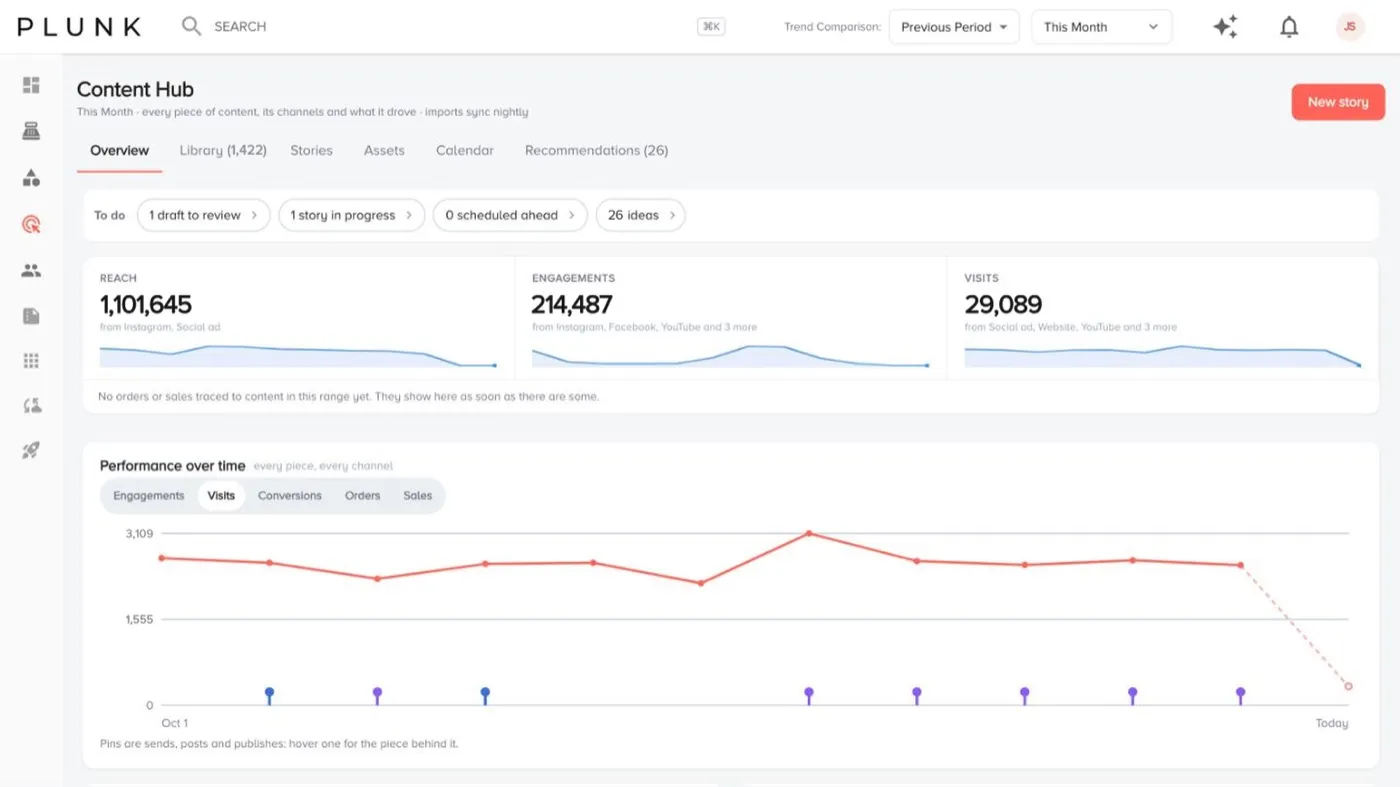
- Check Results for reach and site visits.
The other tabs
Section titled “The other tabs”- Overview shows reach, engagements and visits across channels over time.
- Library and Stories list everything you’ve made.
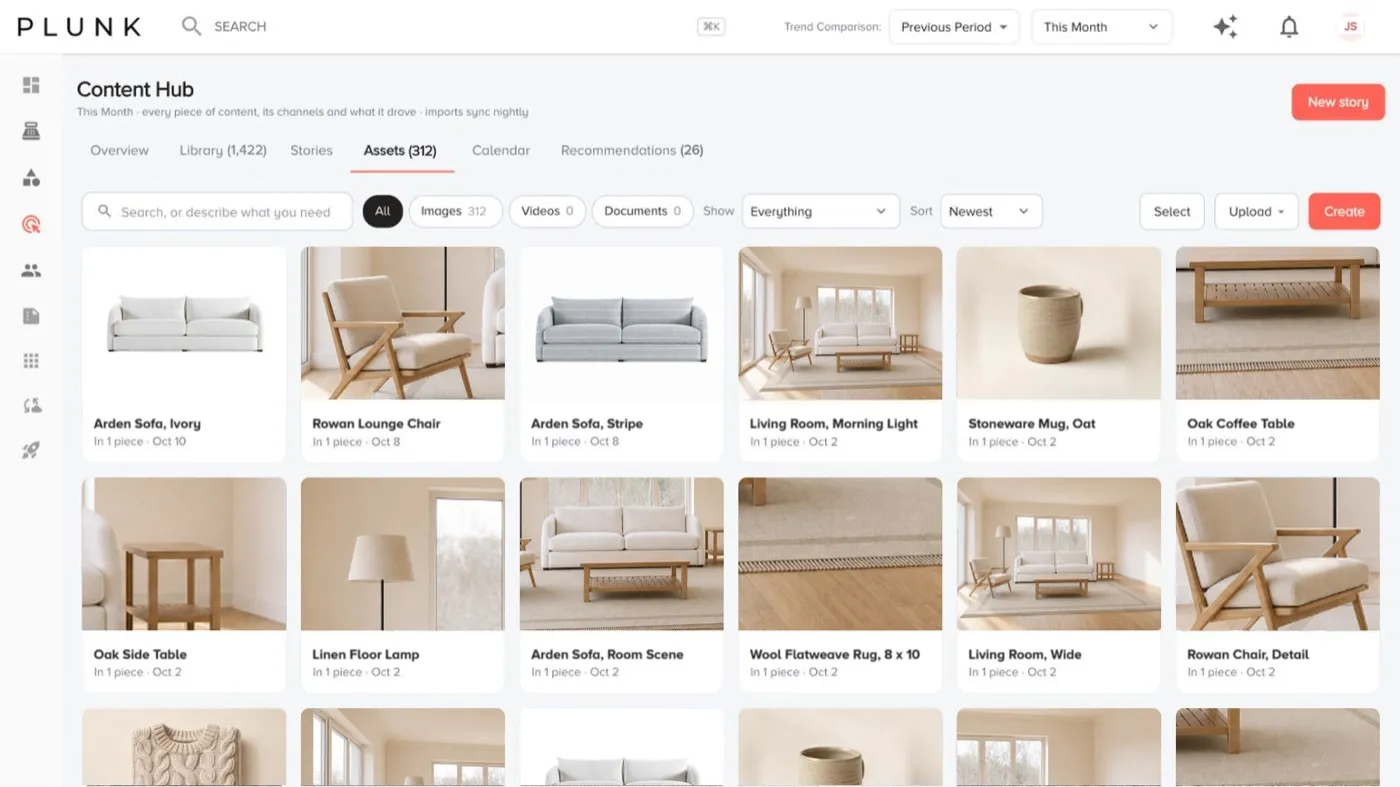
- Assets holds every image, video and document. Click Upload files to add your own.
- Calendar shows what’s scheduled.
- Recommendations points out things to fix on your site, content that’s slipping and gaps to fill.
Make an image, clip or sequence
Section titled “Make an image, clip or sequence”From What do you want to make? pick an Image (a photo sized for every channel), a Clip (a short video, 8 seconds to 2 minutes) or a Sequence (a narrated video from pieces you have). Results land in Assets. Every edit to an image makes a new version, so you can always go back.
If something looks off
Section titled “If something looks off”- A destination is missing when you publish. Connect that account under Manage Data > Connect first.
- A scheduled piece didn’t go out. Check the account is still connected, then click Publish again.
Related
Section titled “Related”Was this helpful?
Still stuck? Contact support and include the job or page you were on.