Read and customize your Dashboard
Before you start
Section titled “Before you start”- Sales tiles need your sales feed. Site tiles need the site tracker. See Connect your data.
- The date range and Trend Comparison (Previous Period or Previous Year) in the top bar apply to every screen and stay set as you move around.
- Pick a date range in the top bar: Today through All Time, or Custom range… with your own start and end dates.
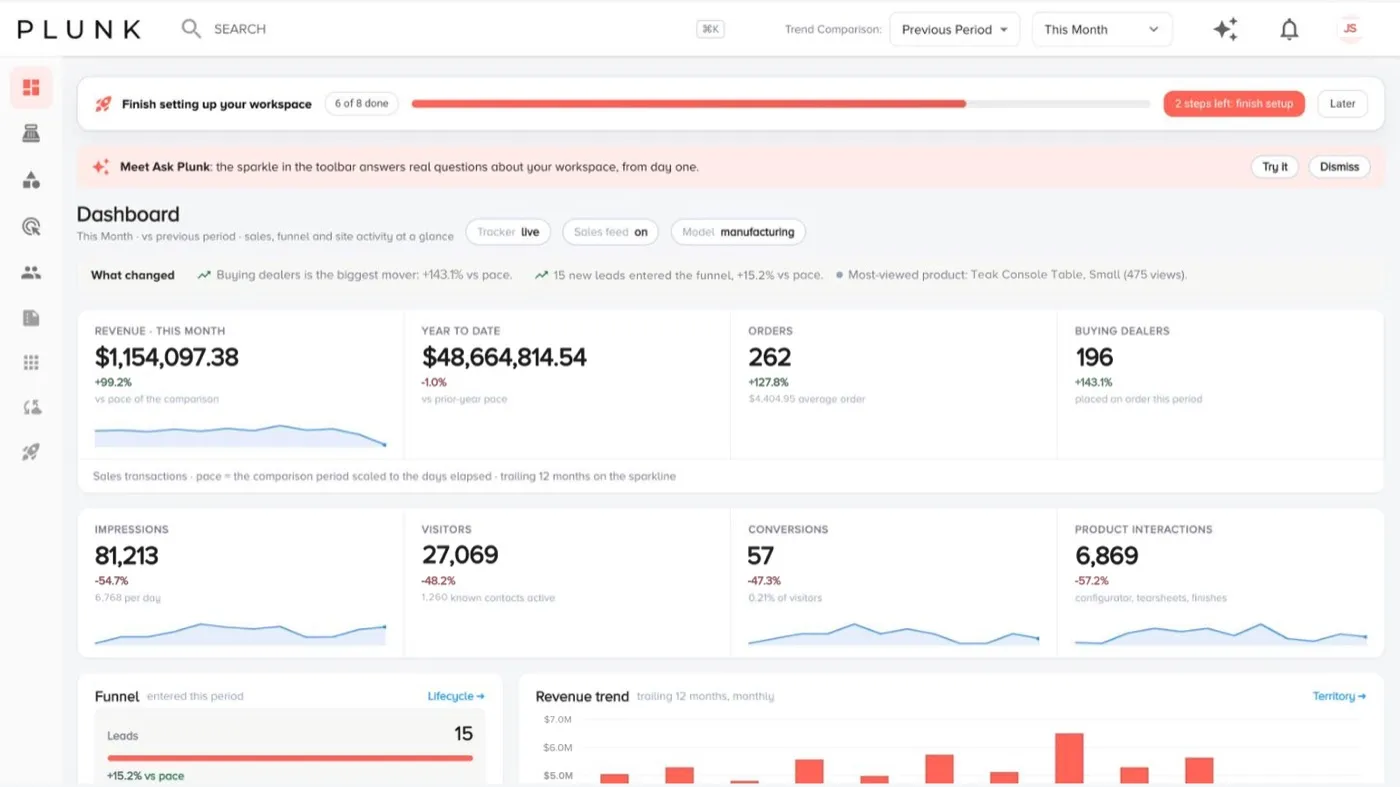
- Read the cards.
- What changed: the biggest movers in plain words.
- Sales: revenue for the range, year to date against last year’s pace, orders with the average order, and buying dealers (buying customers in the retail view).
- Site activity: impressions, visitors, conversions and product interactions.
- Funnel: leads, prospects and new customers who entered this period.
- Revenue trend: the last 12 months, by month.
- Top products: the most viewed products this period.
- Click through from a card’s link (for example Lifecycle → or Product Explorer →) to the screen behind it.
Make it yours
Section titled “Make it yours”- Click Customize.
- Drag cards to reorder them and pick a size for each (a third, half, two thirds or full width).
- Click Add card to add a Plunk card, a chart from one of your reports, or a new chart.
- Click Done. Owners can also Save as the workspace default so everyone starts from the same layout.
If something looks off
Section titled “If something looks off”- Sales tiles are empty. Your sales feed may not be connected or may be late. See My feed stopped updating
- Numbers differ from another screen. Check both use the same date range. See Why do my numbers look wrong?
Related
Section titled “Related”Was this helpful?
Still stuck? Contact support and include the job or page you were on.