See every retailer you sell to
Before you start
Section titled “Before you start”- This list fills from your customer feed and your sales feed. See Connect your data.
- In the manufacturer view the tab is Dealers. In the retail view it’s Accounts, and the page calls each one a customer.
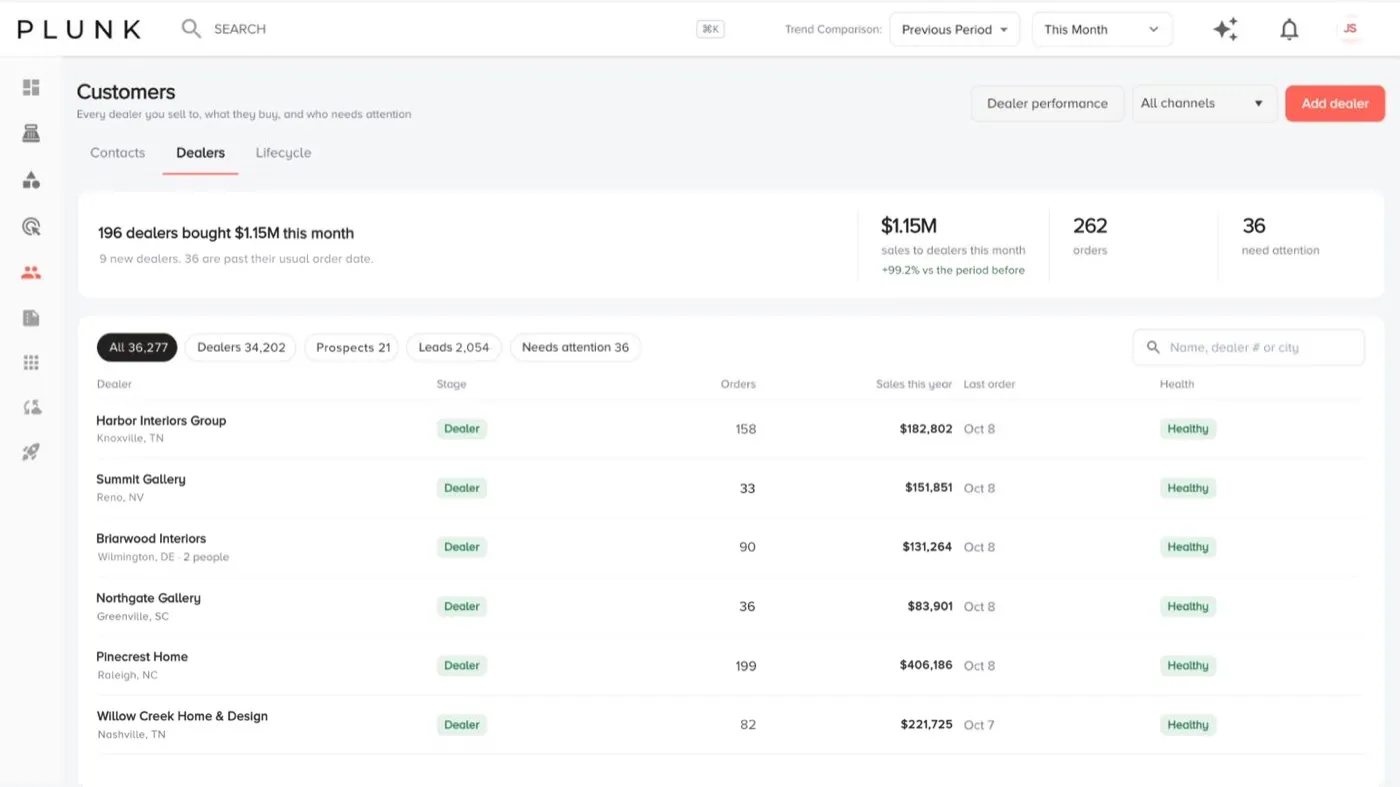
- Open Customers, then the Dealers tab. The summary at the top says how much your retailers bought this period and how many usually order by now and haven’t.
- Filter the list with the pills: All, Dealers, Prospects, Leads or Needs attention. Each pill shows its count.
- Search by name, dealer number or city. Use the channel menu (All channels, Business or Consumer) when you sell both ways.
- Read the columns: Stage (Lead, Prospect or Dealer), Orders, Sales this year, Last order and Health. Health is Healthy, Needs attention or New.
- Click a retailer to open its page. You see when it usually orders and how late the last order is, sales by month, every order, the people at the account, site visits and an account card.
- Add a note in the Notes card and click Save so your team sees it.
Add or edit a retailer
Section titled “Add or edit a retailer”Click Add dealer (or Add customer in the retail view) to add an account by hand. Fill in the business name, customer number, stage, email, phone and address. Tick Ships to the same place or add a separate ship-to address. To change one, open its page and click Edit.
If something looks off
Section titled “If something looks off”- An account says Needs attention but just ordered. Health reads your sales feed, so a late feed delivery can lag. Check the feed in Manage Data, or see My feed stopped updating.
- Sales don’t match your ERP. Check the date range first. See Why do my numbers look wrong?
Related
Section titled “Related”Was this helpful?
Still stuck? Contact support and include the job or page you were on.