Build a report and email it on a schedule
Before you start
Section titled “Before you start”- Reports use the areas your workspace has data for: your website, products, sales, ads, email, social, customers, stores, markets, places, content, territories, sales reps and dealers.
- Anyone on your team can open a report shared with Your team. Only the report’s owner, owners and administrators can edit or email it.
Build a report
Section titled “Build a report”- Open Reports. Under Start from a template, pick Monthly performance, Products people look at, Marketing overview, Sales by customer or Blank report. Or click New report.
- Name the report and choose Who can see it: Your team or Just you.
- Click + Add a panel.
- What to show: pick an area, such as Sales or Your website.
- Which numbers: tick the numbers, choose what to group by and how many rows to show.
- How to show it: Numbers, Line, Bars or Table. Check the live preview and click Add to report.
- Fine-tune a panel in the side panel: width (half or full), filters, numbers from another area, and Compare with the period before.
- Click Save.
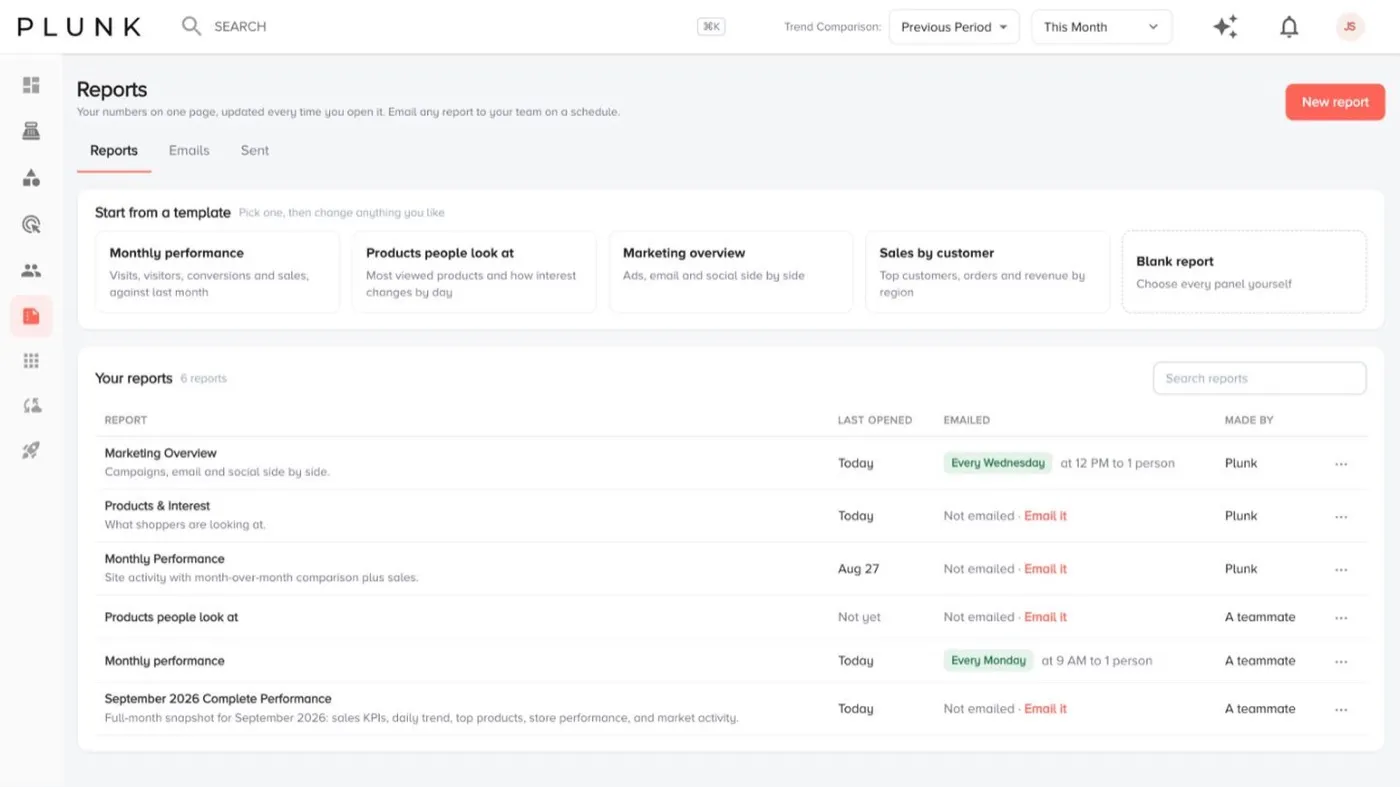
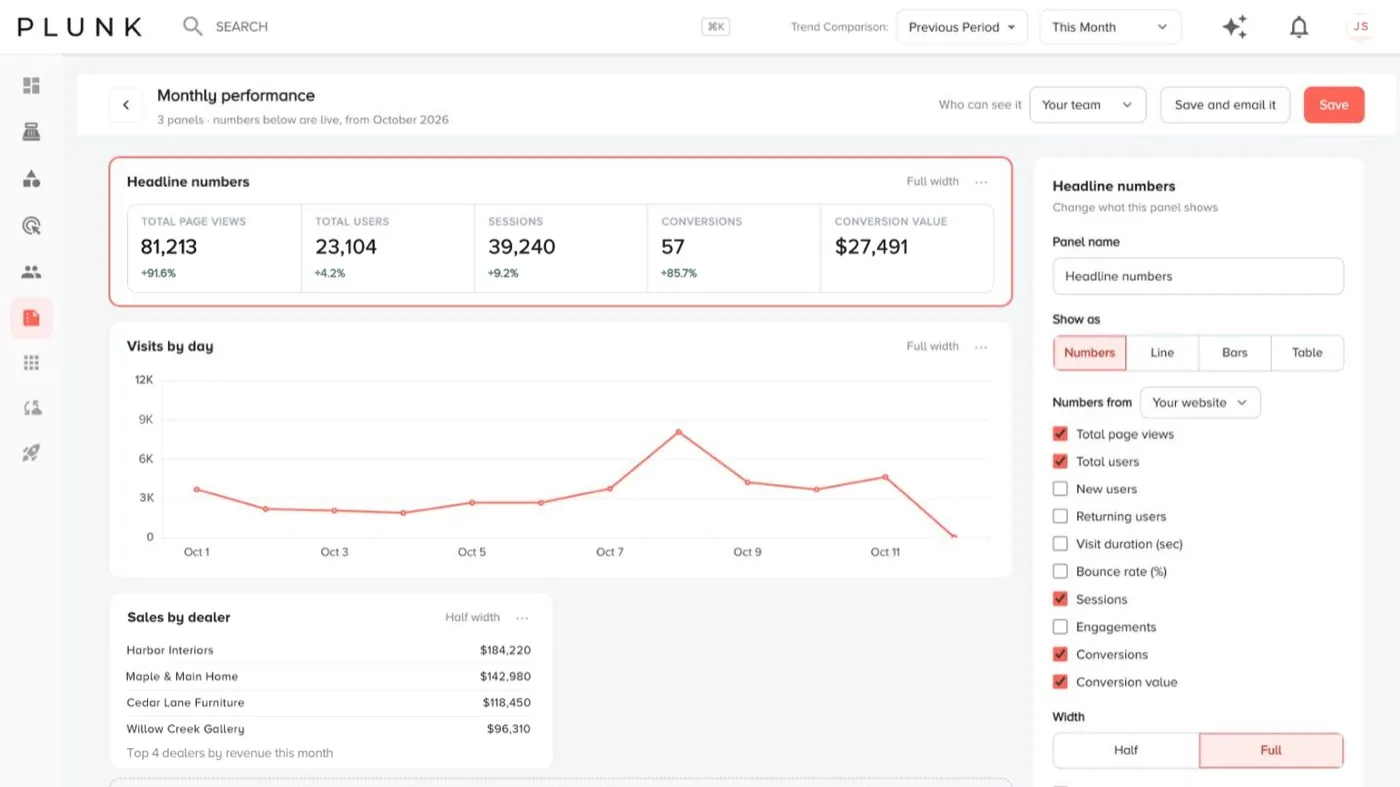
When you open a report, it uses the date range and comparison in the top bar, so the numbers are always live. Download CSV exports it, Share makes a read-only link that expires after 30 days, and Pin puts a chart on your Dashboard.
Email a report on a schedule
Section titled “Email a report on a schedule”- Open the report and click Email it (or Save and email it in the builder).
- Pick When: every week or every month, the day, the hour and the time zone. The sheet shows the next email date.
- Pick What each email covers: for example the 7 days before it is sent, the month before, or this month so far. Tick the comparison if you want one.
- Add who gets it: up to 10 people. People outside your team are fine, and replies go to you.
- Click Send a test to me to see the email, then Save.
The first email goes out at the next scheduled time. It never sends a catch-up for times already past.
Track what was sent
Section titled “Track what was sent”- The Emails tab lists every report you email, when it goes, who gets it and the next send. Use the row menu to Send now, Pause or Stop emailing.
- The Sent tab is the delivery log. If an email didn’t go out, click Send it again or Retry.
If something looks off
Section titled “If something looks off”- A panel says Nothing to show for these dates yet. Try a longer date range, or check the source behind that area in Manage Data.
- There’s no comparison. There’s no earlier data for that period to compare with.
- Numbers differ from a screen. Check the date range. See Why do my numbers look wrong?
Related
Section titled “Related”Was this helpful?
Still stuck? Contact support and include the job or page you were on.