How your data flows into Plunk Commerce
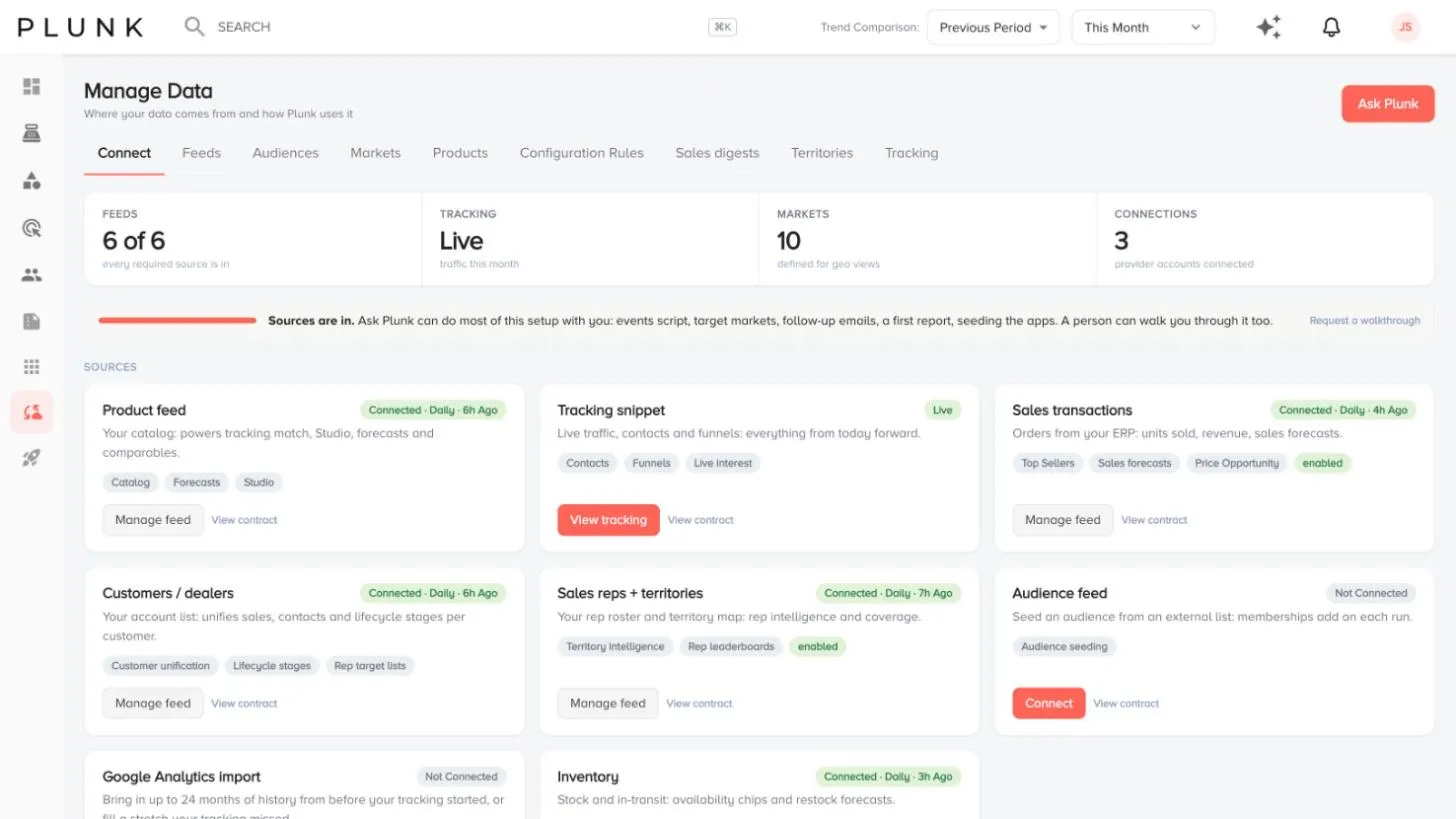
The sources
Section titled “The sources”| Source | How it arrives | What it turns on |
|---|---|---|
| Site tracker | A snippet on every page of your site | Website Analytics, contacts, product interest, funnels |
| Product feed | A file Plunk picks up on a schedule, or a one-time upload | Product Explorer, forecasts, Plunk Studio libraries |
| Customer feed | A scheduled file, a CSV, or built from the tracker | Dealers or Accounts, contacts, territory |
| Sales feed | A scheduled file, one row per order line | Sales, Territory & Reps, Stores, forecasts, options |
| Sales reps and territories | A file of who covers which ZIP codes | Rep pages, coverage map |
| Inventory | A spreadsheet, your online store, or a nightly feed | Inventory planner, stock checks |
| GA4 history | A one-time import | History from before the tracker |
| Shopify | One connection | Products, orders, customers and inventory together |
How feeds work
Section titled “How feeds work”A feed is a file Plunk picks up from an address you give it (http, https or ftp), every day, every Monday or on the 1st of each month. For each feed you choose what a run does, for example Add new and update existing or Replace recent days, keep older history.
Every delivery is checked before it lands. If a row has a problem, the run names the column and the row, and good rows still come in. Fix the file and the next delivery clears it.
The columns each feed needs are on its card under View contract. The key joins are:
- The product
idin your product feed matchesproduct_idin your sales feed. - The customer
reference_idmatchescustomer_idin your sales feed. emailmerges customers with the contacts the tracker finds.- A rep code on sales or customers powers rep and territory views.
When things update
Section titled “When things update”- The tracker records visits as they happen. Most screens roll them up overnight.
- Feeds update on their own schedule. A feed counts as overdue when it hasn’t run within its schedule plus 6 hours.
- Lists that fill themselves, funnels and options rebuild nightly.
If something looks off
Section titled “If something looks off”- A screen shows no data. It’s waiting on a source. Open Manage Data > Connect to see which one.
- A feed shows an error. The card carries the actual message and the row that caused it. See My feed stopped updating
- The tracker isn’t recording. See The tracker isn’t recording visits
Related
Section titled “Related”Was this helpful?
Still stuck? Contact support and include the job or page you were on.