Find and follow up with contacts
Before you start
Section titled “Before you start”- Contacts come from three places: visitors your site tracker identifies (a form, a sign-up, a shared link), your customer feed and lists you import. See Install the site tracker.
- To bring people in from a file, click Import contacts.
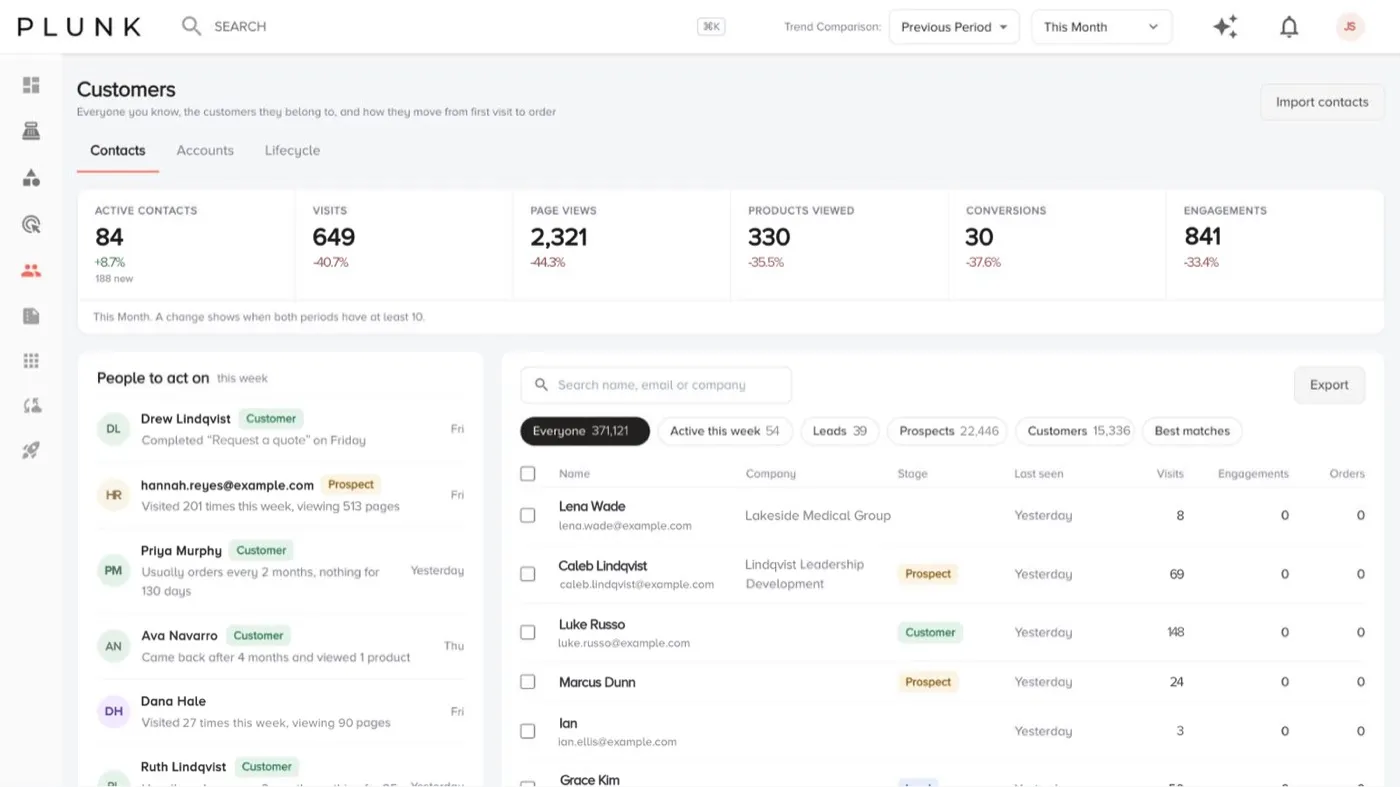
- Open Customers, then Contacts. The tiles show active contacts, visits, page views, products viewed, conversions and engagements for the date range.
- Start with People to act on. These are suggested follow-ups picked from site visits, emails and orders, updated every hour.
- Find someone with the search box, or narrow the list with the pills (Everyone, Active this week, and the stage pills where your workspace has them).
- Tick people to act on several at once. Click Add to a list to put them in an audience.
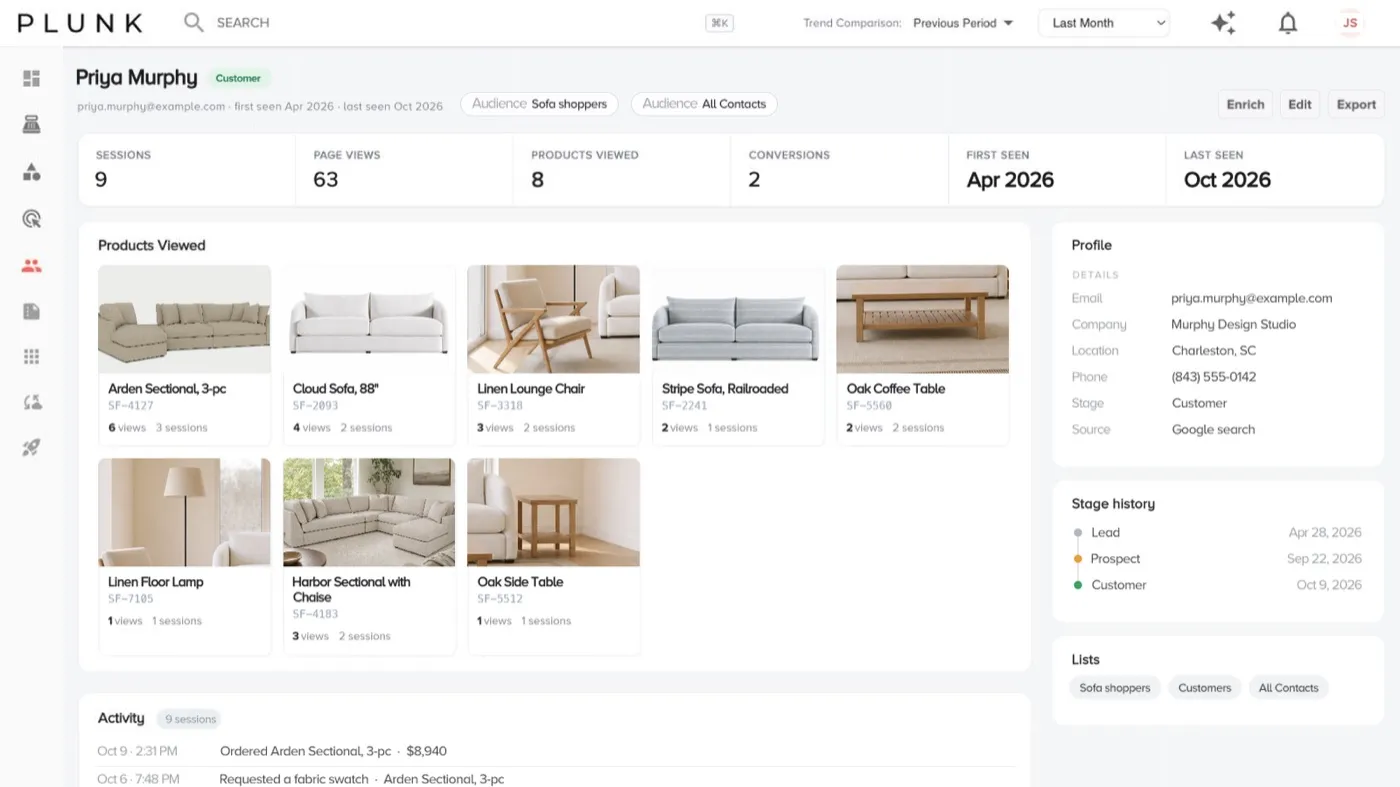
- Click a name to open the contact. You see the products they viewed, a History timeline you can filter (Visits, Conversions, Engagements, Emails, Orders), their stage history, lists, locations, top pages and email permission.
- Export from the list (this view or all contacts) or from a contact’s ··· menu. Exports are CSV files.
Edit or fill in a contact
Section titled “Edit or fill in a contact”- Edit changes names, emails and phones. Stage, company and sales rep come from your data feeds, so they can’t be changed here.
- Fill in details looks the person up and shows what it found next to what you have. Nothing changes until you click Apply.
How stages work
Section titled “How stages work”Stages are Lead, Prospect and Customer. People only move forward. The Lifecycle tab shows how many move on each stage and who is stuck. Owners and administrators can change what moves someone up with How stages work.
If something looks off
Section titled “If something looks off”- A visitor never shows up as a contact. People appear once they identify themselves, for example by filling in a form. Check the tracker is on every page. See The tracker isn’t recording visits
- The same person appears twice. Review pairs in Audiences > Duplicates. See Audiences.
Related
Section titled “Related”Was this helpful?
Still stuck? Contact support and include the job or page you were on.