See how people use your website
Before you start
Section titled “Before you start”- Website Analytics comes from the Plunk site tracker. See Install the site tracker.
- To see history from before the tracker went live, import your GA4 history.
- The date range and trend comparison in the top bar apply here.
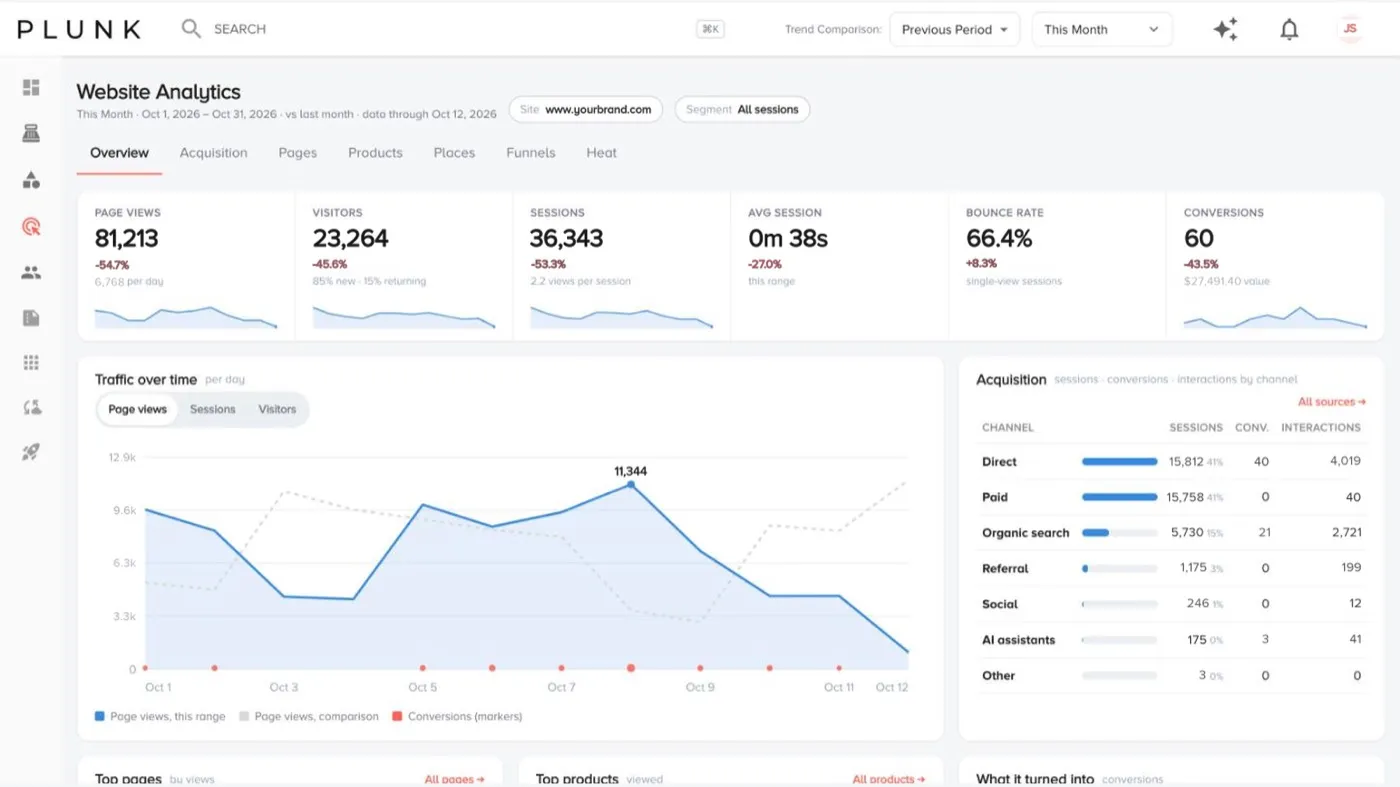
- Open Marketing > Website Analytics. The Overview shows traffic over time, acquisition, devices, where visitors are, top pages, top products and what visits turned into.
- Open Acquisition to see visits by channel, source, medium and campaign.
- Open Pages for page views per page. Click Export CSV to download the list.
- Open Products to see which product pages get viewed most.
- Open Places for maps of the US and the world, regions and cities. Turn on the markets overlay to compare with your markets.
Build a funnel
Section titled “Build a funnel”- Open Funnels and click + New funnel, or ask Plunk to draft one.
- Name it and add steps. Each step is a page path or an event, matched exactly or by how it starts.
- Choose how steps count: within one session, or by the same person over 7 days.
- Click Save as draft, then Activate. Funnel results build nightly.
See in-page heat
Section titled “See in-page heat”Open Heat, search for a page and switch between Clicks and Scroll on desktop, tablet or phone. Top clicked elements lists what people click most.
If something looks off
Section titled “If something looks off”- Visits are zero or low. Check the tracker is on every page. See The tracker isn’t recording visits
- Visits from a test or staging site show up. Owners can choose which websites count in Manage Data > Tracking.
- Numbers differ from Google Analytics. The two count bots and sessions differently. See Why do my numbers look wrong?
Related
Section titled “Related”Was this helpful?
Still stuck? Contact support and include the job or page you were on.