See who sells where with Territory & Reps
Before you start
Section titled “Before you start”- You need a sales feed with rep codes and a customer feed with addresses. See Connect your data.
- Rep coverage comes from your territories in Manage Data > Territories.
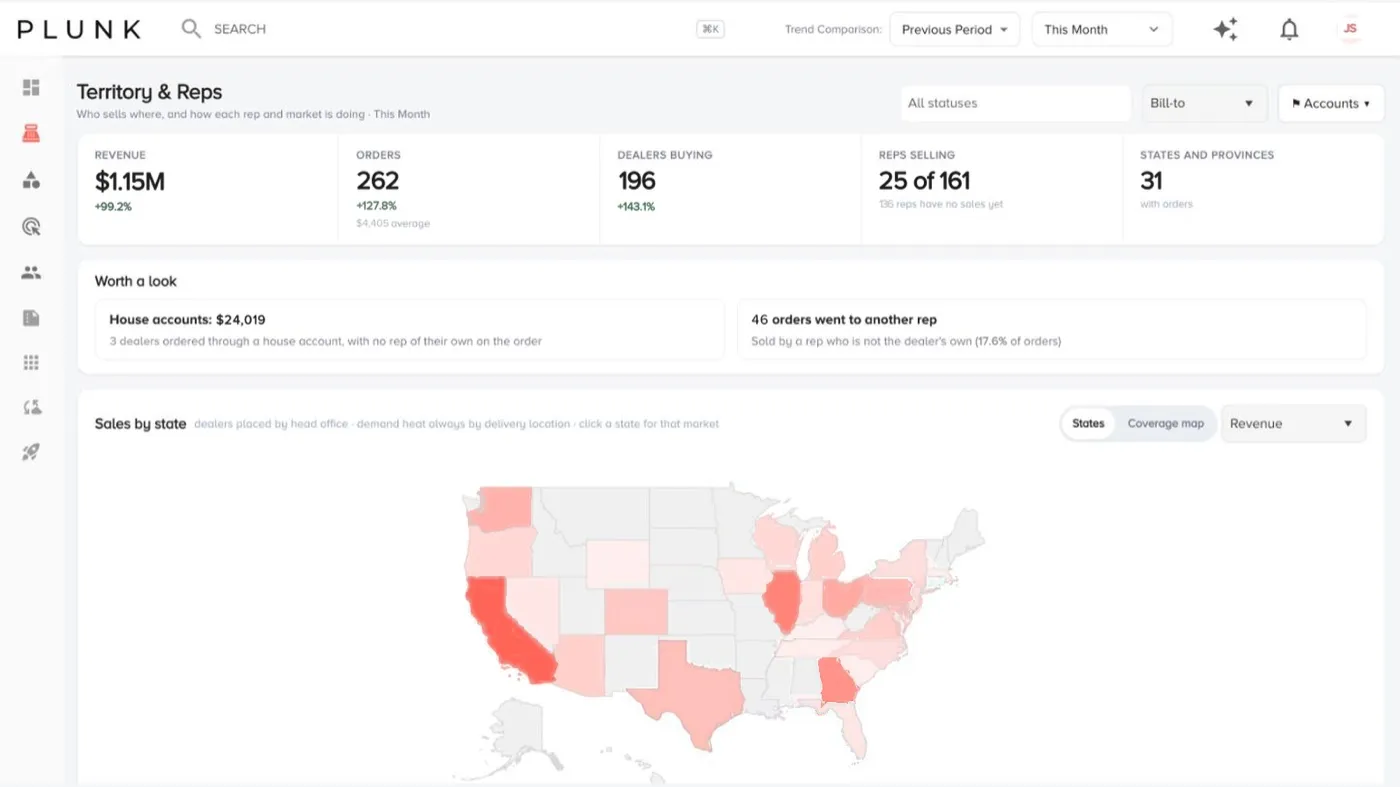
- Open Sales > Territory & Reps. The tiles show revenue, orders, dealers buying, reps selling and the states and provinces you sell into.
- Choose how to place retailers with the Bill-to / Ship-to menu: by head office or by where orders deliver.
- Exclude or isolate accounts with the Accounts filter, for example to leave out one very large account.
- Read Sales by state. Switch between revenue, orders and average order value, or open the Coverage map. Click a state to open it.
- Check Worth a look: places with sales but no rep, house-account sales and orders that went to another rep.
- Click a rep in the Reps list to open the rep page, or a retailer in Top dealers to open the dealer page.
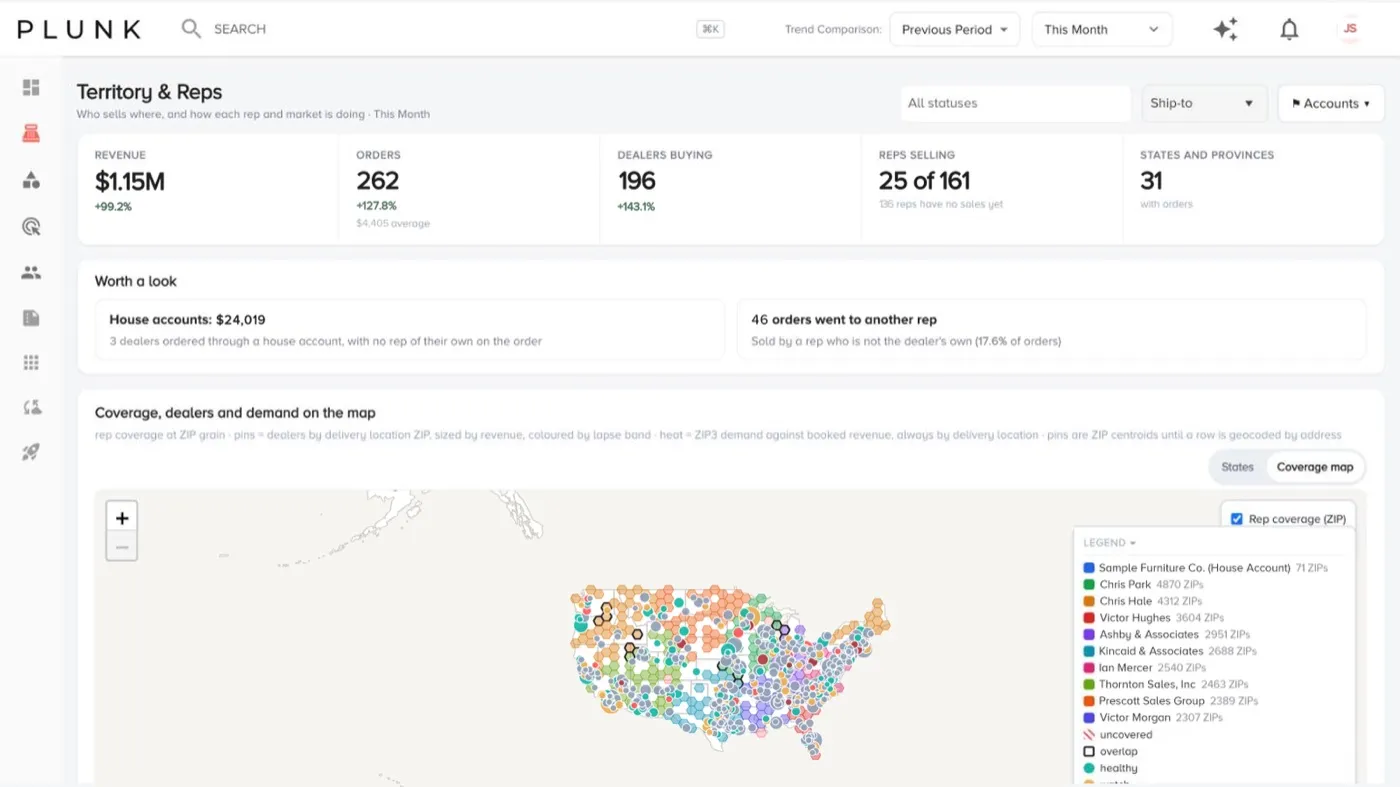
The coverage map
Section titled “The coverage map”The coverage map shows each rep’s ZIP coverage as colored areas and pins each retailer where it takes delivery, colored by order health. Hatched areas have retailers but no rep, and outlined areas are covered by two reps. Open it from Sales by state or from the Coverage tab in Sales.
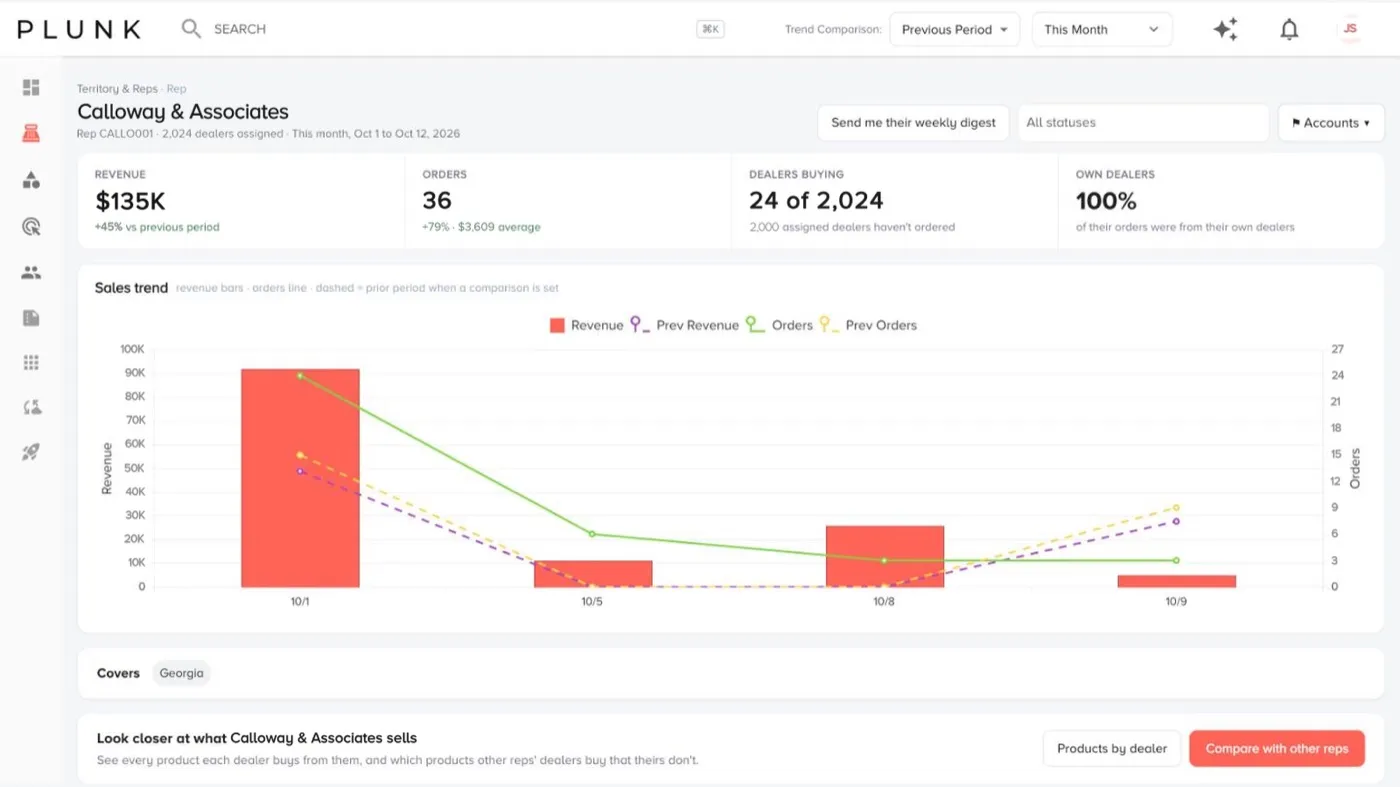
Rep detail
Section titled “Rep detail”A rep’s page shows revenue, orders, dealers buying out of those assigned, the share sold to their own dealers and a sales trend. Below are the states they cover, what they sell most, their dealers (Buying and Not yet), demand gaps in their territory, products by dealer and a comparison with other reps. Send me their weekly digest emails you their summary.
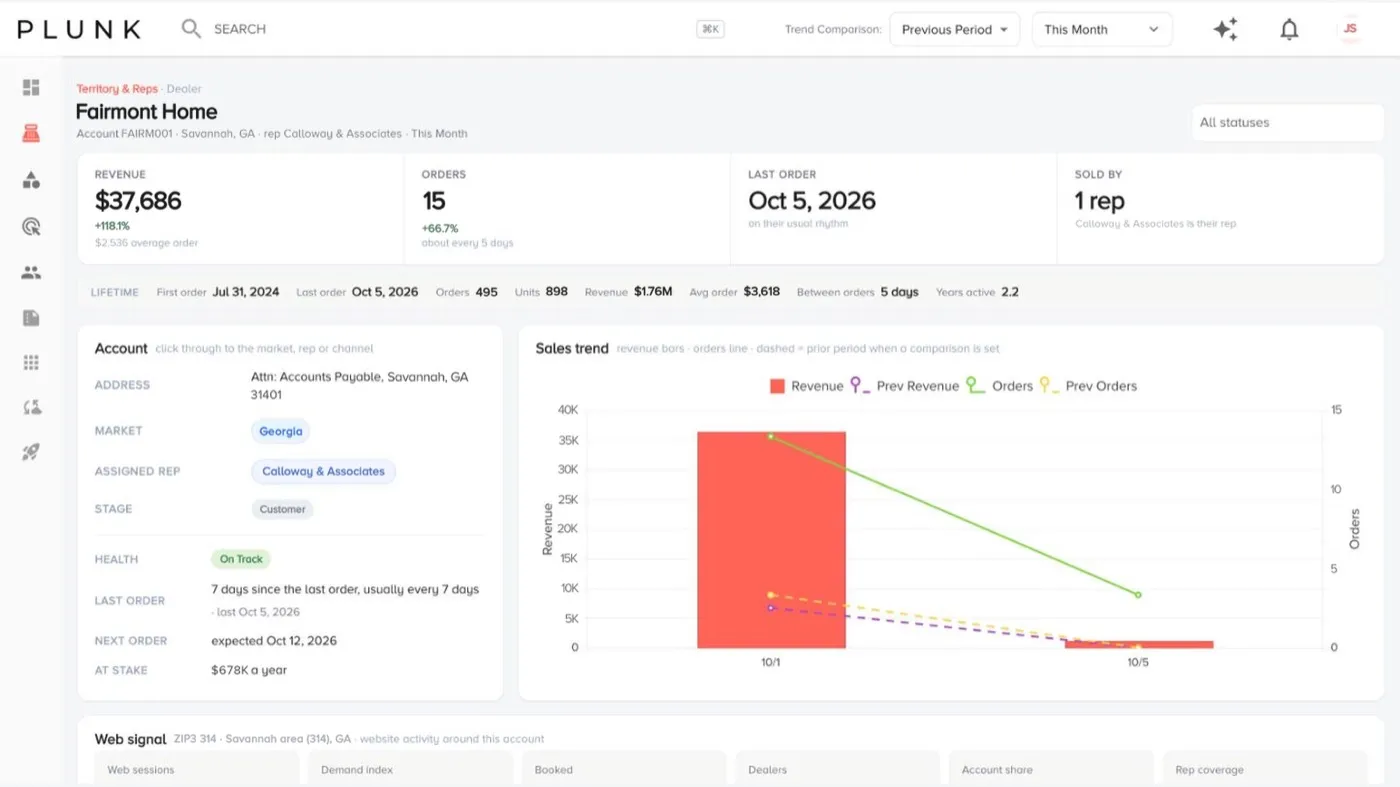
Dealer detail
Section titled “Dealer detail”A retailer’s page shows revenue, orders, last order and how many reps sold to it, a lifetime summary, the account card (head office, delivery address, market, assigned rep, channel and stage), health with the next order expected, a sales trend, what it buys, its web activity and what its peers buy that it doesn’t.
House accounts and orders sold by another rep
Section titled “House accounts and orders sold by another rep”- House accounts are retailers your company handles directly instead of through a rep. They show as House account, aren’t ranked with reps, and appear in their own Worth a look card.
- Orders sold by another rep lists orders where the retailer belongs to one rep but a different rep sold the order. The retailer’s own rep won’t see these in a view of just their sales. Switch between By dealer and By rep to find the pattern.
Fix who covers where
Section titled “Fix who covers where”These screens are read-only. Owners and administrators change coverage in Manage Data > Territories:
- Pick what’s in your file: ZIP to rep, ZIP to territory, or state to rep.
- Pick what to do: Add and update these ZIPs or Replace everything.
- Upload a spreadsheet (CSV) or paste rows, then click Check these rows. Fix anything flagged, for example an unknown rep code, or use the suggested match.
- Click Save. Every upload is listed under Uploads with Undo.
Links such as Fix in Territories and Assign territories on the Coverage tab take you straight there.
If something looks off
Section titled “If something looks off”- A rep shows no dealers. Rep pages fill from the rep codes on your feeds and your territories. See A rep shows no dealers
- A retailer appears in the wrong state. Switch between Bill-to and Ship-to. Head office and delivery address can be in different states.
- Totals look high or low. Check the date range and the Accounts filter. See Why do my numbers look wrong?
Related
Section titled “Related”Still stuck? Contact support and include the job or page you were on.