Install and verify the site tracker
Before you start
Section titled “Before you start”- You need access to your site’s template or theme, or someone who has it.
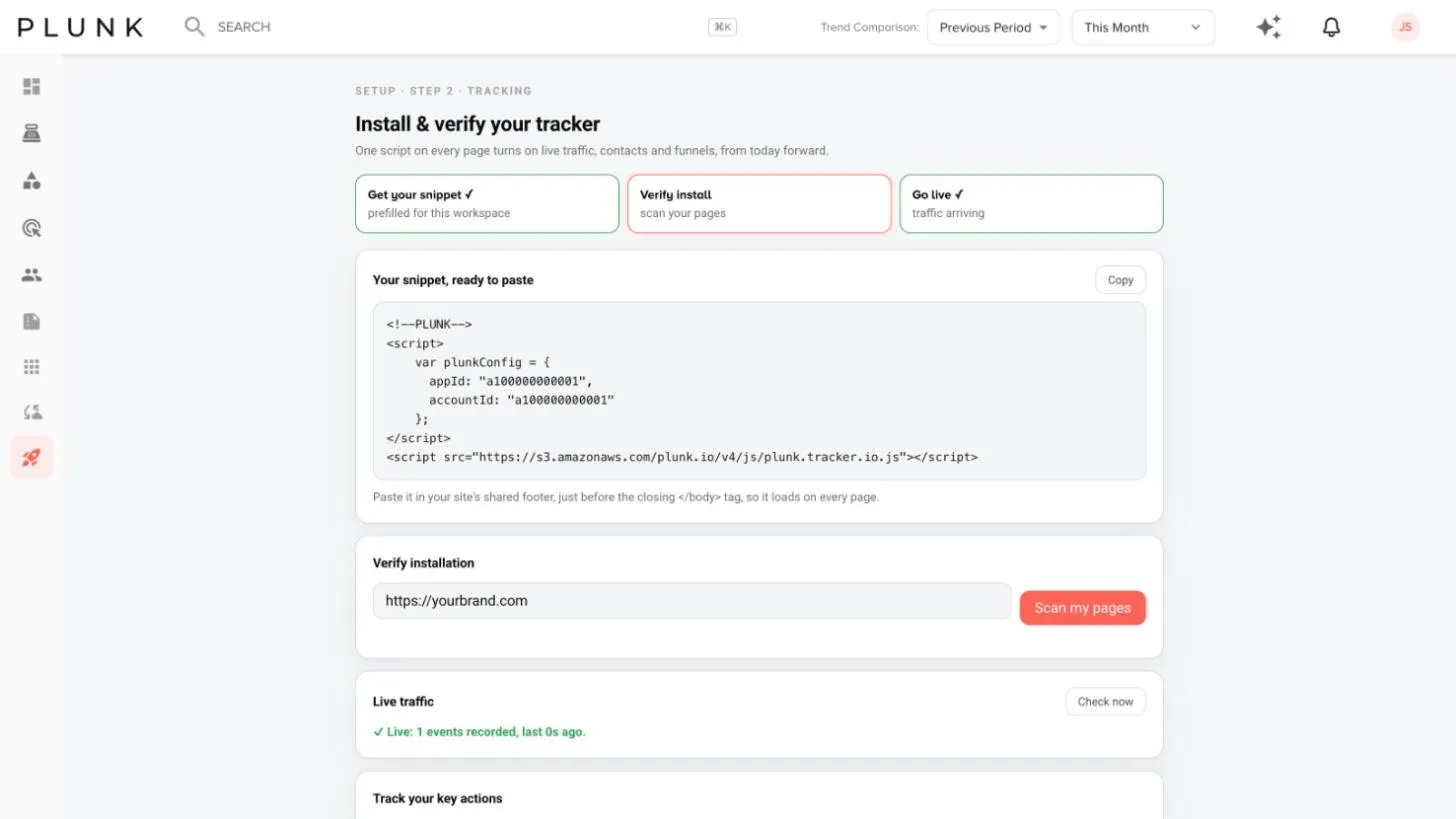
- The snippet is already filled in for your workspace. Don’t edit it.
- On Shopify, you don’t paste anything. Click Turn on theme embed on the Setup page and turn it on in the Shopify theme editor.
- Open Setup and click Set up tracking (or View tracking if you’ve been here before).
- Copy the snippet under Your snippet, ready to paste.
- Paste it into your site’s shared footer, just before the closing body tag, so it loads on every page. Publish the change.
- Verify the install. Enter your site address and click Scan my pages. Each page is marked as correct, using the wrong workspace, or missing the tracker.
- Check Live traffic. Load any page on your site, then click Check now. The page also checks every 10 seconds. Once it says it’s live, you’re done.
Track your key actions
Section titled “Track your key actions”Page views come in on their own. For actions that matter, such as a quote request or a dealer locator search, add an events script.
- Under Track your key actions, type the action names, separated by commas.
- Click Generate script. Plunk writes a plunk-events.js file for your site.
- Hand it to your developer. They add one line for each action where it happens. Each action appears in Plunk the first time it fires.
If something looks off
Section titled “If something looks off”- The scan says no tracker. The snippet isn’t on that page. Put it in the shared footer so every page carries it, then scan again. See The tracker isn’t recording visits
- The scan says wrong workspace. The page has a different workspace’s snippet. Replace it with the one shown on this page.
- No traffic yet. Clear any page cache on your site, load a page and click Check now.
Related
Section titled “Related”Was this helpful?
Still stuck? Contact support and include the job or page you were on.