Ask Plunk about your numbers
Before you start
Section titled “Before you start”- Ask Plunk reads the same data as the screens: products, sales, retailers, forecasts, audiences and more. If your workspace doesn’t track something, it says so instead of guessing.
- It’s available on every screen.
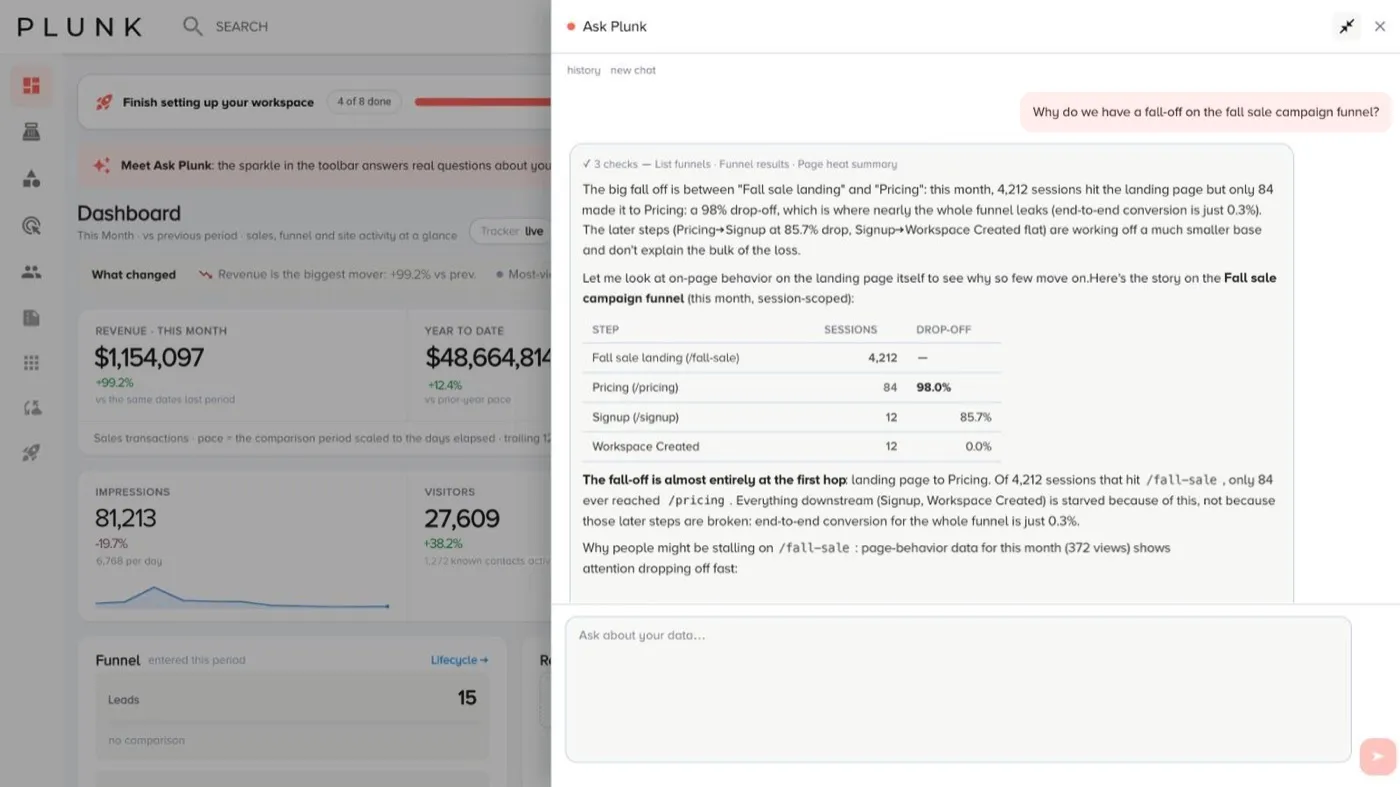
- Click the sparkle (Ask Plunk) in the top bar. The panel opens on the right. Widen it if you want more room.
- Ask a question, or pick one of the suggestions.
- Read the answer. Each check Plunk ran shows as a chip while it works, then folds into a line you can click to see every check.
- Ask a follow-up in the same conversation, or click new chat to start over.
- Click history to reopen an earlier conversation. Conversations are kept for 90 days.
Good questions to ask
Section titled “Good questions to ask”- “Which dealers usually order by now and haven’t?”
- “How did revenue compare with last year this quarter?”
- “Which products get the most views but the fewest orders?”
- “Is my tracker live?”
- “What do I still need to do in setup?”
If something looks off
Section titled “If something looks off”- It says your session expired. Sign in again, then retry the question.
- The answer covers a different period than you meant. Name the dates in your question, for example “in September”.
- The numbers don’t match a screen. Check the range Plunk named against the screen’s date range. See Why do my numbers look wrong?
Related
Section titled “Related”Was this helpful?
Still stuck? Contact support and include the job or page you were on.