Track each store against its goal
Before you start
Section titled “Before you start”- Stores need a sales feed with a store on each order. See Connect your data.
- Only owners and administrators can set store goals.
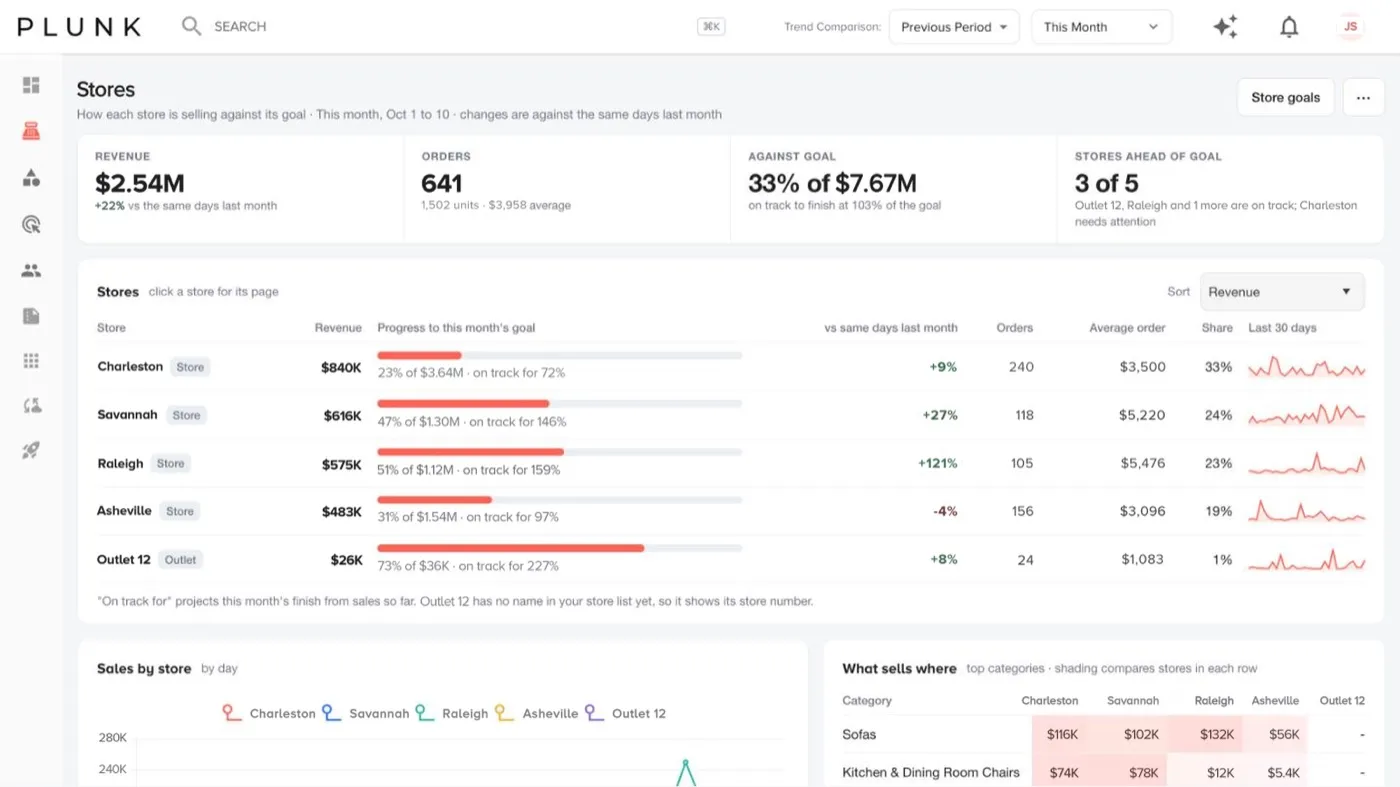
- Open Sales > Stores. The tiles show revenue, orders, progress against goal (and where you’re on track to finish) and how many stores are ahead of goal.
- Sort the Stores table by revenue, progress to goal, change, orders, average order or name.
- Check What sells where to compare products across stores, and Stores on the map.
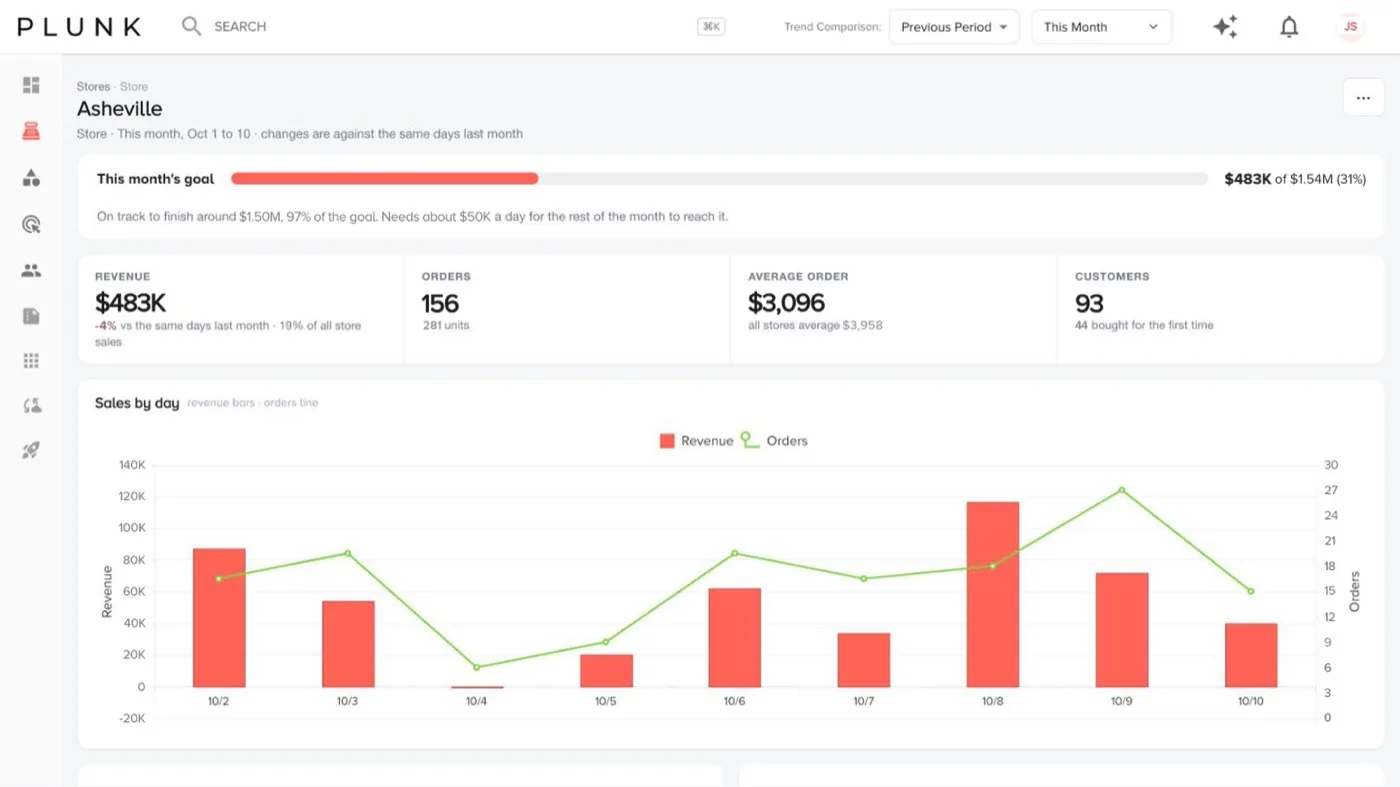
- Click a store to open it. You see revenue, orders, average order and customers, sales by day, and a pace line such as “On track to finish around…” or “Needs about … a day”. Below are what sells there, top products and top buyers.
Set store goals
Section titled “Set store goals”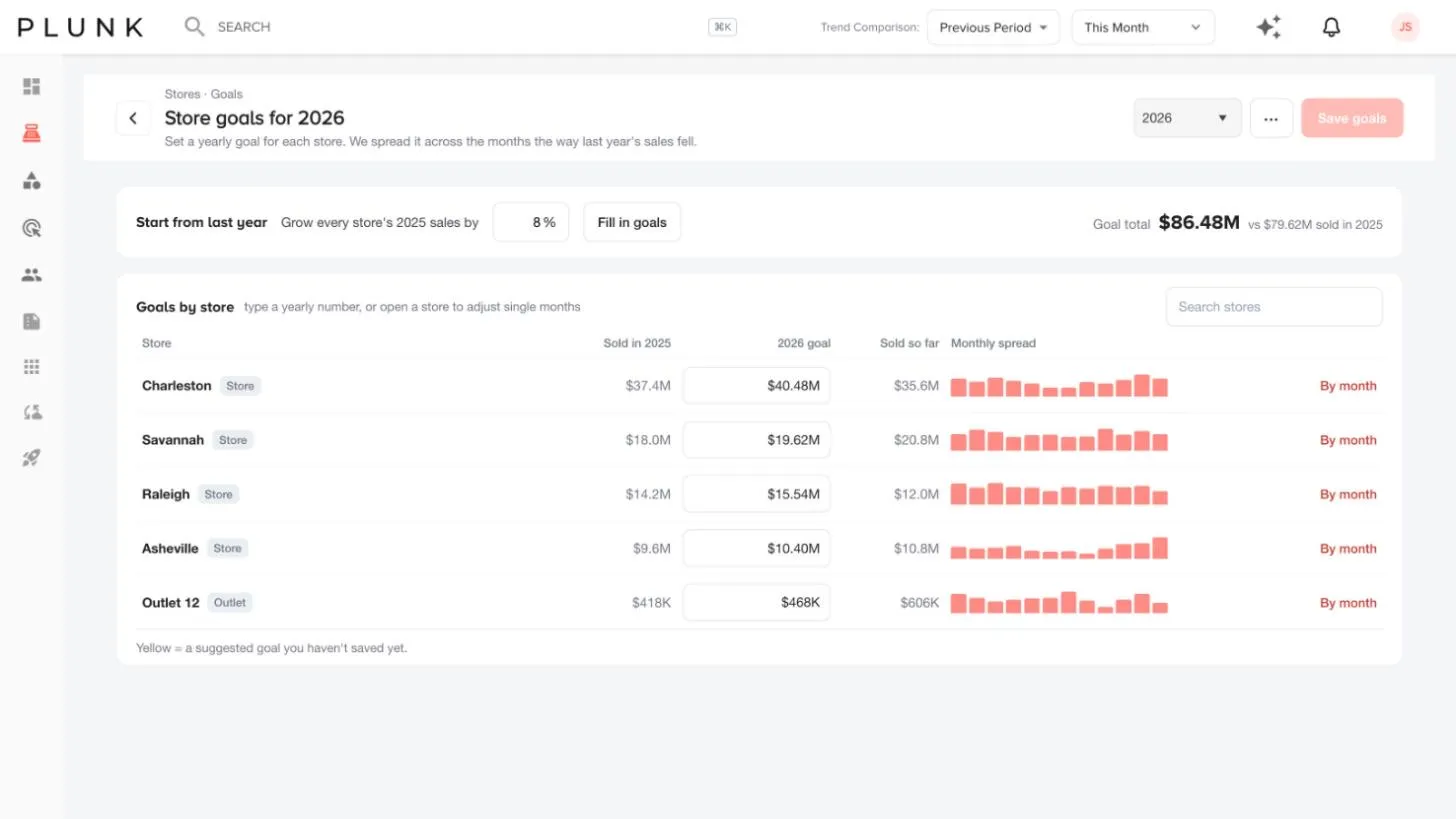
- Click Store goals.
- Use Start from last year: enter a growth percentage and click Fill in goals.
- Adjust any store’s goal, or search for a store.
- Click Save goals.
If something looks off
Section titled “If something looks off”- A store shows No goal set. Add a goal for it in Store goals.
- A store is missing. Its orders may not carry a store on your sales feed. See My feed stopped updating
Related
Section titled “Related”Was this helpful?
Still stuck? Contact support and include the job or page you were on.