Send one email when something happens
Before you start
Section titled “Before you start”- Single emails use the same triggers, sender, brand kit and rules as journeys. See Email journeys.
- Each person gets a single email once, ever. People who opted out of email are never sent to.
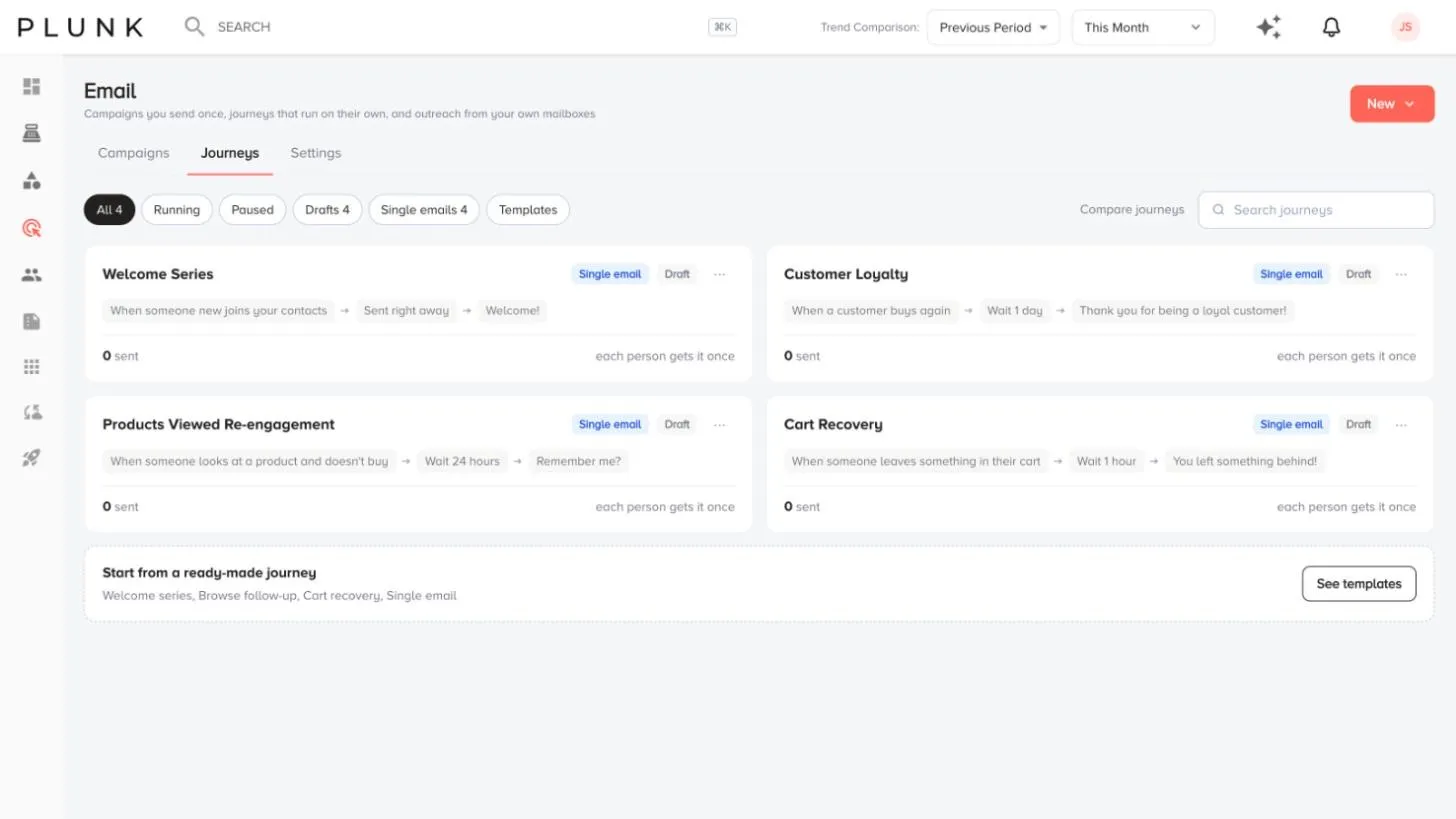
- Open Marketing > Email, click New and pick Single email.
- Choose what starts it, for example Looks at products, Leaves a cart, Buys again or Someone signs up.
- Set the wait before it sends, if you want one.
- Write the email in the composer, or switch to HTML and paste your own. See Email composer and brand kit.
- Send me a test to check it in your own inbox.
- Click Turn on. It sends to people who hit the trigger from now on.
Automations made before journeys
Section titled “Automations made before journeys”If your workspace has automations from before single emails, open one and click Promote to journey. This makes a draft journey with the same trigger, audience, sender and email. The automation keeps running until you pause it.
If something looks off
Section titled “If something looks off”- Leaves a cart also reached people who only looked. For now that trigger can also include people who only looked at products. Use a split in a journey if you need to tell them apart.
- Nothing is sending. Check the email is turned on and your sender is verified in Email > Settings.
Related
Section titled “Related”Was this helpful?
Still stuck? Contact support and include the job or page you were on.