Manage your feeds, tracking and data settings
Before you start
Section titled “Before you start”- Anyone can see their workspace’s sources. Only owners and administrators can change feeds and the settings tabs.
- New here? Run the guided setup first. See Connect your data.
The tabs
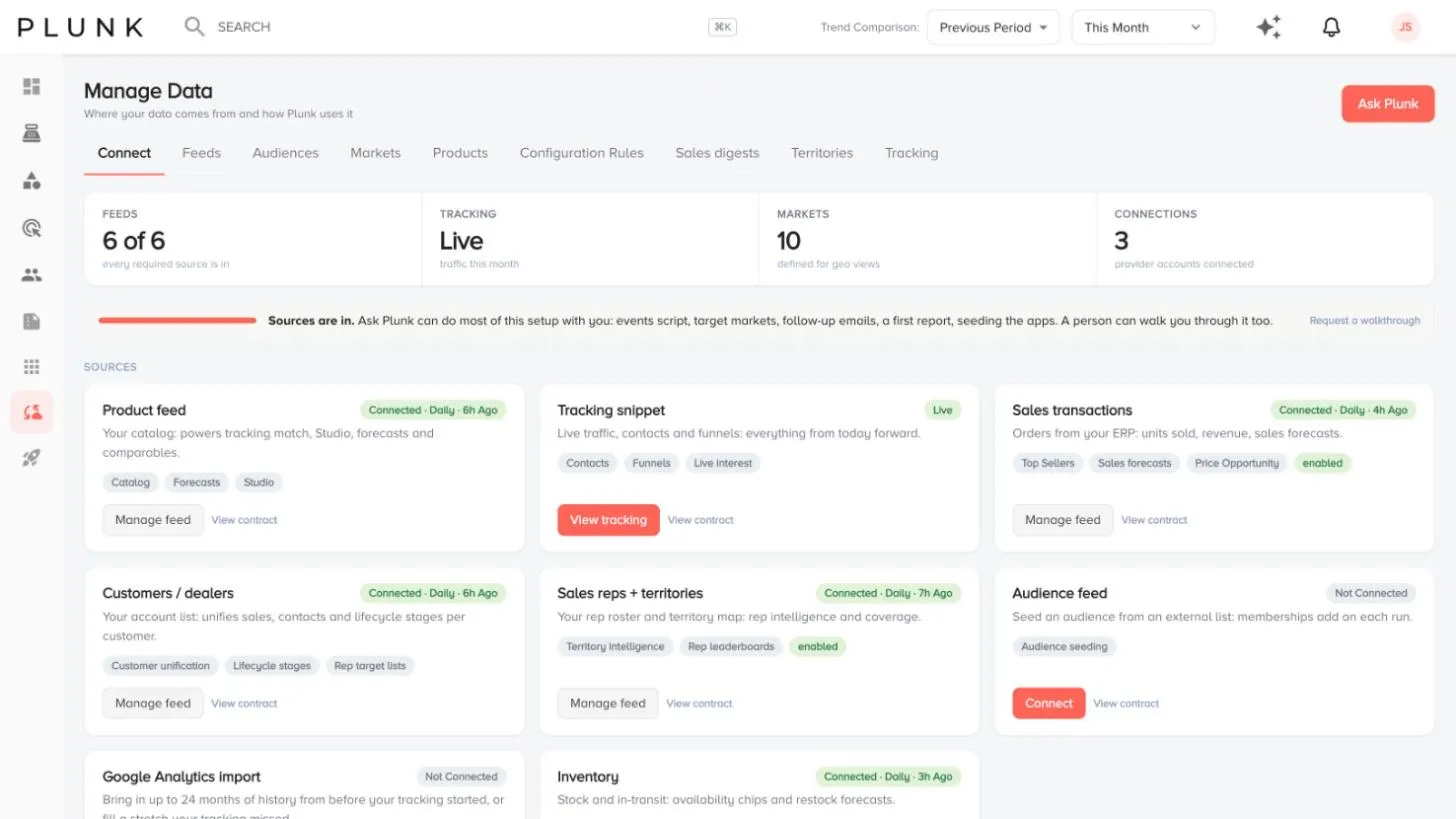
Section titled “The tabs”- Connect: a card for every source (Shopify store, product feed, tracking snippet, sales transactions, customers / dealers, sales reps + territories, audience feed, Google Analytics import and inventory). Each card shows a status such as Connected, Running now, Paused, Last run failed or Not updated since, with a plain-English line when something is wrong. View contract shows the columns a feed expects. Below are your provider connections for email, social, publishing and analytics.
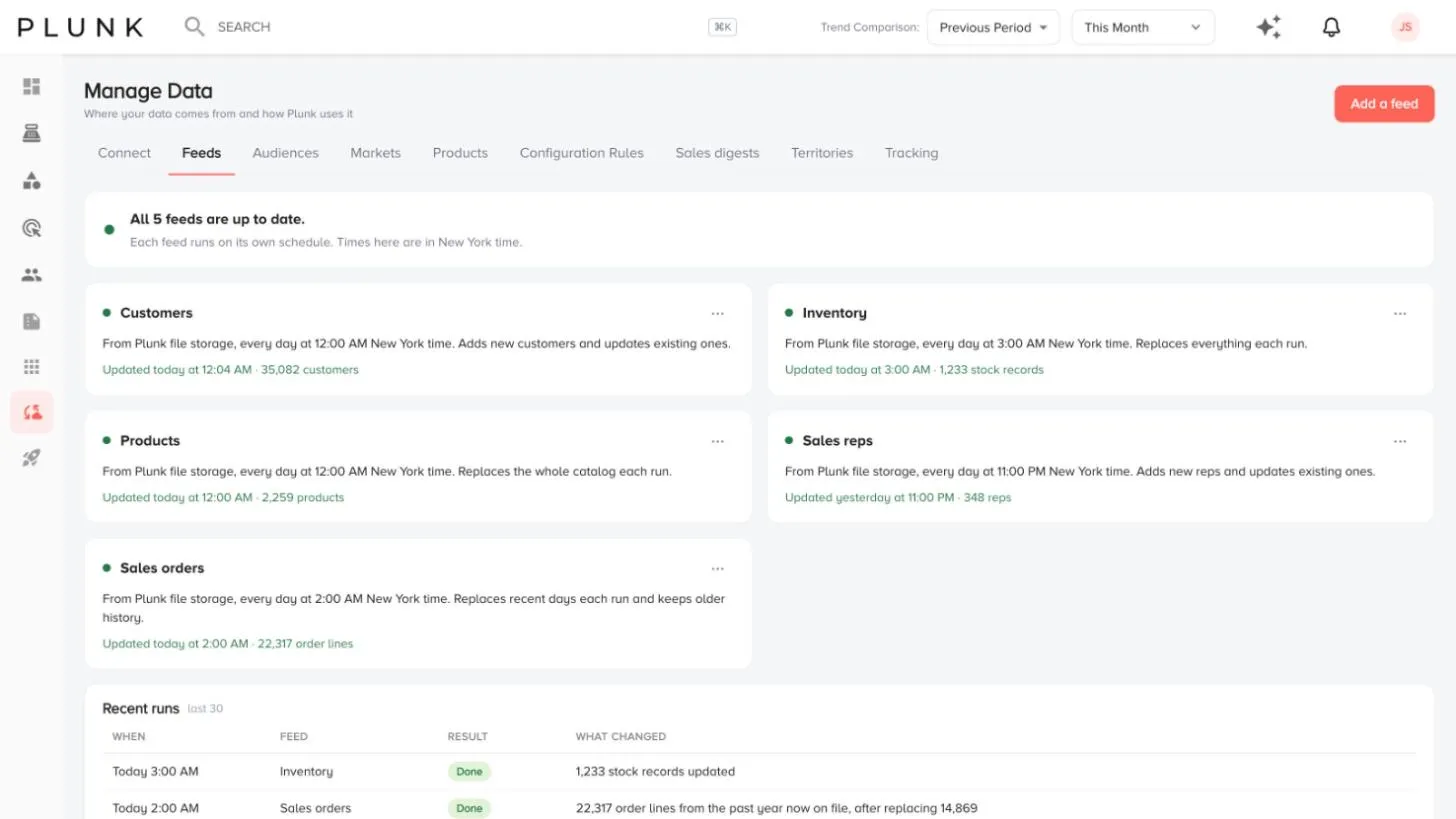
- Feeds: every scheduled feed with its last run and a Recent runs table.
- Audiences: your lists, with Upload a list and New audience. See Audiences.
- Markets: the markets you sell into, by ZIP code. Add a market or Upload markets from a file.
- Products: your catalog, and Update products to pick up a file from your website or upload one now.
- Configuration Rules: how Plunk reads the lines on your orders. See Options and configurations.
- Price tiers: dealer price levels and quote settings.
- Sales digests: owner, rep and store summary emails, with who gets them and how often.
- Territories: which rep covers which ZIP codes. See Territory and reps.
- Tracking: which websites your tracker counts visits from.
Add or change a feed
Section titled “Add or change a feed”- Open Feeds and click Add a feed, or use Change in a feed’s ··· menu.
- Pick what the file holds and enter the File address (http, https or ftp), plus a sign-in name and password if it needs one.
- Choose what each run does, for example Add new and update existing or Replace everything.
- Choose how often: every day, every Monday or on the 1st of each month, with the time and time zone.
- Click Check the file. Plunk reads it and lists the columns it found.
- Click Save.
A feed’s ··· menu also has Run now, Pause and See its runs.
If something looks off
Section titled “If something looks off”- A feed says Needs a look. Open See its runs. The run names the column and row that caused the problem. See My feed stopped updating
- A feed says the last file was empty. The file at that address had no rows. Check your export, then click Run now.
- Visits from a test site are counted. On Tracking, add only the websites you want to count.
Related
Section titled “Related”Was this helpful?
Still stuck? Contact support and include the job or page you were on.